RoofLink
Send RoofLink jobs and leads to LettrLabs with a RoofLink webhook.
Who can use this: Core plan or higher. Any role. Needs: Admin access to RoofLink.
Overview
A RoofLink admin can send a job or a lead to a LettrLabs webhook. LettrLabs then mails the customer, or the homes near the job.
Before you begin
- Admin access to RoofLink.
- Webhook settings in your RoofLink account. If you do not see them, ask RoofLink support to turn them on for your plan.
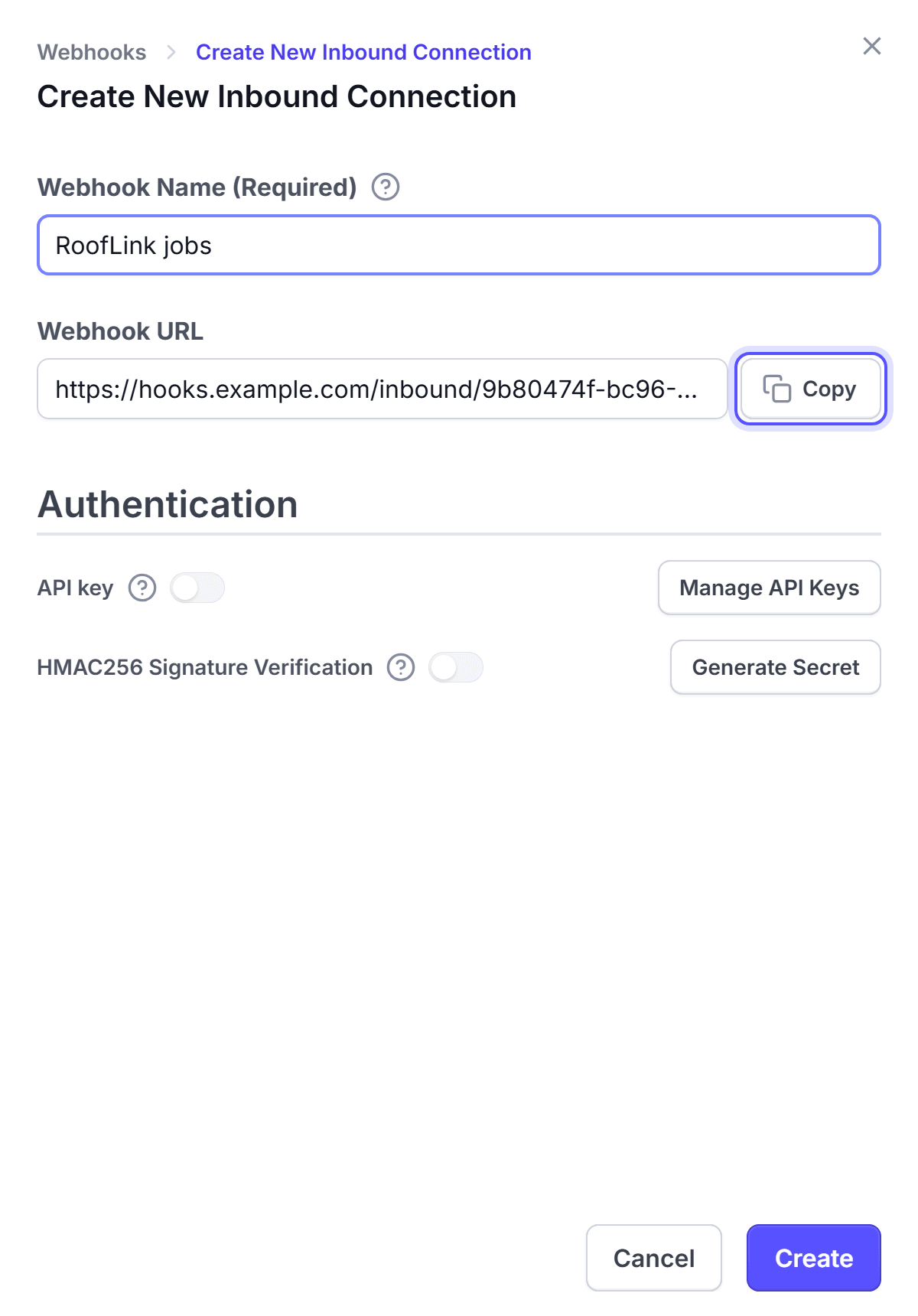
- A LettrLabs webhook. See The LettrLabs part of each recipe.
Send RoofLink records with a webhook
A webhook that asks for an API key refuses a call with no
X-API-KEY header. Ask RoofLink support whether its webhook can send that header before you turn on the API key toggle.In RoofLink, as an admin, open the webhook and Zapier settings.
Paste the LettrLabs webhook URL.
Select the job or lead event that sends the record.
Make one test record in RoofLink.
You're done when the test record shows on the History tab of the Inbound webhooks page. Then make the campaign, and set the webhook to Active. See Mail to recipients or Radius Mail.
FAQ
Related
CRM recipes
Compare the recipes of each CRM.
Set up a webhook
Create the URL that RoofLink sends to.
Radius Mail
Mail the homes near each job.
Steps checked 2026-11-10.