Call tracking
Buy tracking numbers and count the calls your mail brings.
Overview
Call tracking gives you a phone number to print on your cards. Each call to that number forwards to your own phone. You print the number only on your mail, so each call to it is a response to the mail.
You can use call tracking to:
- Buy one or more tracking numbers in the area codes you serve.
- Put a tracking number on a template.
- Choose the phone that each number forwards calls to.
- Remove a number that you no longer use.
A call tracking provider supplies the numbers. The provider bills your credit card directly. The card for call tracking is separate from the payment methods of your LettrLabs account.
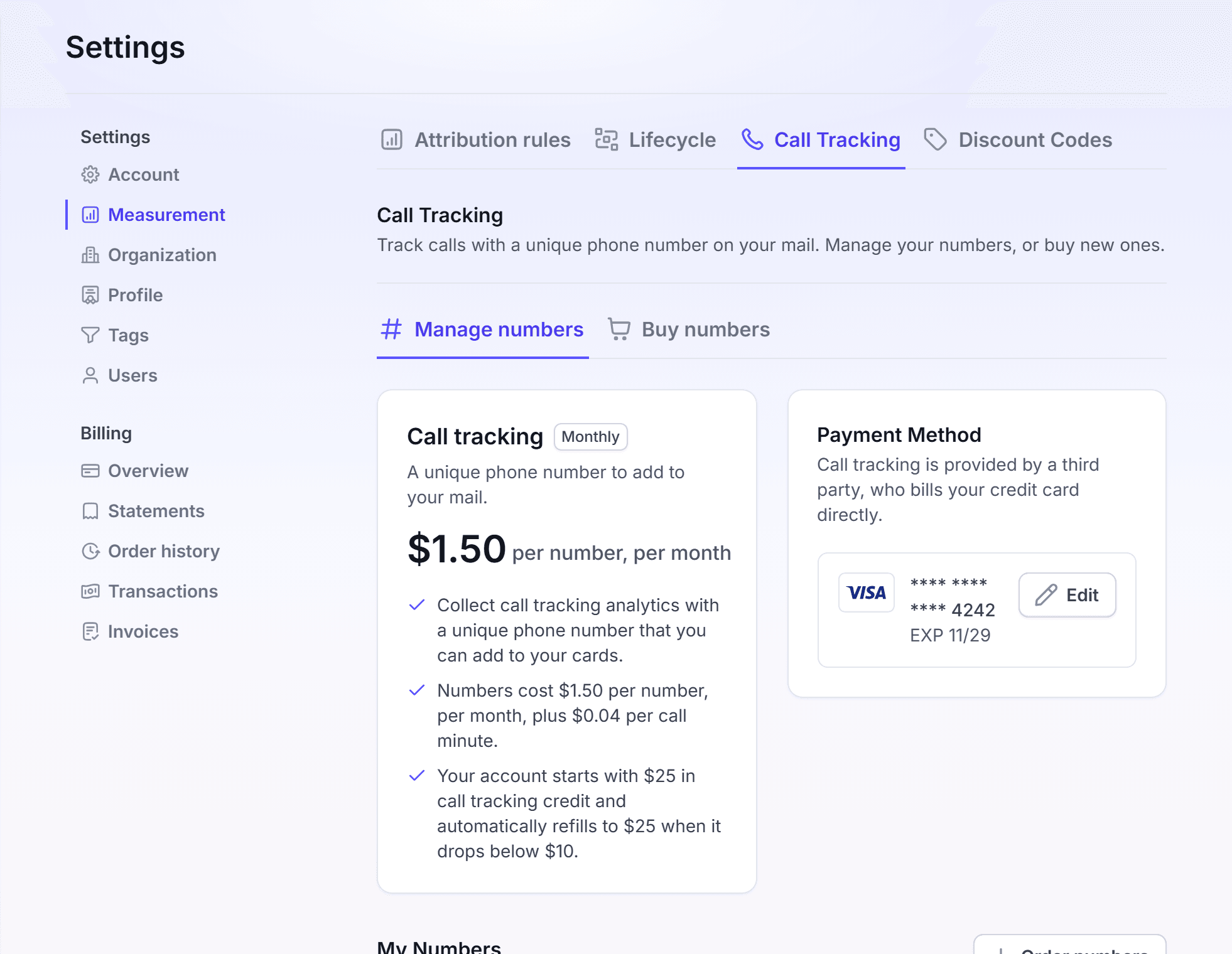
Buy tracking numbers
Buy a tracking number before you design the card that uses it.
Click Settings, then click Measurement. Click the Call Tracking tab.
Click the Buy numbers tab. The Numbers for sale table opens.
To find a local number, select an area code in All area codes. To find SMS or MMS numbers, select a value in All features.
On the row of the number you want, click the add to cart button. The number shows in the cart. The cart shows the total price per month, for example "$1.50 /month".
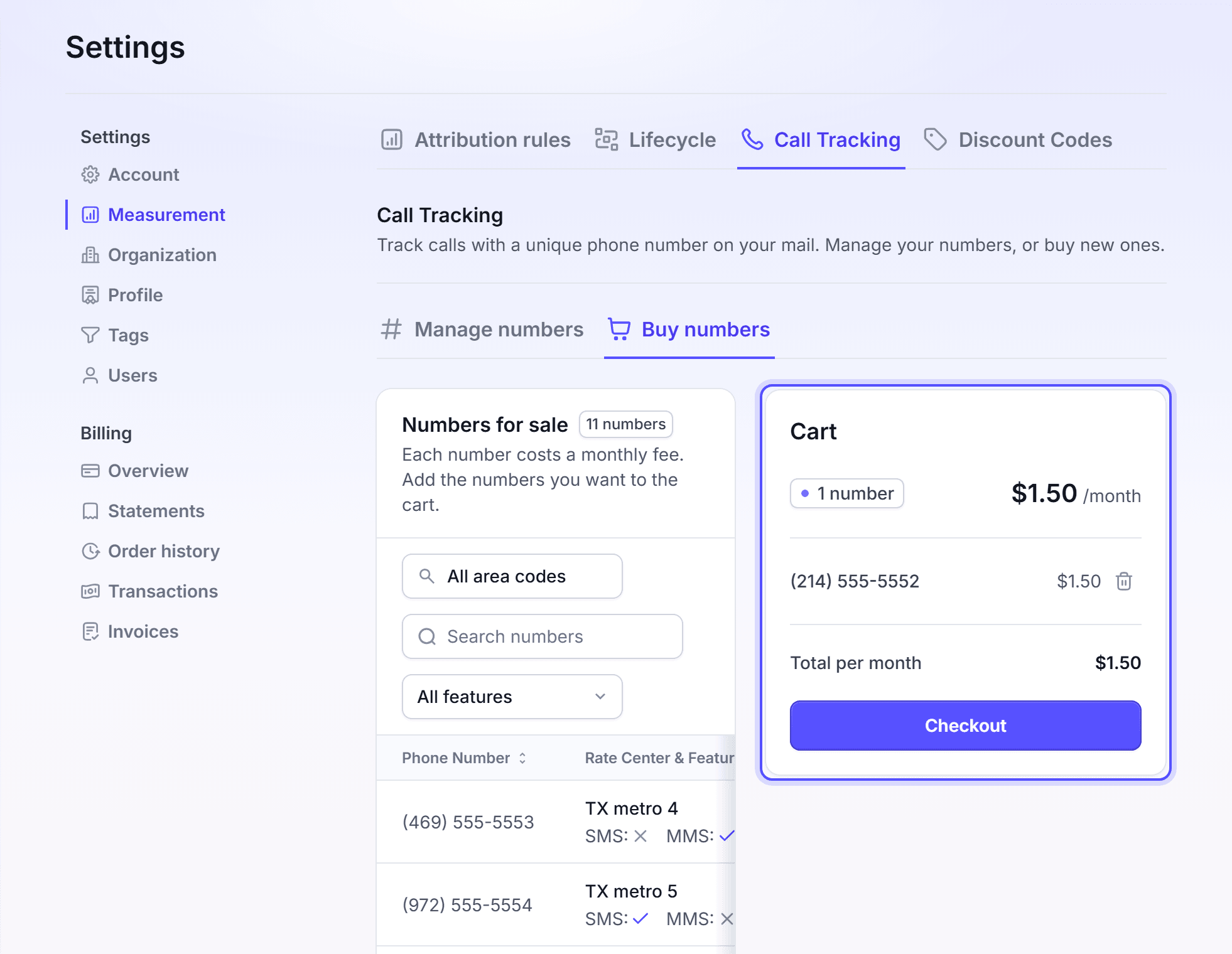
Read Total per month in the cart. Then click Checkout.
If you have no card on file, the Card Details dialog opens. Enter the Card Number, Expiration Date, CVV, Cardholder Name, Address, City and Zip. Then click Checkout.
You're done when the Manage numbers tab opens and shows the new number under My Numbers. The monthly fee starts now. Set the forwarding phone next, so calls reach you.
Set where calls forward
Each number forwards calls to a phone you choose. A number with no forwarding phone shows Not set.
On the Manage numbers tab, find the number under My Numbers.
In the Forwards Calls To column, click the edit button.
In Forwards Calls To, enter the phone number that takes the calls.
Click Save.
You're done when the Forwards Calls To column shows the phone number.
Put a tracking number on a template
Add the number to the text of your card, so each person who calls uses the tracking number.
Open the template in the design editor.
Click in the handwritten text, at the place where the number goes.
In the dock at the left of the editor, click Tracking.
Under Call Tracking, open Select a tracking number, and select a number.
You're done when the number shows in the text of the card. To take it off, click Remove beside Call Tracking. If the list reads No Call Tracking Available, buy a number first.
Change the payment method
Change the card when it expires, or when another card must pay the provider.
On the Manage numbers tab, find the Payment Method card.
Click Edit. If no card is on file, click Add Payment Method.
In the Card Details dialog, enter the card and the billing address.
Click Save Card.
You're done when the Payment Method card shows the new card.
Remove a number
Remove a number when no card in the mail uses it.
On the Manage numbers tab, on the row of the number, click the remove button.
In the Remove number dialog, click Confirm.
You're done when the number is gone from My Numbers.
FAQ
Related
Templates
Design the card that prints your tracking number.
Discount codes
Count the orders that use a code from your mail.
How attribution works
Learn how LettrLabs counts the results of your mail.
Steps checked 2026-11-16.