Start guide
Learn where each task starts in LettrLabs, so you can go straight to the page you need.
Overview
LettrLabs has five main places: Home, the left nav, search, the account menu and Settings. Each task in the other help pages starts in one of them. You change nothing in your account when you open them.
You can use this guide to:
- Find the page where each task starts.
- Search for a page, a setting or one of your records.
- Read your balance and your notifications.
- Find a feature that is not in your nav.
Start from Home
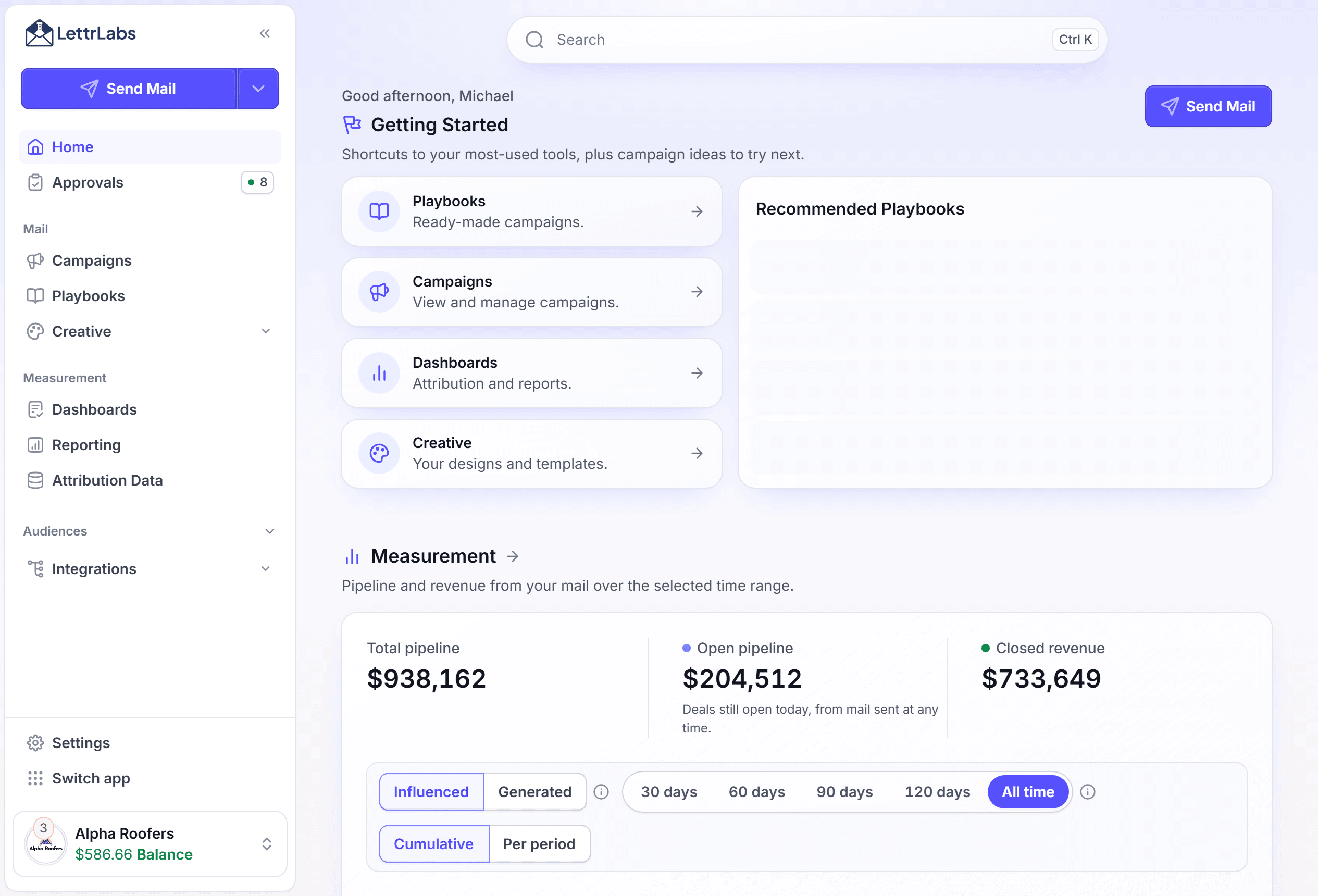
Use Home when you sign in and want to see your results or start a new campaign.
In the left nav, click Home. The Getting Started page opens.
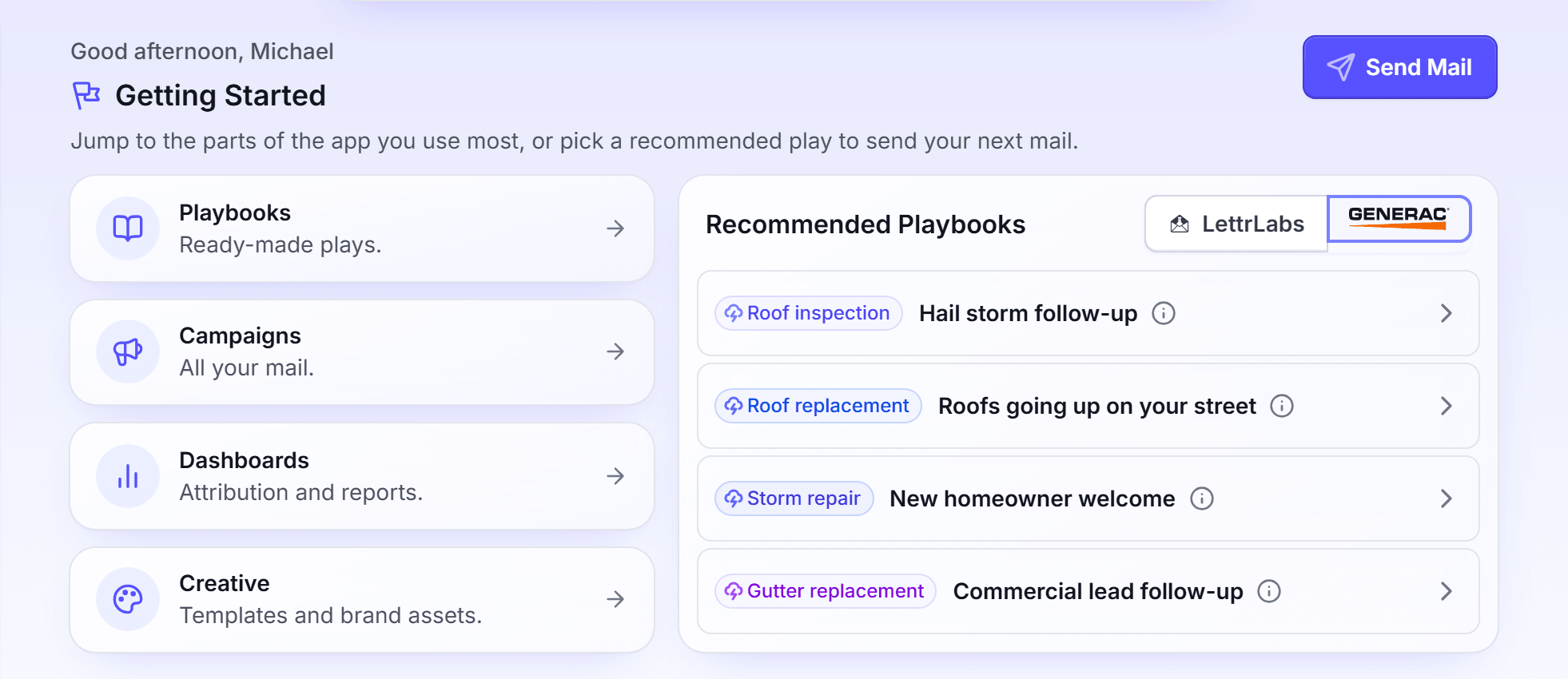
Click one of the four tiles to open that area: Playbooks, Campaigns, Dashboards or Creative.
Under Recommended Playbooks, click a play to see it.
Scroll down to the Measurement, Campaigns and Top campaign sections.
In Top campaign, click Open campaign.
Recommended Playbooks lists plays for the Trade in Settings > Account. When the account has no trade, the list shows plays that fit each trade. Click Set your trade to see the plays of your trade. A LettrLabs play opens in Send Mail. A partner playbook opens its launch window on the Playbooks page.
The Top campaign section shows only when a campaign brought in pipeline. The results sections fill after your mail reaches homes.
When a connected source stops its connection, Home shows a notice, for example "ServiceTitan is disconnected." The notice names each source that is disconnected. The records of the source stay. To get new records, click View integrations on the notice, and connect the source again.
After you change a setting in Settings > Attribution, Home shows a notice while LettrLabs updates the figures. The notice reads "Attribution is processing your last settings change. The figures update within about 4 hours." When the update fails, a warning tells you to save the change again.
You're done when the area that you clicked opens. Home changes nothing in your account.
Use the left nav
Use the left nav to open any area of LettrLabs.
At the top of the nav, click Send Mail to open the campaign builder.
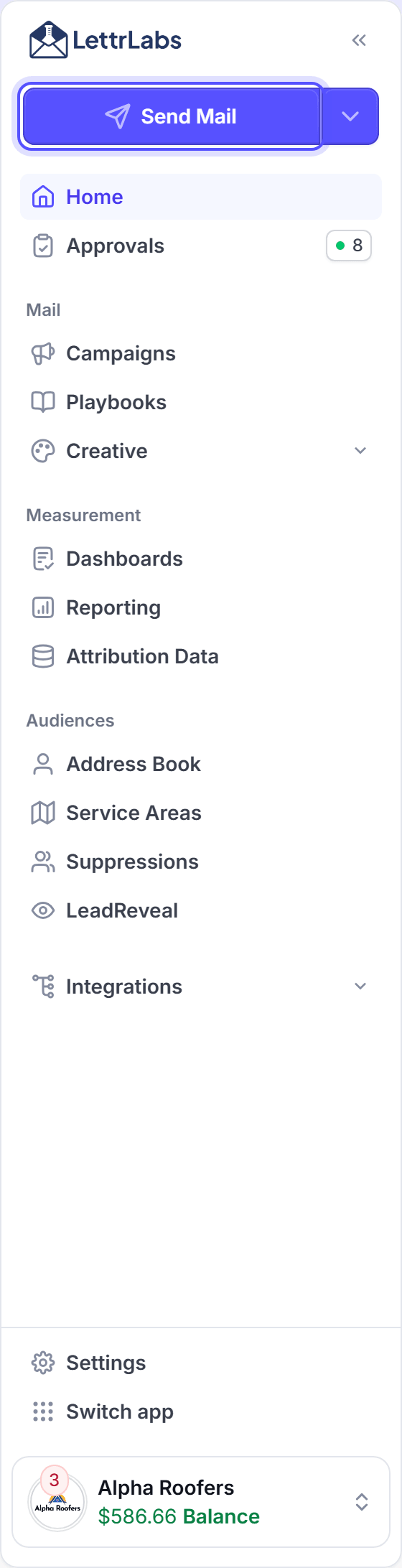
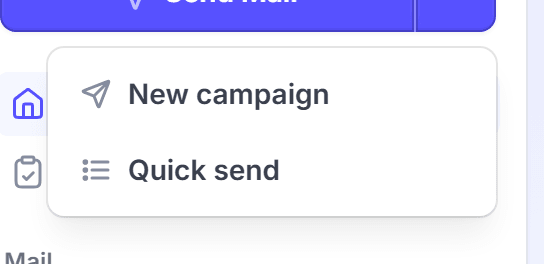
To pick a different start, open the menu of Send Mail. Then click New campaign or Quick send.
Click Approvals under Home to see the runs that wait for your approval.
Click a page in the Mail group: Campaigns, Playbooks or Creative.
Click a page in the Measurement group: Dashboards, Reporting or Attribution Data.
Click a page in the Audiences group: Address Book, Service Areas, Suppressions or LeadReveal.
Click Integrations to open its three pages: Integrations, Webhooks and API keys.
Creative holds two pages: Templates and Brand Assets. The number on Approvals shows how many runs wait for you. Settings is at the foot of the nav.
Suppressions, LeadReveal and Webhooks show only when your plan includes them. Webhooks needs the Core plan or higher.
The table lists where each common task starts in the left nav.
| To do this | Open this |
|---|---|
| Send a campaign | Send Mail |
| See and manage your campaigns | Campaigns |
| Make or edit a card design | Creative > Templates |
| Upload your logo images and fonts | Creative > Brand Assets |
| Add the people you know | Address Book |
| Draw the area you serve | Service Areas |
| Connect your CRM or store | Integrations > Integrations |
| Make a key for an AI assistant | Integrations > API keys |
| See what your mail earned | Dashboards |
| Approve a waiting run | Approvals |
When you belong to an organization or a partner program, Switch app shows at the foot of the nav. It opens the Organization app or the Partners app.
You're done when the page that you clicked opens. The nav changes nothing in your account.
Search the app
Use search when you know the name of a page, a setting or a record.
Click Search in the top bar. You can also press Ctrl K, Cmd K on a Mac, or "/".
Type a word, for example billing.
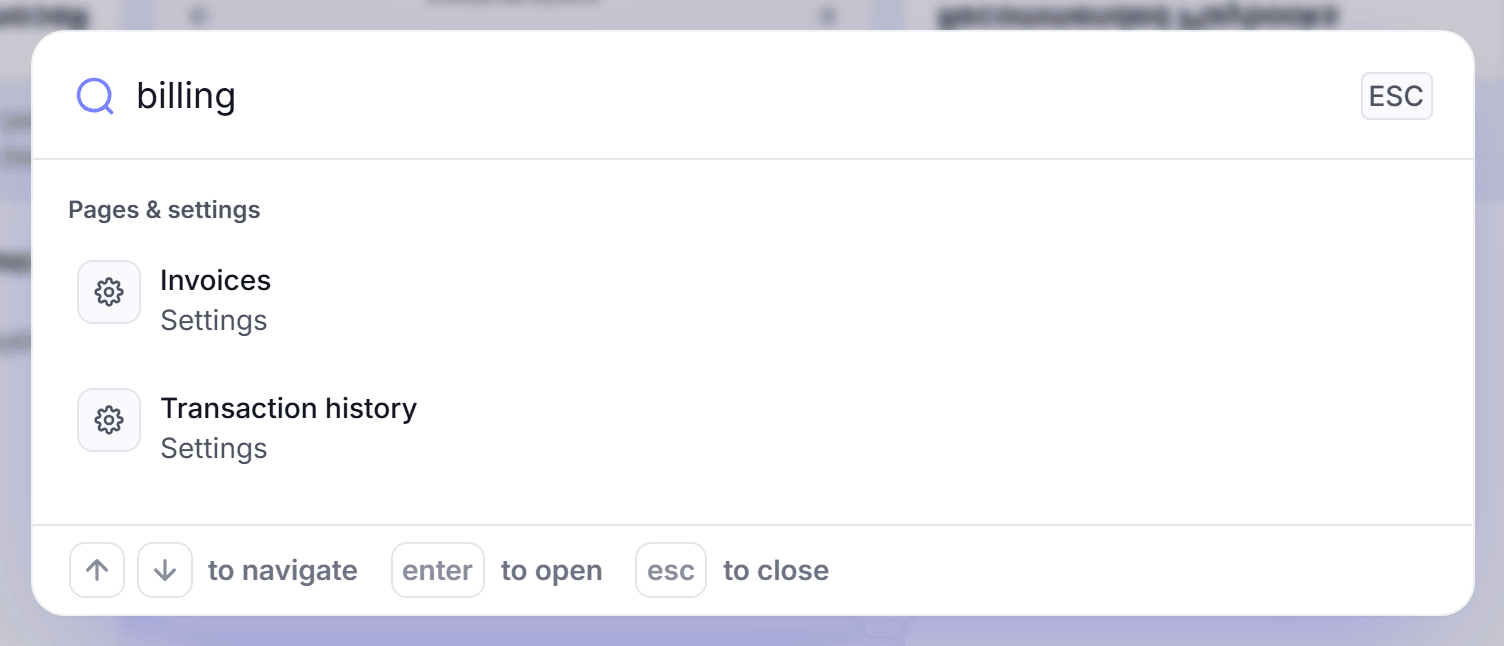
Click a result to open it. To see more results of a group, click the See all row under that group.
To close the search, press Esc.
Pages & settings shows first. Then search shows your campaigns, playbooks, templates, orders, audiences and people. On the Approvals map and the Service Areas map, the top bar has no search box. The keys still open the search.
You're done when the result opens. Search changes nothing in your account.
Use the account menu
Use the account menu to read your balance and your notifications, change account or sign out. The account card is at the foot of the left nav.
Read Balance on the account card. It shows the money on your account.
Click the account card. The account menu opens.
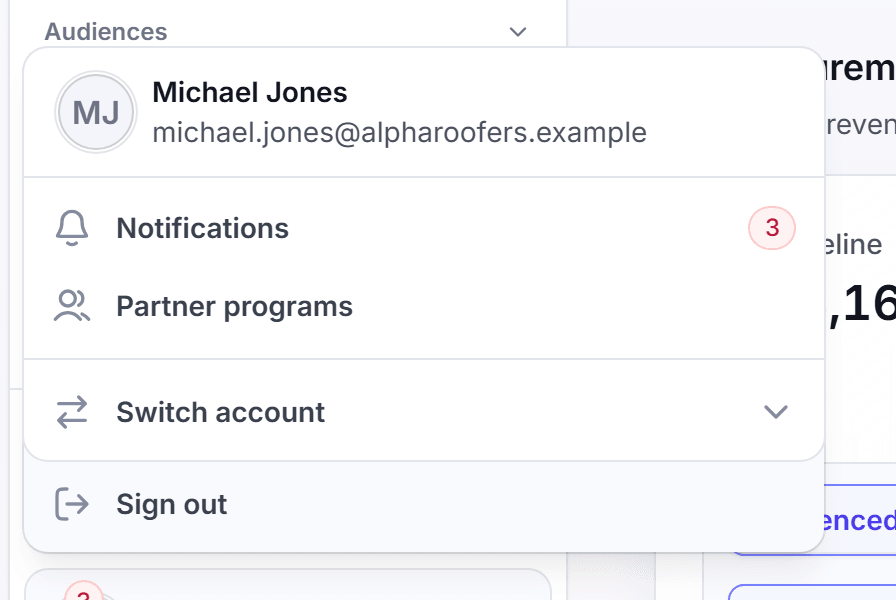
Click Notifications to open the list of your notifications.
Click Partner programs to see the partner programs of your account.
Click Switch account to see your accounts and Add new account.
To sign out, click Sign out under the menu card.
LettrLabs has no notification bell in the top bar. The account card shows the number of unread notifications.
You're done when the menu item that you clicked opens. Only Sign out and a change of account end your current view.
Open Settings
Use Settings to change your company details, your team and your billing.
At the foot of the left nav, click Settings. The Account page opens.
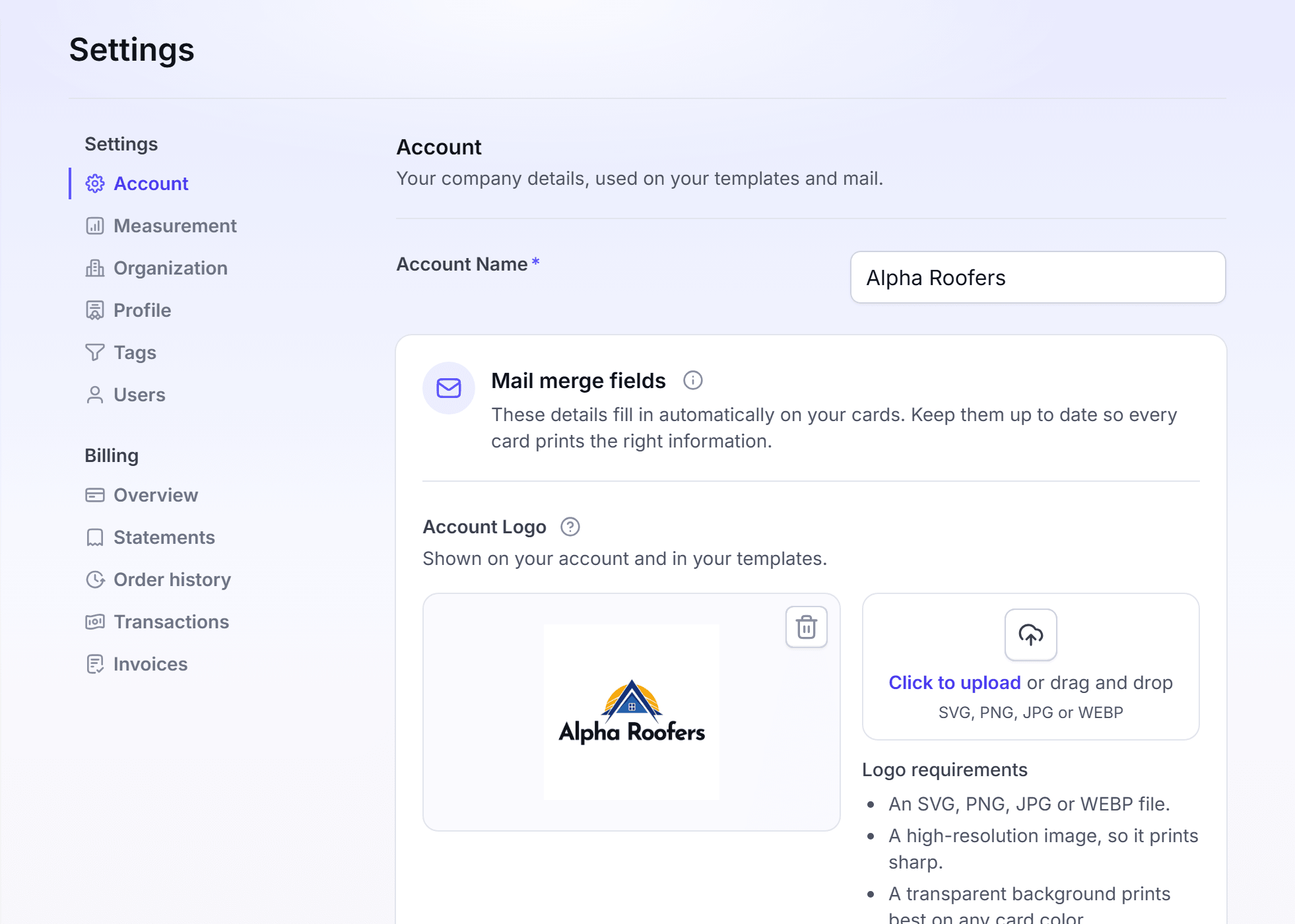
In the Settings group, click Account, Measurement, Organization, Profile, Tags or Users.
In the Billing group, click Overview, Statements, Order history, Transactions or Invoices.
Profile holds your photo, name, email, phone and mailing address. Overview holds your plan, your balance and your payment methods.
You're done when the Settings page that you clicked opens. A change saves only when you save it on that page.
Find a feature that is not in your nav
Use this task when a help page names a page that you cannot find.
The nav shows only the pages that your plan includes. Some pages open an upgrade prompt in place of the page.
At the foot of the left nav, click Settings.
In the Billing group, click Overview. Read your plan.
When a page shows Upgrade required, click View upgrade options. The plan prompt opens.
In the Choose your plan or Upgrade to Premium prompt, read the features under With Additional Access To.
To upgrade to Premium, click Go to Checkout. To ask about Enterprise, click Talk to Sales.
You're done when you know your plan, or the checkout or the sales request opens. The prompt itself charges nothing. The Plan, balance and billing page tells you how the plan change is charged.
FAQ
Related
Send your first campaign
Upload a list, pick a design and mail your first campaign.
Glossary
The terms that LettrLabs uses, with their old names.
Plan, balance and billing
See your plan and change it.
Steps checked 2026-11-16.