Discount codes
Create discount codes and count the orders that use them.
Overview
Discount codes are the codes that your mail prints. When a customer uses a code from your mail, LettrLabs can count that sale for the mail. This happens when Coupon is one of your match types.
You can use Discount Codes to:
- Create one code that many orders can use.
- Import a list of codes that each work one time.
- See how many codes of a list were used.
- Edit or delete codes and lists.
LettrLabs has two kinds of discount code.
| Kind | What it is |
|---|---|
| Multi Use Discount Codes | One code that anyone who gets your mail can use. Use it for a general offer. |
| Single Use Discount Code Lists | A list of codes that each work one time. Each card gets its own code, so you know who responded. |
To print a code on your mail, add the Discount Code mail-merge field to a design. Then pick the code when you set up the campaign. See Add a discount code to a card.
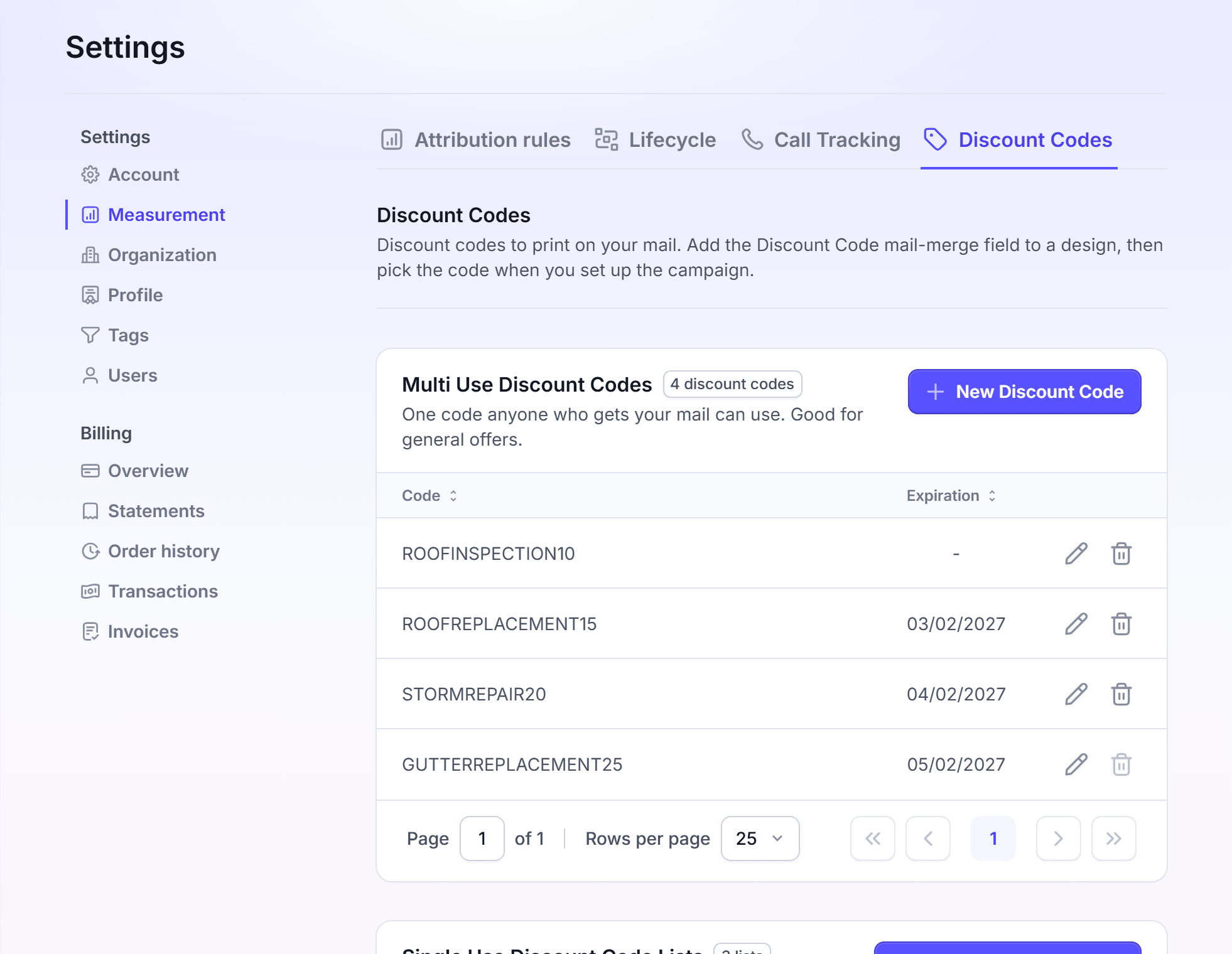
Create a multi use discount code
Create a multi use discount code when one code is enough for every card, for example SPRING20.
Click Settings, then click Measurement. Click the Discount Codes tab.
On the Multi Use Discount Codes card, click New Discount Code. The Multi Use Discount Code dialog opens.
In Discount Code, type the code.
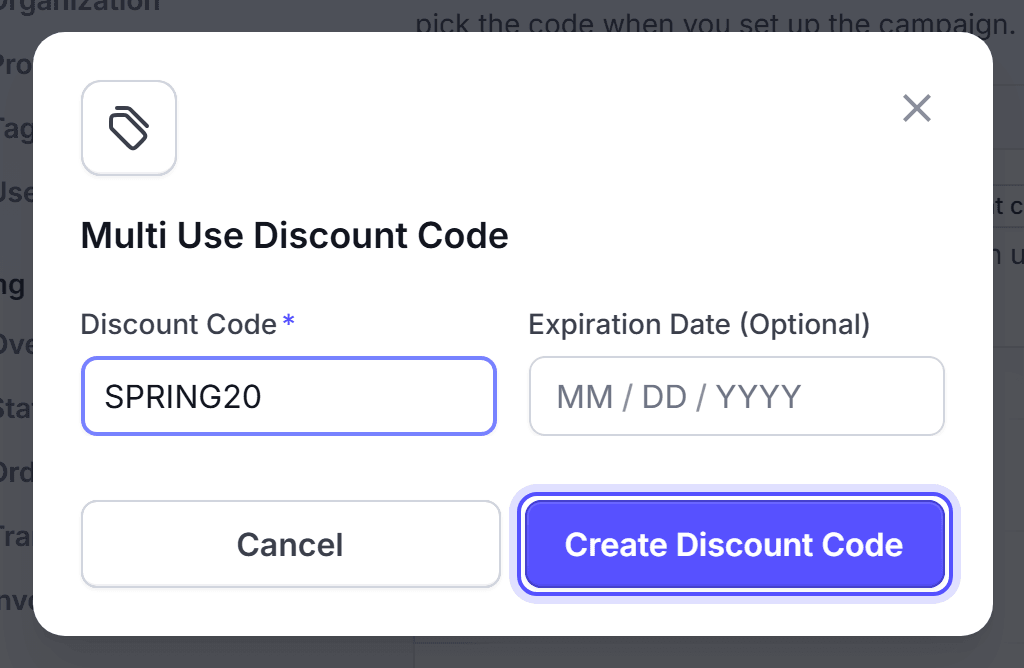
Optional: In Expiration Date (Optional), pick the last day the code works.
Click Create Discount Code.
You're done when the code shows in the Multi Use Discount Codes table, with its Expiration.
Create a single use discount code list
Create a single use list when each card must print its own code. You need a CSV file of the codes.
Click Settings, then click Measurement. Click the Discount Codes tab.
On the Single Use Discount Code Lists card, click New Discount Code List.
In List Name, type a name for the list.
Optional: In Expiration Date (Optional), pick the last day the codes work.
Click Next: Discount Codes. The Choose Discount Codes Source dialog opens.
On the CSV File card, click Upload. Then select your CSV file of codes in the importer.
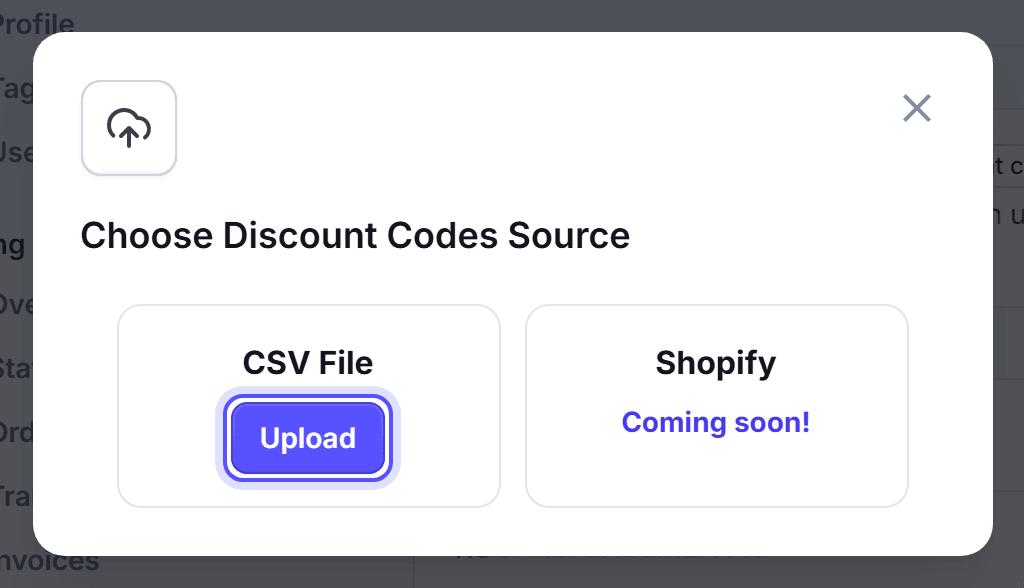
You're done when the list shows in the Single Use Discount Code Lists table. The Used / Total column shows how many codes the list holds.
See the discount codes of a list
Open a list to see each code, and whether it was used.
On the row of the list, click the Show discount codes button. The discount codes of the list open in a card under the lists.
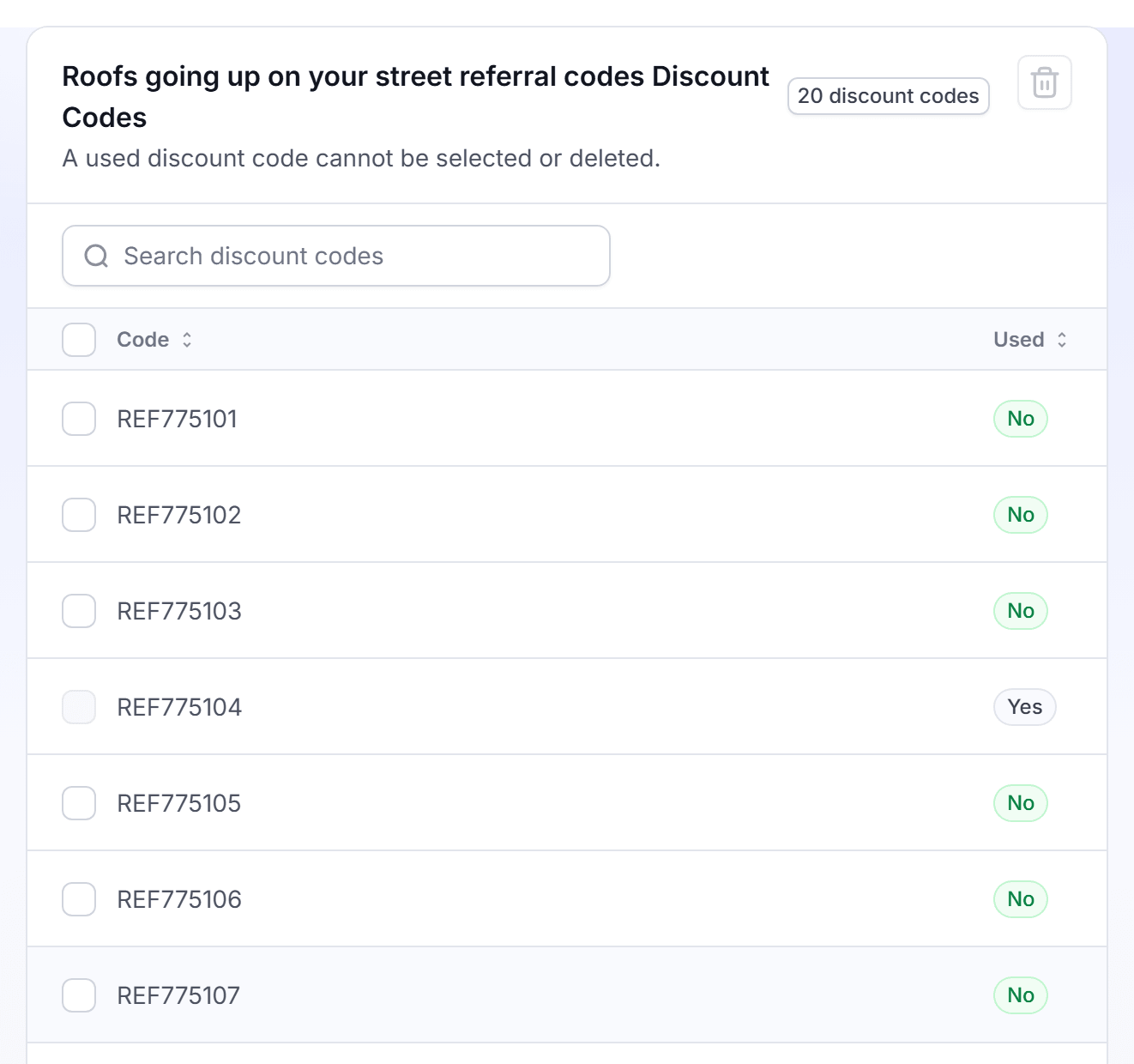
Read the Used column of each code.
To find one code, type it in Search discount codes.
To add more codes to a list, click the Add discount codes button on the row of the list. Then upload a CSV file of the new codes.
Edit a discount code or a list
Edit a multi use discount code to change its expiration date. Edit a list to change its name or its expiration date.
On the row of the discount code or the list, click the edit button.
For a list, change the List Name if necessary.
Change the Expiration Date (Optional). To remove the expiry, clear the date.
Click Save Changes.
You cannot rename a multi use discount code. To use a new code, create a new discount code.
Delete discount codes or a list
Delete a discount code or a list that your mail no longer prints.
To delete a multi use discount code or a whole list, click the delete button on its row.
To delete some codes of a list, open the list. Select the unused codes, then click the delete icon at the top of the card. Its tooltip reads "Remove N selected".
In the Delete dialog, click Confirm.
A used discount code cannot be selected or deleted. You're done when the discount code or the list is gone from the table.
FAQ
Related
QR codes and offers
Print one of your discount codes on each card.
How attribution works
Learn how a discount code matches a sale to your mail.
Call tracking
Count the calls that your mail brings.
Steps checked 2026-11-16.