Postage and checkout
Choose the postage and the production speed, pay, and fix address problems.
Overview
Each card has a postage class and a production speed. Together they set how soon the card reaches the home, and what it costs. A one-time campaign ends at checkout, where you pick how to pay and launch the order.
You can use these settings to:
- Mail at the lowest cost, or reach homes in a few days.
- Start the production of your cards sooner.
- Pay with your balance, a card or a bank account.
- Keep a campaign as a draft, or cancel it before it mails.
Choose postage and production speed
Do this for each campaign, before checkout. The price of each choice shows beside it.
In Send Mail, go to the Creative step.
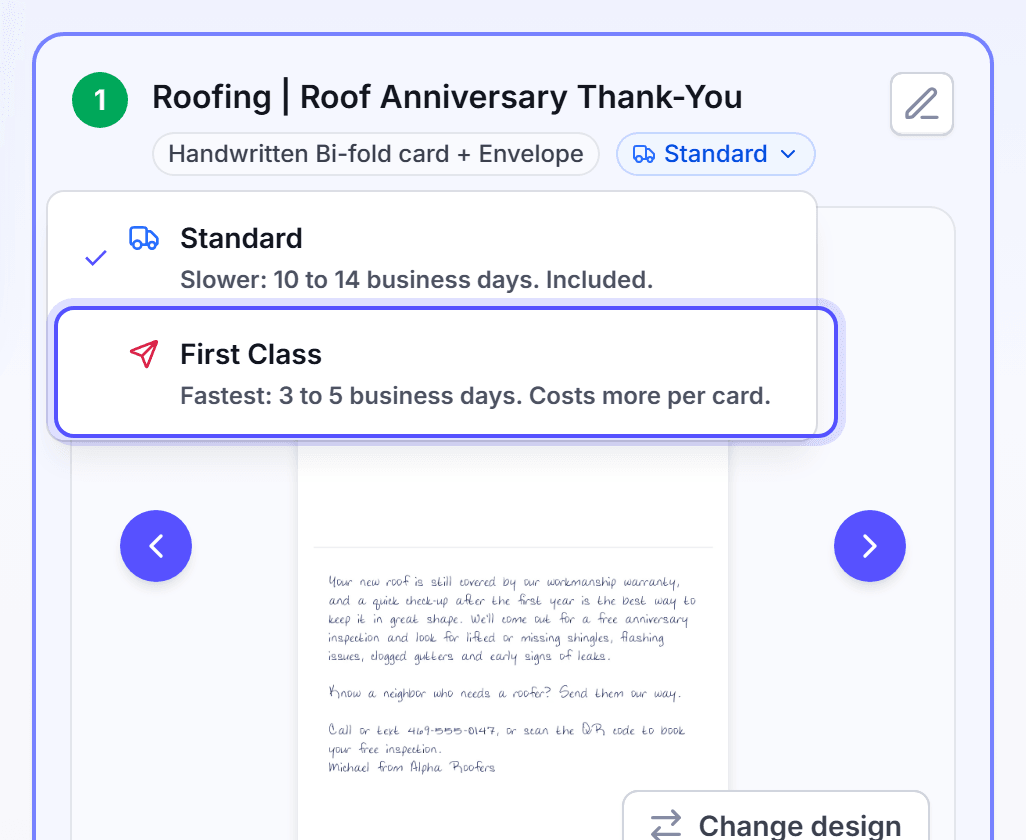
On each touch, click the postage tag. Then select First Class or Standard.
Go to Mailing and timing. For a one-time campaign, it is the first section of the Budget step.
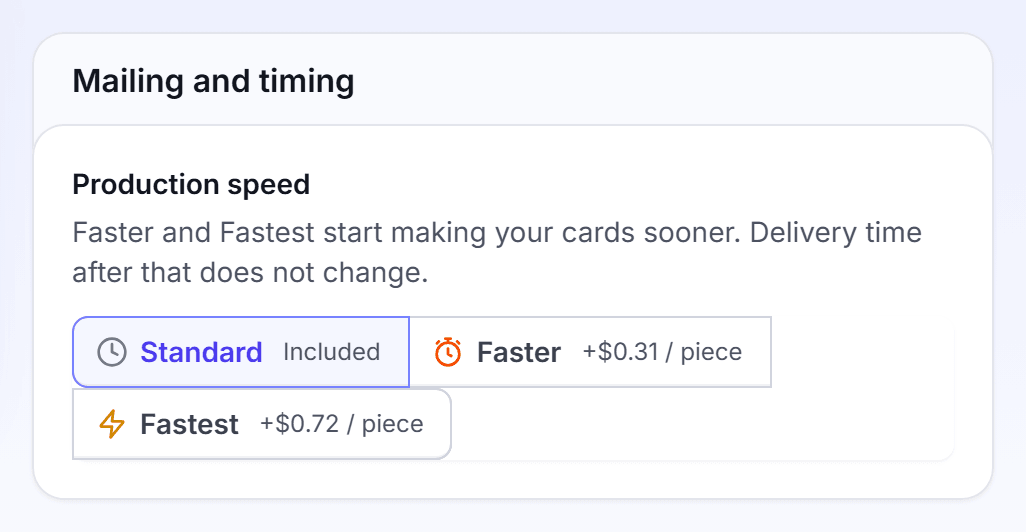
In Production speed, select Standard, Faster or Fastest.
For a one-time campaign, set Produce the first touch: Right away, or Wait and enter 1 to 30 business days.
For a one-time campaign, set the Send date: Earliest, In 1 week, In 2 weeks, or Pick a date.
The postage classes do these things:
| Postage | Delivery after mailing | Cost |
|---|---|---|
| Standard | Slower: 10 to 14 business days. | Included. |
| First Class | Fastest: 3 to 5 business days. | Costs more per card. |
Faster and Fastest start making your cards sooner. The delivery time after that does not change. The send date is the day the mail goes to print.
You're done when each touch shows its postage. Nothing is charged until you launch the campaign.
Pay at checkout and fix address problems
Do this at the end of a one-time campaign, to pay for the order and send it to print.
On the Budget step, read the Review. Then click Go to checkout.
In the Name your campaign dialog, keep or change the Name. Then click Go to checkout.
On the Checkout page, read Your order: the homes, the price of each line and the Total due.
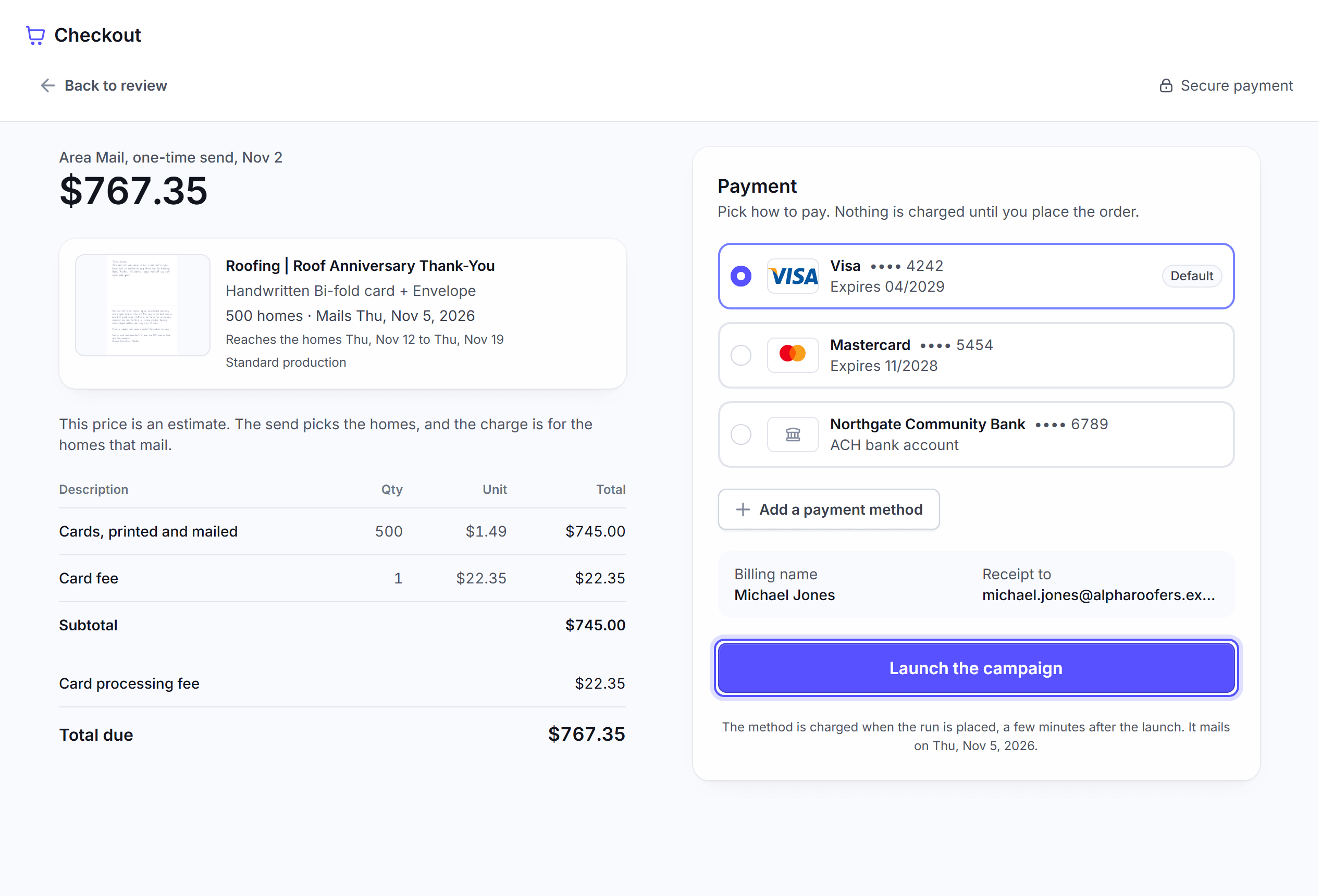
In Payment, select a payment method. To add one, click Add a payment method.
Click Launch the campaign.
The line under the button says who pays and when. Your balance pays first. The payment method pays the rest when the run is placed. With Earliest, that is a few minutes after the launch. With a later send date, it is on the send date.
The price is an estimate. The charge is for the homes that mail. When the balance pays the whole order, no payment method is charged.
Fix address problems before checkout. On the Audience step, the list check marks each bad row. Fix or remove each row, then click Next. When the dialog "Some rows will not be mailed" opens, read the counts and click I understand, continue. One-time campaigns lists each row error.
To change a setting, click Back to review. Nothing is charged until you launch.
You're done when the dialog "is launched" shows with the campaign name. Click View the campaign to follow the order. The campaign shows on the One-time tab of Campaigns.
Save a draft, or cancel before it mails
Do this when you want to finish a campaign later, or stop a one-time campaign before it prints.
In Send Mail, click Next on the Objective step. From then on, Send Mail saves each change to the draft.
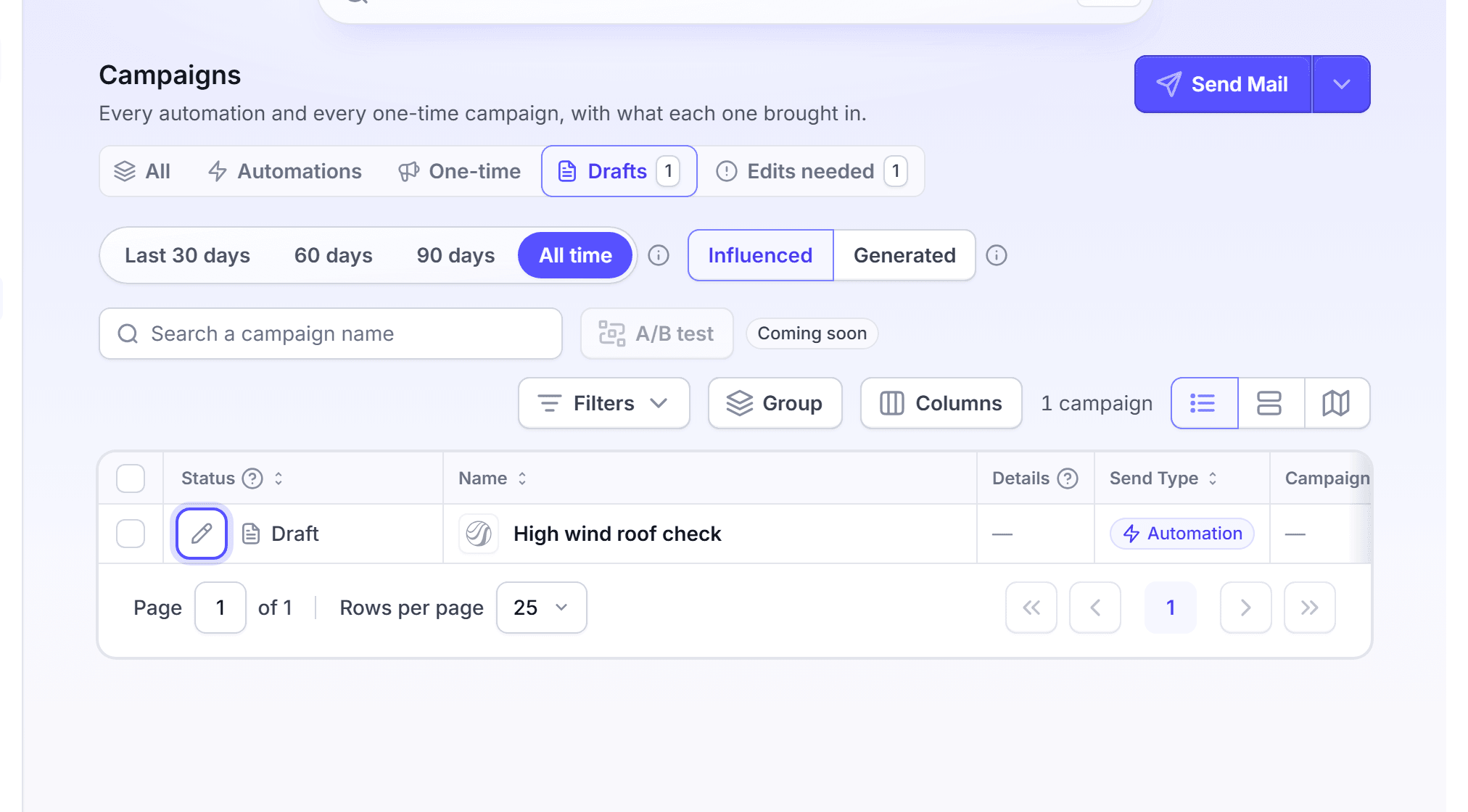
To come back to a draft, click Campaigns in the left navigation, then click the Drafts tab.
On the row of the draft, click the edit button, Continue the draft. Send Mail opens with the draft.
To delete a draft, click the dots button at the end of its row. Click Delete draft, then click Delete in the dialog.
To cancel a one-time campaign, open its campaign page. Click Actions, then click Cancel. In the dialog, click Cancel the one-time campaign.
Cancel shows only while the one-time campaign waits for its send date and nothing was charged. Its design and its results stay, and you can relaunch it later.
You're done when the message "Draft deleted" or "One-time campaign canceled" shows. A canceled one-time campaign charges nothing.
FAQ
Related
One-time campaigns
Pick who to mail, the template and the send date.
Payment methods
Add the card or bank account that pays for each order.
Campaigns
Follow the order to delivery, and read its results.
Steps checked 2026-11-16.