Create your account
Sign up, sign in and join your team, so you can start to send mail from LettrLabs.
Overview
A LettrLabs account holds your company details, your templates, your campaigns and your billing. You make your sign-in, verify your email, and then give LettrLabs a few details about your business.
You can use this page to:
- Sign up with your email, or with Google or Microsoft.
- Finish the onboarding steps.
- Sign in, reset your password and sign out.
- Join your team from an invitation.
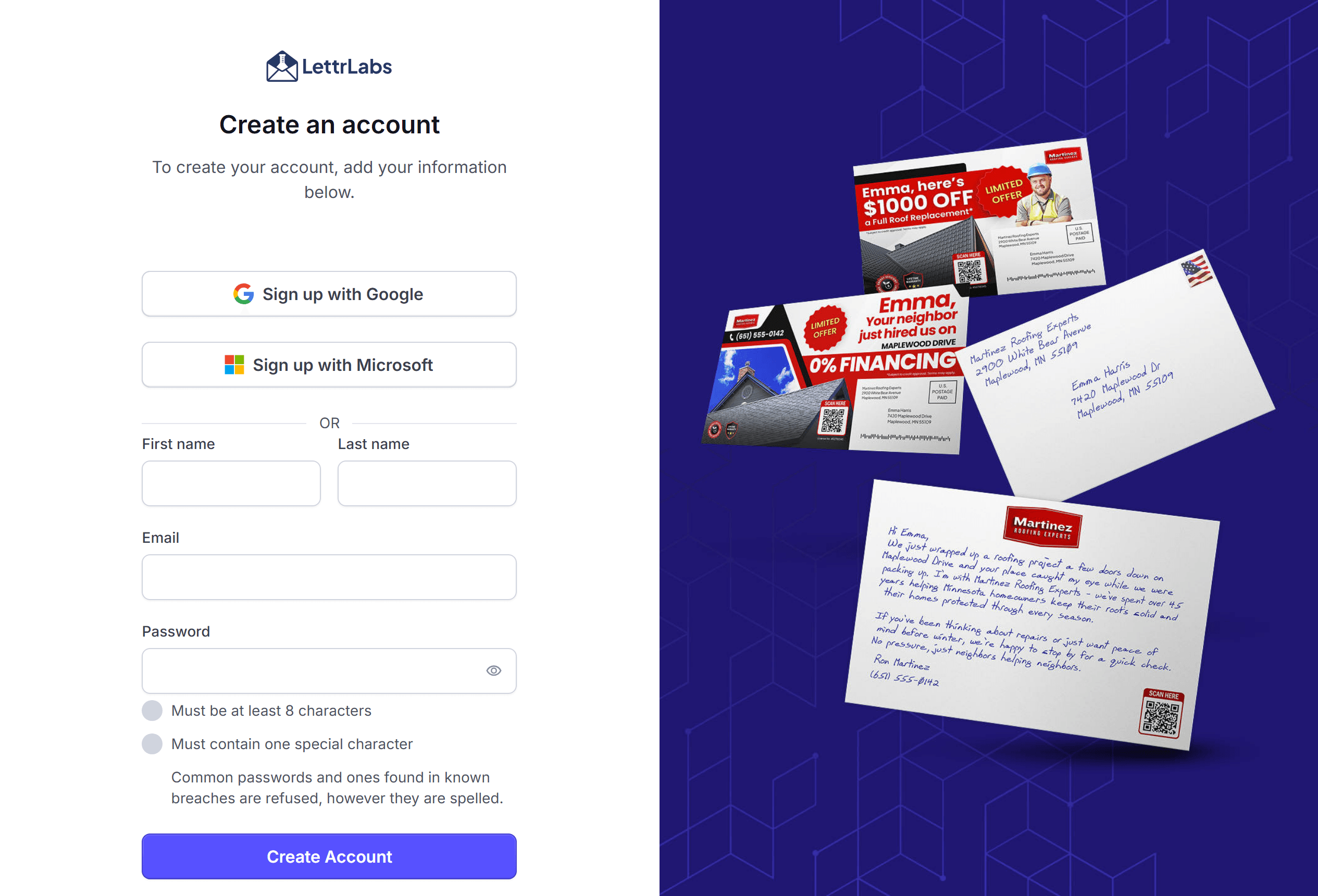
Sign up with your email
Use this task when you start a new LettrLabs account with an email and a password.
Go to https://app.lettrlabs.com, then click Sign up. The Create an account page opens.
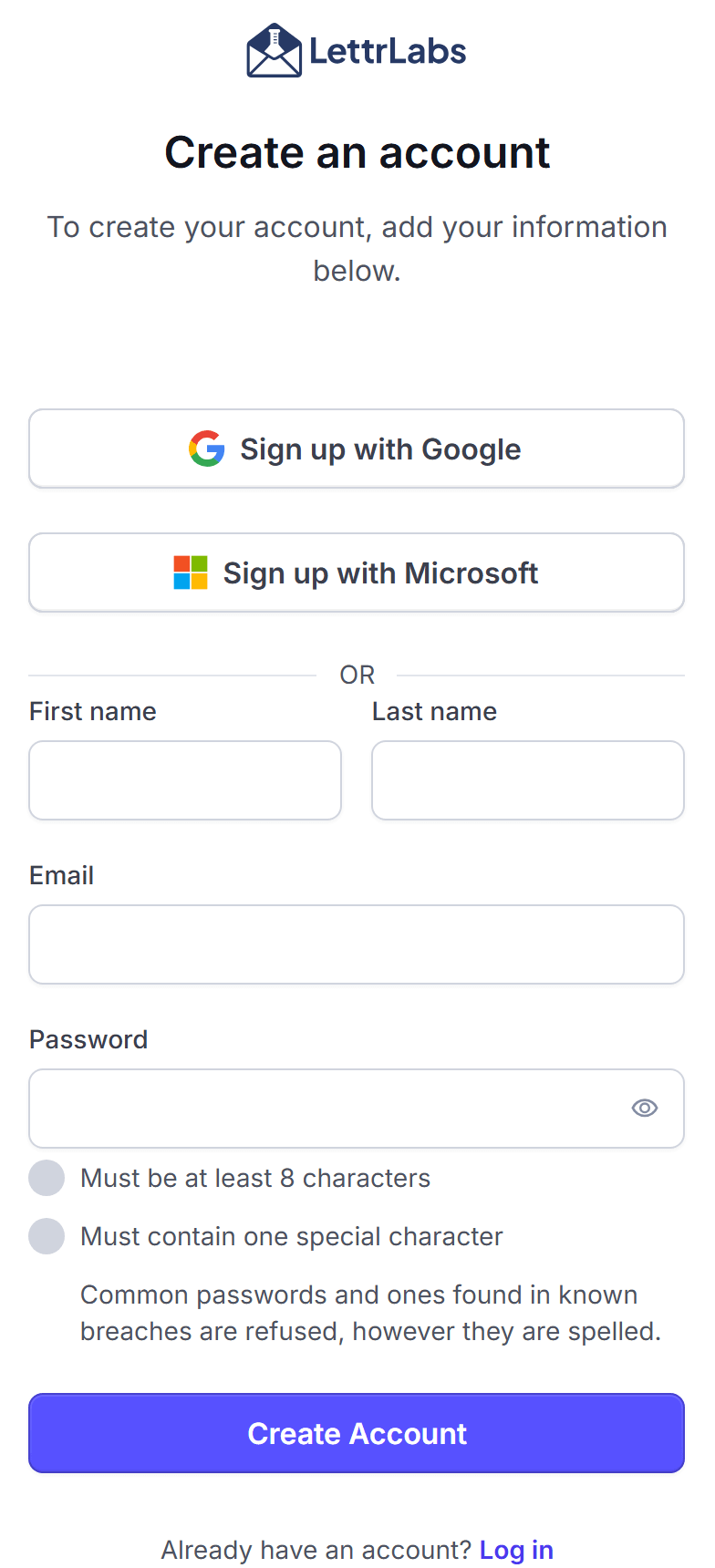
In First name and Last name, enter your name.
In Email, enter your work email.
In Password, enter a password of 8 or more characters, with one special character.
Click Create Account. The Check your email page opens.
Find the email from LettrLabs, and copy the 6-digit code.
Enter the code, then click Verify email. The Email verified page opens.
Click Continue. The first onboarding step opens.
The checklist under Password turns green for each rule that your password meets. LettrLabs also refuses common passwords and passwords from known breaches.
You're done when the Email verified page shows. Next, do the steps in "Finish the onboarding steps". Sign-up is free, and nothing is charged.
Sign up with Google or Microsoft
Use this task when you want to sign in with a Google or Microsoft work account in place of a password.
The Create an account page shows each button only when LettrLabs offers that provider.
Go to https://app.lettrlabs.com, then click Sign up.
Click Sign up with Google or Sign up with Microsoft.
Sign in to Google or Microsoft, and give the access that it asks for.
You're done when the first onboarding step opens. LettrLabs makes your sign-in from the Google or Microsoft profile. Next, do the steps in "Finish the onboarding steps".
Finish the onboarding steps
Use this task right after sign-up. Onboarding has three steps and a last screen. Only the first step is required.
On Tell us about you and your business, enter your name in First Name and Last Name.
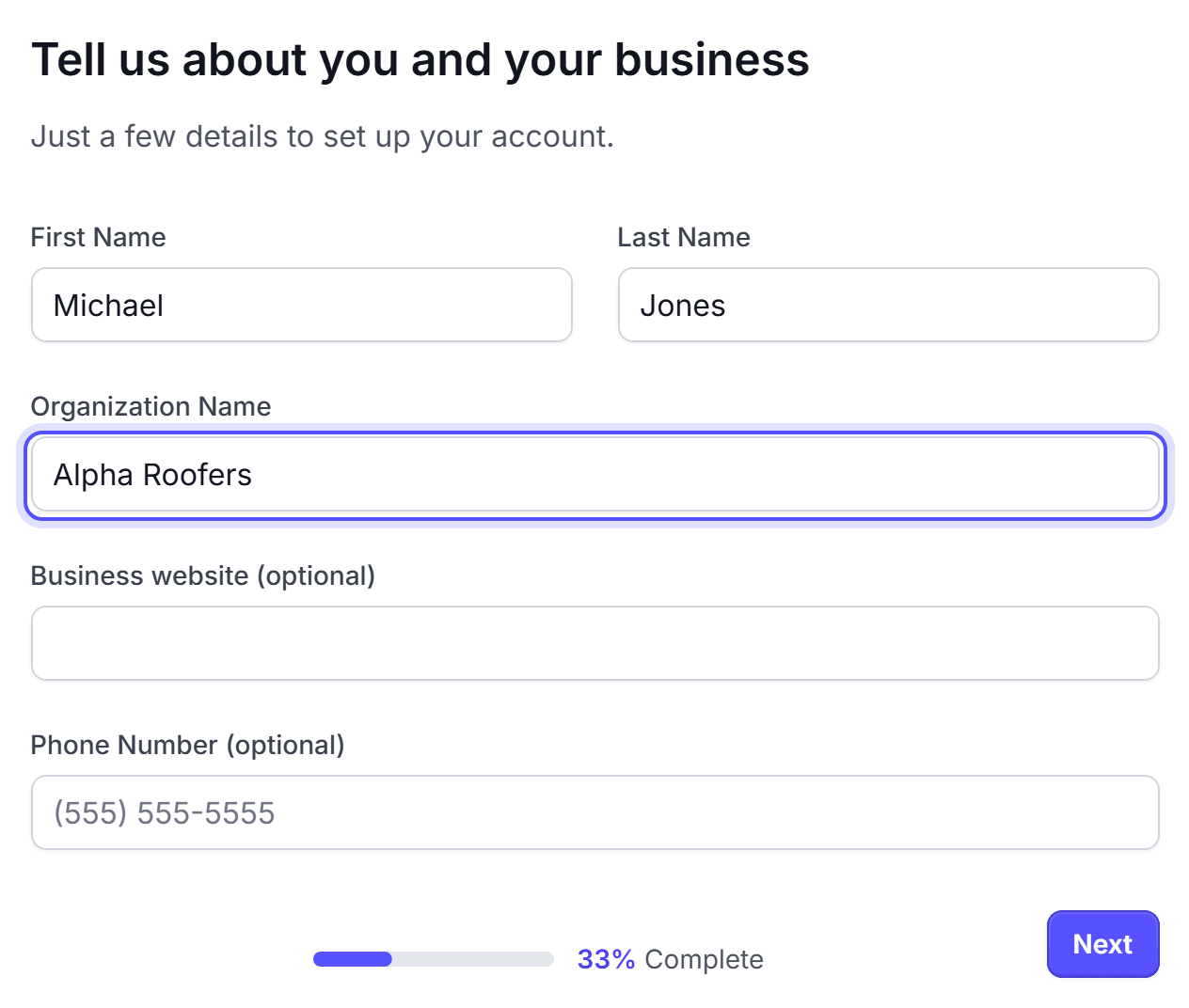
In Organization Name, enter your company name.
Optional: enter your website in Business website (optional) and your phone in Phone Number (optional).
Click Next. The step How would you like to use LettrLabs? opens.
Optional: select your industry in Industry (optional).
Optional: select a volume in Estimated Annual Direct Mail Volume (optional).
Optional: under "What would you like to achieve with direct mail?", select one or more goals.
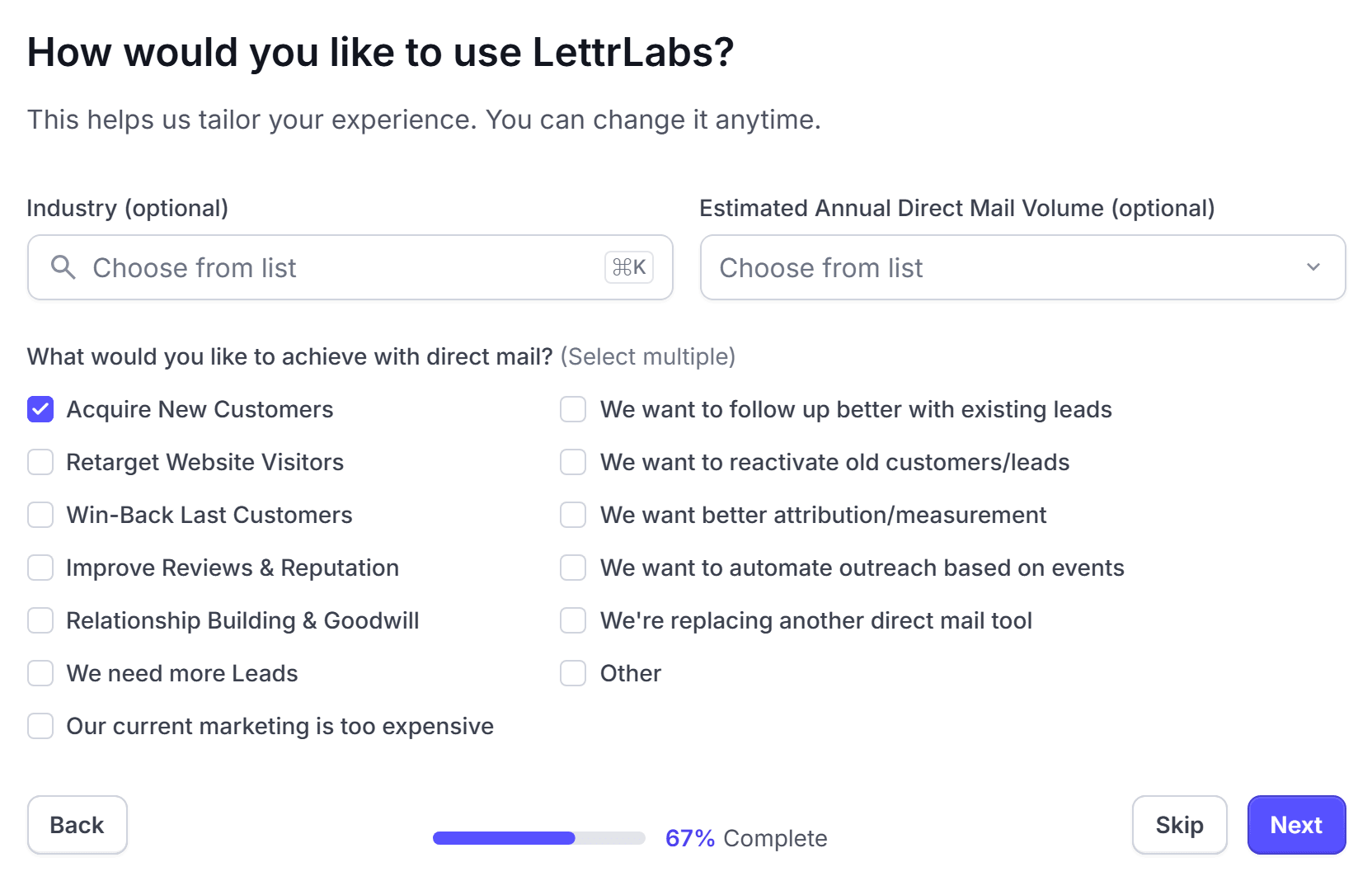
Click Next or Skip. The step Which platforms would you like to connect with LettrLabs? opens.
Optional: select the tools that you use. To find a tool by name, use Search platforms.
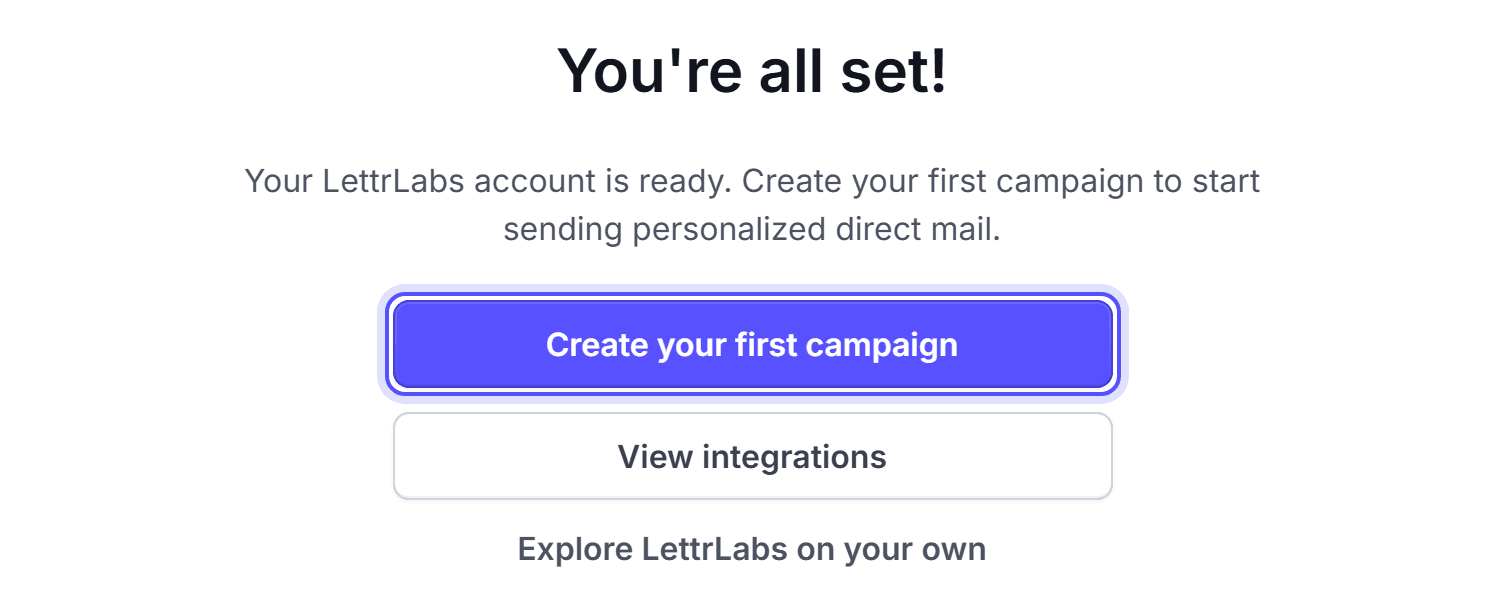
Click Next or Skip. The screen "You're all set!" opens.
Click Create your first campaign, View integrations or Explore LettrLabs on your own.
The platforms step does not connect a tool. It tells LettrLabs which integrations to show you.
The table lists where each button of the last screen goes.
| Button | Opens |
|---|---|
| Create your first campaign | A new draft order, at its Product step |
| View integrations | Send Mail, set to an automated campaign |
| Explore LettrLabs on your own | Home |
You're done when the page that you chose opens. You have a LettrLabs account and you are signed in. Next, set your company details and add a payment method before you send mail.
Sign in
Use this task each time that you come back to LettrLabs.
Go to https://app.lettrlabs.com. The Log in page opens.
Enter your Email and your Password. Or click Sign in with Google or Sign in with Microsoft.
Click Log In.
When you belong to more than one account, select an account on Choose an account. Then click Continue.
You're done when LettrLabs opens Home or the page that you asked for. To change account later, use Switch account in the account menu.
Reset a forgotten password
Use this task when you do not know your password.
On the Log in page, click Forgot password. The Reset your Password page opens.
In Email, enter your email, then click Send Reset Link. The Check your email page opens.
Open the newest email from LettrLabs, and click its link. The Set new password page opens.
Enter the new password in Password and again in Confirm password.
Click Reset Password.
The new password must be different from passwords that you used before. When the email does not arrive, click Click to resend on the Check your email page.
You're done when the Password reset page shows "Your password has been changed. You can carry on from here." Your old password stops working. The reset link works one time only.
Update an expired password
Use this task when sign-in opens Check your email to update your password. Some accounts from the earlier LettrLabs app must set a new password one time.
Open the email from LettrLabs, and click its link. The Set new password page opens.
Enter the new password in Password and again in Confirm password.
Click Reset Password.
When the email does not arrive, click Click to resend. The page then shows "Link resent."
You're done when the Password reset page shows. You sign in with the new password from now on.
Sign out
Use this task when you leave a shared computer, or when you want to sign in with a different email.
At the foot of the left nav, click the account card. The account menu opens.
Click Sign out under the menu card.
You're done when the Log in page opens. Your campaigns and drafts stay in your account.
Join your team from an invitation
Use this task when a teammate invited you to their LettrLabs account.
Open the invitation email from LettrLabs, and click its link.
When you have no LettrLabs sign-in, do the steps in "Sign up with your email" with the invited email.
When you have a sign-in, log in as the invited email.
On Accept invitation, check the account name and your role.
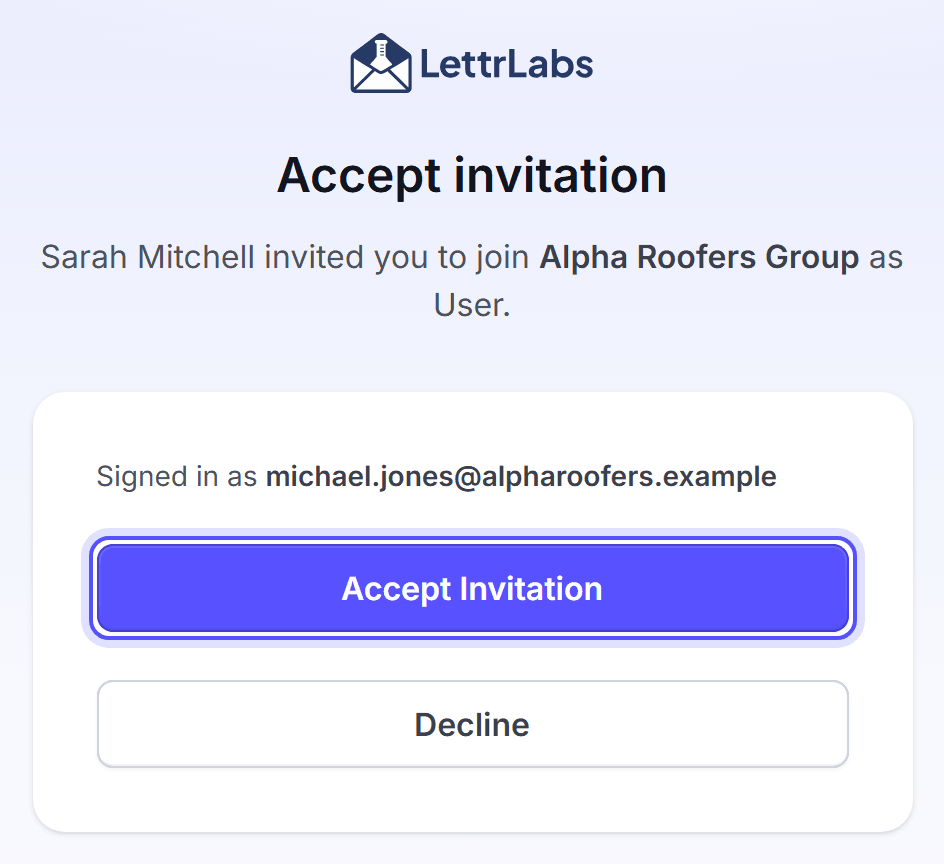
Click Accept Invitation. To refuse, click Decline.
On Tell us about you, enter your name and phone. Then click Next.
Optional: select the platforms that you use. Then click Next or Skip.
On "You're all set!", click Create your first campaign, View integrations or Explore LettrLabs on your own.
You can also accept an invitation in the app. Open the account menu, then click Switch account. Each invitation shows with Accept and Deny.
You're done when the page that you chose opens, in the account that invited you. Your teammate sets your role. You can see and use the account at once.
FAQ
Related
Start guide
Find where each task starts in LettrLabs.
Company profile
Set the company details that print on your cards.
Payment methods
Add the card that pays for your mail.
Steps checked 2026-11-16.