Campaigns
Find each campaign in one list, follow its order to delivery, and see the sales and leads that the mail earned.
Overview
Campaigns lists each automation and each one-time campaign of your account. Each campaign has its own page. The page shows where the order is in production, who it mailed, and what the mail earned.
You can use Campaigns to:
- Find a campaign, and group your campaigns into sections.
- Follow an order from payment to delivery, and read its results.
- Pause, duplicate, relaunch or delete a campaign.
- Export the recipients, the results and the invoice.
Find and organize your campaigns
Do this when you look for a campaign, or when your list gets long.
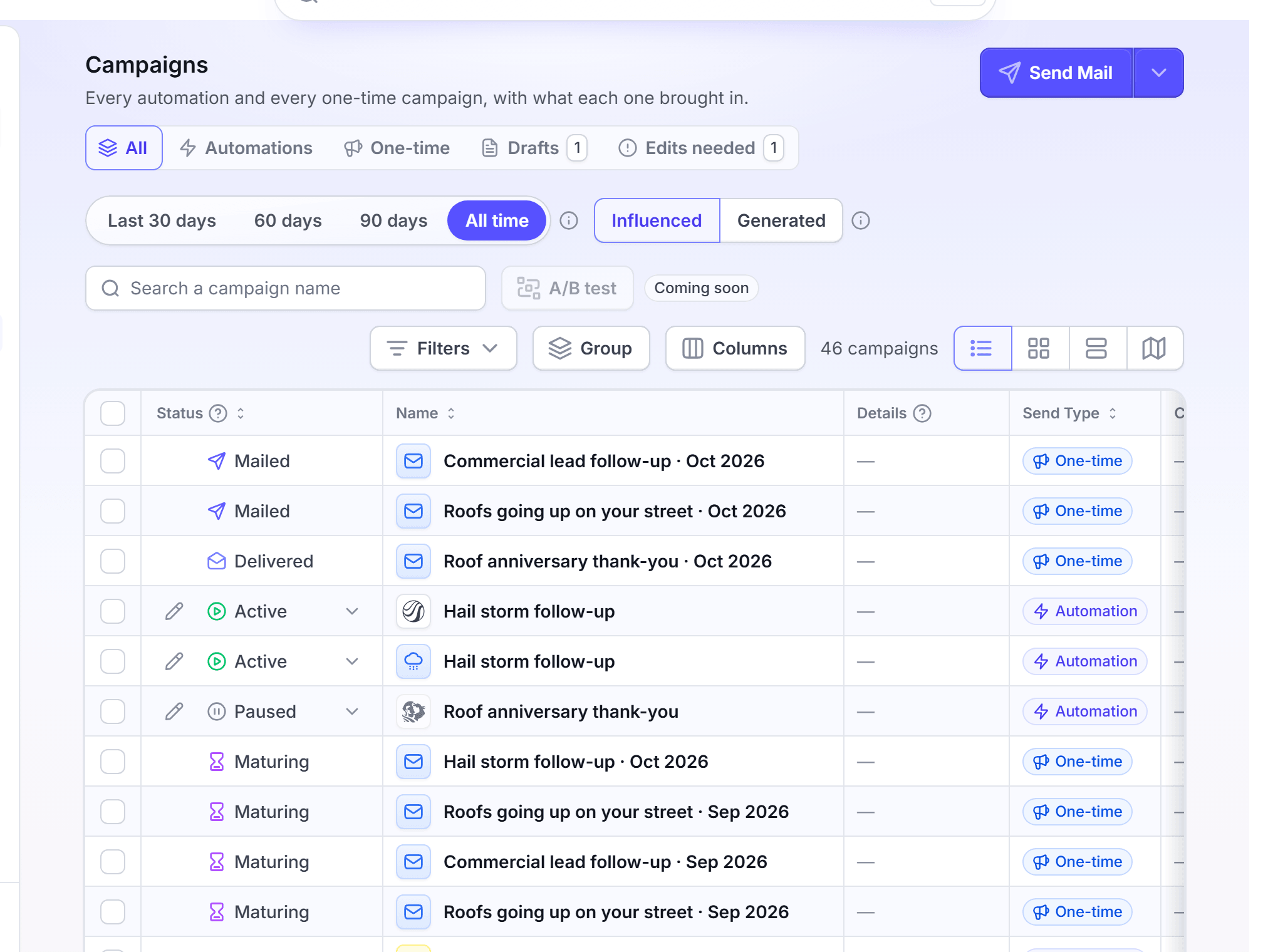
In the left navigation, click Campaigns.
Click a tab: All, Automations, One-time or Drafts. All lists the automations and the one-time campaigns together.
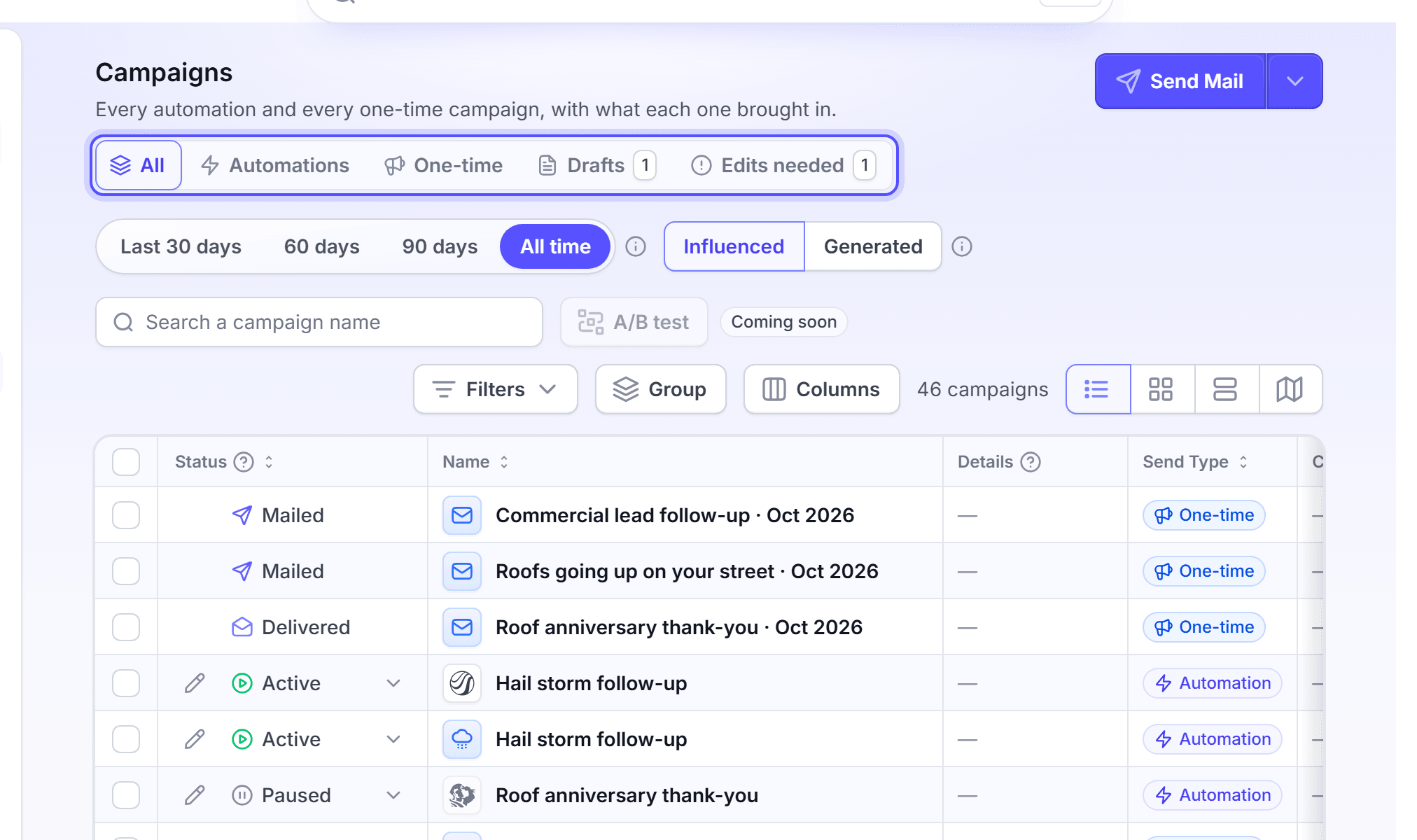
In Search a campaign name, enter a part of the name.
Optional: Click Filters to filter by Status, Campaign type or Last sent.
Optional: Click View and select Table, Grid, Monthly or Map.
To group campaigns, click Add section. A new section named "New section" shows. To move a campaign, open its row menu and click Move to section…. The dots button at the end of a row opens the row menu. You can also drag a row into a section. A section changes nothing that a campaign mails.
To rename a campaign, click the pencil beside its name. Enter the new name, then press Enter.
You're done when the campaign shows in the list. Nothing is charged, and you can change the view or the sections at any time.
Read a campaign's results
Do this after checkout to follow your order, and again after delivery to see the results.
In the left navigation, click Campaigns.
Click One-time for a one-time campaign. Click Automations for an automated campaign.
Click the campaign row. You can also open the row menu and click View details.
Read the Overview tab.
On a one-time campaign, the Order Lifecycle card of the Overview tab shows the order stages: Payment, Production, Mailing and Delivery. Each stage shows its date, and the current stage shows as active. Results counts Pieces delivered, Records and Conversions. Performance shows the pipeline, the closed revenue, ROAS, CPA, the conversions and the spend.
The results grow after delivery. A sale or a lead counts when it starts inside the attribution window. The Glossary explains attribution and the window.
The other tabs of the campaign page show this information:
| Tab | What it shows |
|---|---|
| Service Area | The homes on a map. |
| Design | The design of each touch. A touch selector sits at the top. The Cadence, Details, Mail-Merge Fields and Design cards show the touch that you select. |
| Recipients | Each home that the campaign mailed, with its delivery status. |
| Batches | Each run of the campaign. It shows after the first run. |
| Conversions | The customers and the jobs that count for the mail. |
| Attribution | The results by attribution. |
You're done when you see the stage of the order and the results. Reading a campaign changes nothing and costs nothing.
Search and export the recipients
Do this when you need the list of homes that a campaign mailed.
On the campaign page, click Recipients.
In the search field, enter a name, an address, a city or a ZIP.
Optional: Filter with Every stage and Converted or not. A campaign with more than one order also shows Every order.
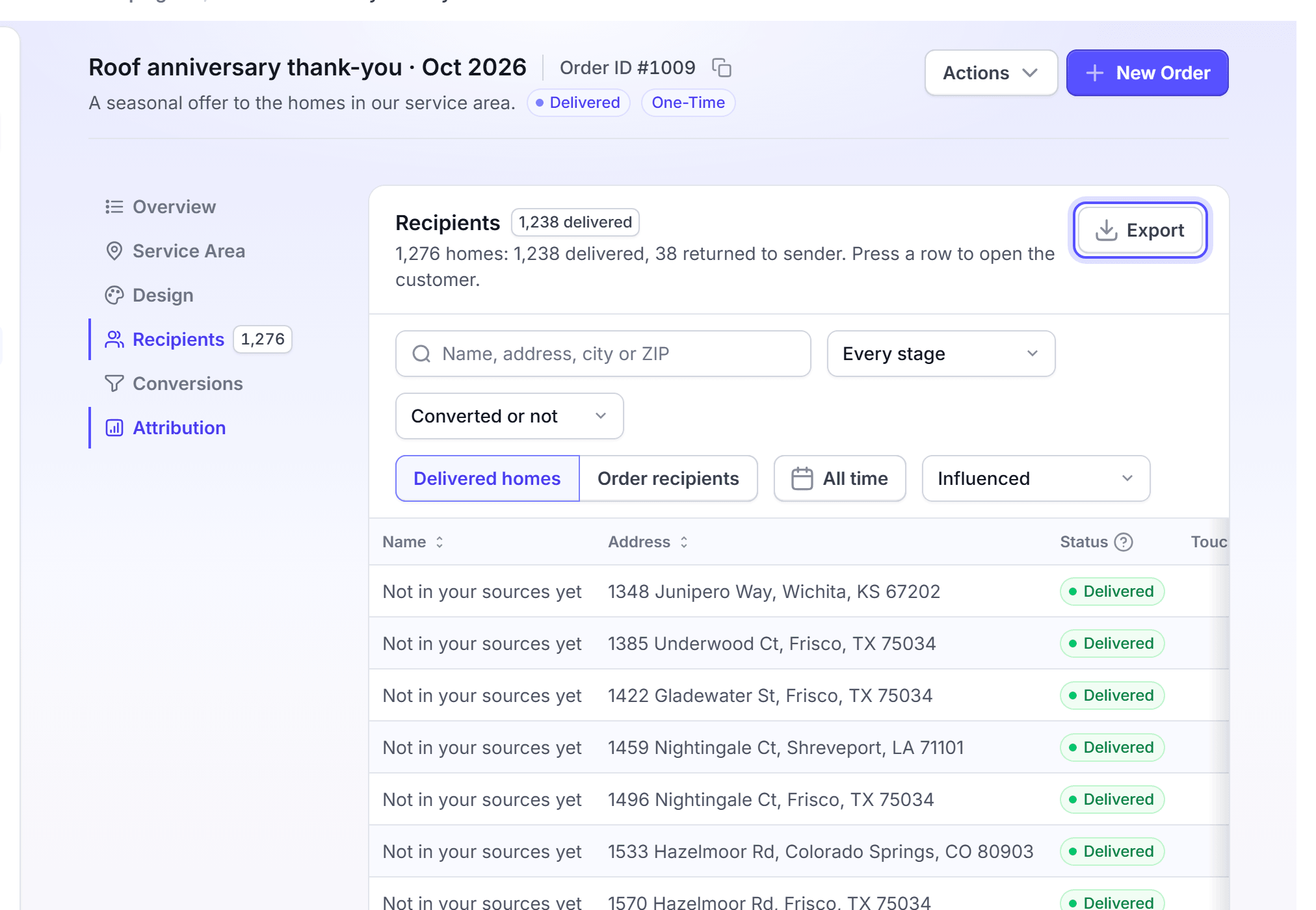
Click Export. LettrLabs downloads a CSV file of the homes.
The CSV holds the name, the address, the status, the touches, the delivery date, the stage and the order ID.
You can also export the recipients of a one-time campaign from the list. On the One-time tab, open the row menu and click Export recipients.
You're done when the CSV file is in your downloads. The export costs nothing.
Export the results
Do this when you want the customers, jobs, estimates and invoices that count for the mail.
On the campaign page, click Actions, then click Export.
Wait for the message "Export ready".
Export is disabled until the first cards are delivered. Until then, the Actions menu shows After delivery beside it.
You're done when the ZIP file is in your downloads. It holds customers.csv, jobs.csv, estimates.csv and invoices.csv. The export costs nothing.
Download a campaign invoice
Do this when you need an invoice for the orders of one campaign in a date range.
On the campaign page, click Actions. The Actions menu opens.
Click Invoice. The invoice dialog opens.
In Start date and End date, set the range. An order counts by its order date.
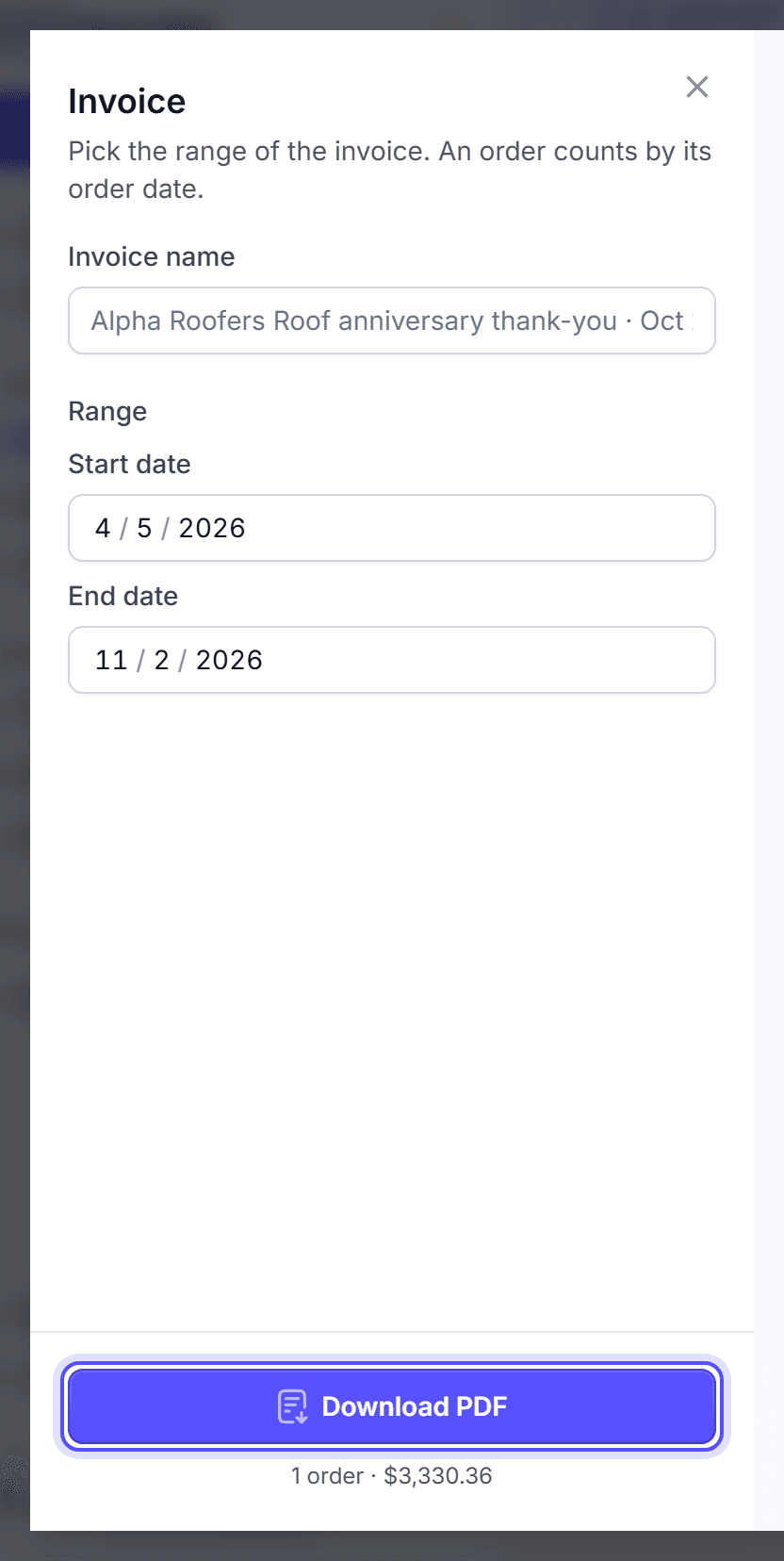
Optional: In Invoice name, change the name.
Click Download PDF.
Invoices start on April 5, 2026.
You're done when the PDF is in your downloads. The invoice charges nothing.
Pause or turn on an automation
Do this when you want an automation to stop mailing for a time.
In the left navigation, click Campaigns, then click Automations.
In the row of the automation, open the status menu.
Click Paused to stop it, or Active to turn it on.
When you pause, a confirm dialog opens. Optional: Select Also cancel the scheduled follow-up touches. The box shows only when the automation has scheduled touches.
Click Pause.
An older automation with queued follow-up touches asks one more question. Click Pause and keep queued touches or Pause and cancel queued touches.
The status menu offers Active and Paused only. An older campaign can show Inactive. To turn it on again, open its campaign page and click Reactivate.
You're done when the status shows Paused or Active. After a pause, new runs stop. The touches already scheduled still mail, unless you selected the box to cancel them. A canceled touch returns its reserved budget. A run that already paid still mails. You can turn the automation on again at any time.
Delete a campaign
Do this to remove a campaign from your campaign list.
On the Campaigns page, open the row menu of the campaign.
Click Delete.
In the dialog, click Delete.
You can also delete a campaign from its campaign page. Click Actions, then click Delete.
You're done when the message "Campaign deleted" shows. The campaign mails nothing more. When the campaign ran, its runs and results stay in Reporting.
Duplicate or relaunch a campaign
Do this to reuse the setup of a campaign. A duplicate keeps the audience. A relaunch asks for a new audience.
On the Campaigns page, open the row menu of the campaign.
Click Duplicate. The Duplicate the campaign dialog opens.
In Name, keep or change the name.
Click Duplicate. The copy opens in Send Mail as a Draft.
To relaunch, open the campaign page and click Actions. Click Relaunch to a new audience, then click Pick the audience. The copy opens in Send Mail at its Audience step. Relaunch is not available for a radius one-time campaign or an older automation.
To keep the design of a one-time campaign, open its row menu on the One-time tab. Click Save as template. This works for standard orders only.
You're done when the copy shows on the Drafts tab. A draft charges nothing until you launch it.
Add recipients to a list campaign
Do this to mail more people with a campaign that mails a list, or the homes around a list.
Open the campaign page, then click Add recipients.
Upload a file, or add the addresses. The campaign exclusions apply to them.
Click Check these recipients. LettrLabs checks each address.
Fix or delete each row that cannot mail.
Click Send.
Add recipients shows only for a list campaign or a radius campaign around a list. The campaign must be on.
You're done when the new run shows on the Batches tab. To stop before you send, click Discard these recipients. Nothing mails until you click Send.
Fix an order sent back for edits
Do this when mail production sends an order back to you for a change.
In the left navigation, click Campaigns.
Click the Edits needed tab.
Open the row menu of the order, and click Edit order.
Make the change, then go on to checkout.
The Edits needed tab shows only while an order waits for edits.
You're done when the order leaves the Edits needed tab and reads Paid again. The order then goes back to production.
Campaign statuses
Each campaign and each run shows a status. The tables give what each one means.
An automation shows one of these statuses:
| Status | What it means |
|---|---|
| Draft | The campaign is not launched yet. |
| Active | The automation is on, and it mails. |
| Paused | The automation is off. You can turn it on again. |
| Inactive | An older campaign that is off. It does not run until you click Reactivate. |
| Payment failed | The last payment failed. Update the payment method, and the automation sends again. |
| Run failed | The last run failed before it mailed. The next run tries again. |
| Budget reached | This month's budget is spent. It sends no more this month and goes back to Active on the 1st. |
| Test mode | An older automation collects the people it finds. It mails nothing until you activate it. |
A one-time campaign shows one of these statuses, in the order an order reaches them:
| Status | What it means |
|---|---|
| Preparing | LettrLabs prepares your order. |
| Paid | The order is paid, and it waits for production. |
| In production | The cards are printed and written. |
| Mailed | The cards are in the mail. |
| Delivered | The cards reached the homes. |
| Maturing | The cards are delivered, and the attribution window is still open. The results can still grow. |
| Complete | The attribution window closed. The results are final. |
| Payment processing | The payment is in progress. The order goes to production once it is paid. |
| Payment failed | The payment failed. Edit the order to pay with another method. |
| Edits needed | The order needs a change before it prints. Edit the order to make it. |
| Cancelled | The order was cancelled before it mailed. |
| Refunded | The order was refunded. |
A run of an automation shows one of these statuses on the Batches tab:
| Status | What it means |
|---|---|
| Preparing | LettrLabs finds the homes of the run. |
| Processing | The run is in progress. |
| Waiting for approval | The run waits for you on the Approvals page. |
| Waiting to send | The run waits for its send date. |
| On hold | The run needs an action from you before it mails. |
| Sent | The run mailed. |
| Rejected | A person rejected the run, so it did not mail. |
| Expired | Nobody approved the run in time, so it did not mail. |
| Skipped | The run mailed no cards. |
| Canceled | The run was canceled before it mailed. |
| Failed | The run failed. |
FAQ
Related
Send your first campaign
Make and launch your first one-time campaign.
Dashboards
See the results of all your campaigns in one place.
Automated campaigns
Edit an automation, and retry or cancel a held touch.
Steps checked 2026-11-16.