Work across accounts
Switch between the accounts you belong to, add a new account, and open your other LettrLabs apps.
Overview
One sign-in can open more than one LettrLabs account. Each account has its own campaigns, Address Book, templates and balance. The account card at the foot of the left navigation shows the account you are in now.
You can use the account menu to:
- Switch to another account that you belong to.
- Accept or deny an invitation to join an account.
- Add a new account for another business or location.
- Open the Organization app or the Partner Program app, when you belong to one.
Switch to another account
Switch accounts when you work for more than one business or location. The switch applies to all your open tabs.
At the foot of the left navigation, click the account card. The card shows the company name and the balance.
Click Switch account. The Accounts list opens. It shows "Showing" and the number of accounts.
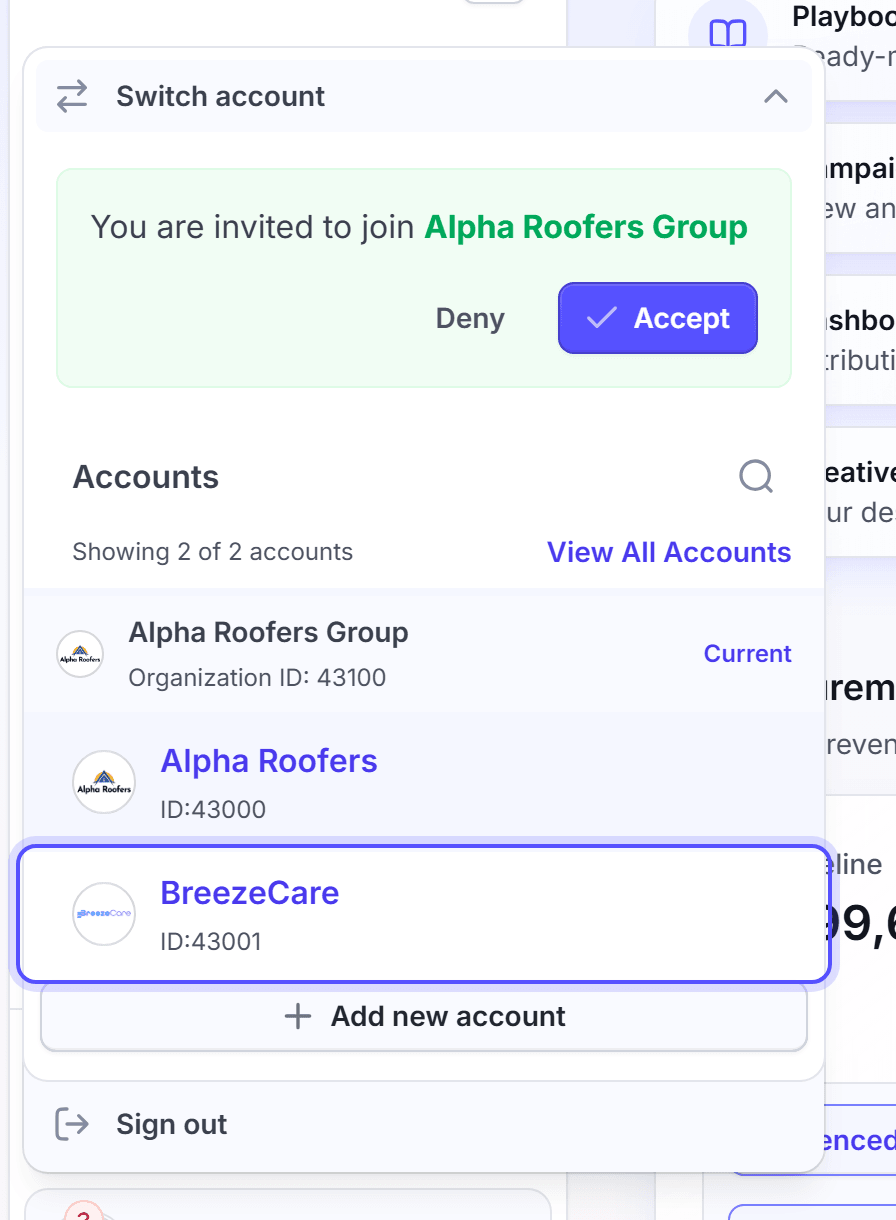
Optional: To find an account, click the search icon. Then enter a part of the name in Search for an account.
Click the account row.
The row shows Switching… while LettrLabs changes the account. Then the page loads again in the new account. If you were on a campaign page, the Campaigns list of the new account opens. On all other pages, you stay on the same page.
When you belong to an organization, the list groups the accounts under the organization name. Accounts with no organization show under Other accounts. The group that holds your current account shows Current.
You're done when the account card shows the name of the new account. You can switch back at any time.
See all your accounts
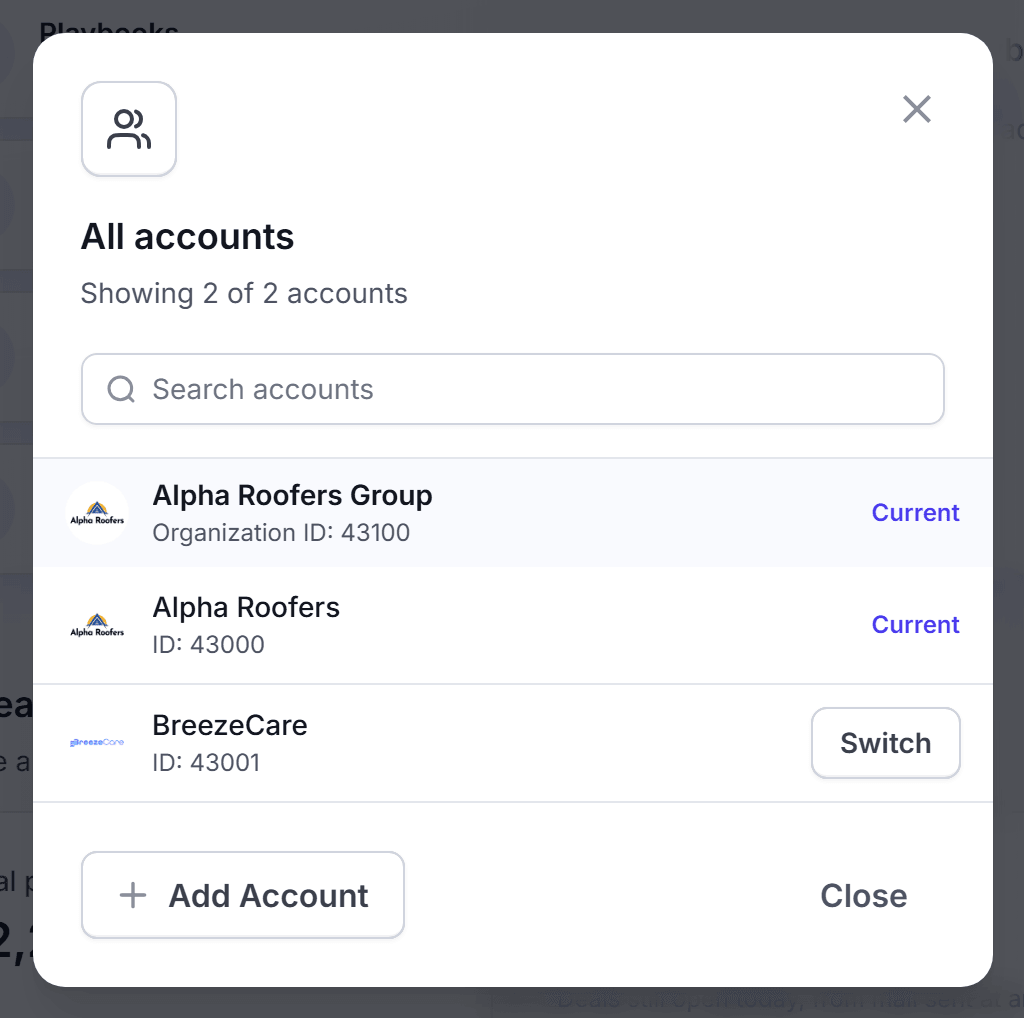
The menu shows the first 8 accounts. Open the full list when you have more accounts.
Click the account card, then click Switch account.
Click View All Accounts. The All accounts window opens.
Optional: Enter a part of the name in Search accounts.
On the account row, click Switch.
You're done when the account card shows the name of the new account.
Accept or deny an invitation
An admin of another account can invite your email address. The invitation shows at the top of the Switch account panel.
Click the account card, then click Switch account.
Find the green invitation card. It reads "has invited you to join" or "You are invited to join", then the account name.
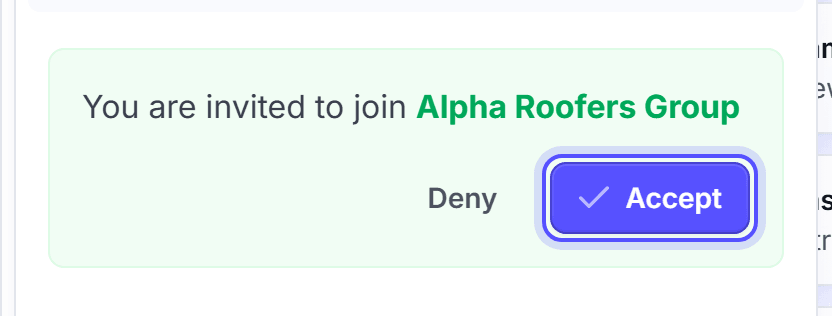
Click Accept to join the account. Or click Deny to refuse the invitation.
You're done when the invitation card goes away. After you accept, the account shows in the Accounts list. After you deny, you need a new invitation to join that account.
Add a new account
Add an account for a new business or a new location. The new account starts with no campaigns and no people.
Click the account card, then click Switch account.
Click Add new account. The Create Account window opens. You can also click Add Account in the All accounts window.
Under Account Type, keep Standard. A Standard account is "A LettrLabs account for sending mail."
In Upload Logo, upload the logo of the business. Use a PNG, JPEG, SVG or WEBP file.
In Account Name, enter the name of the business.
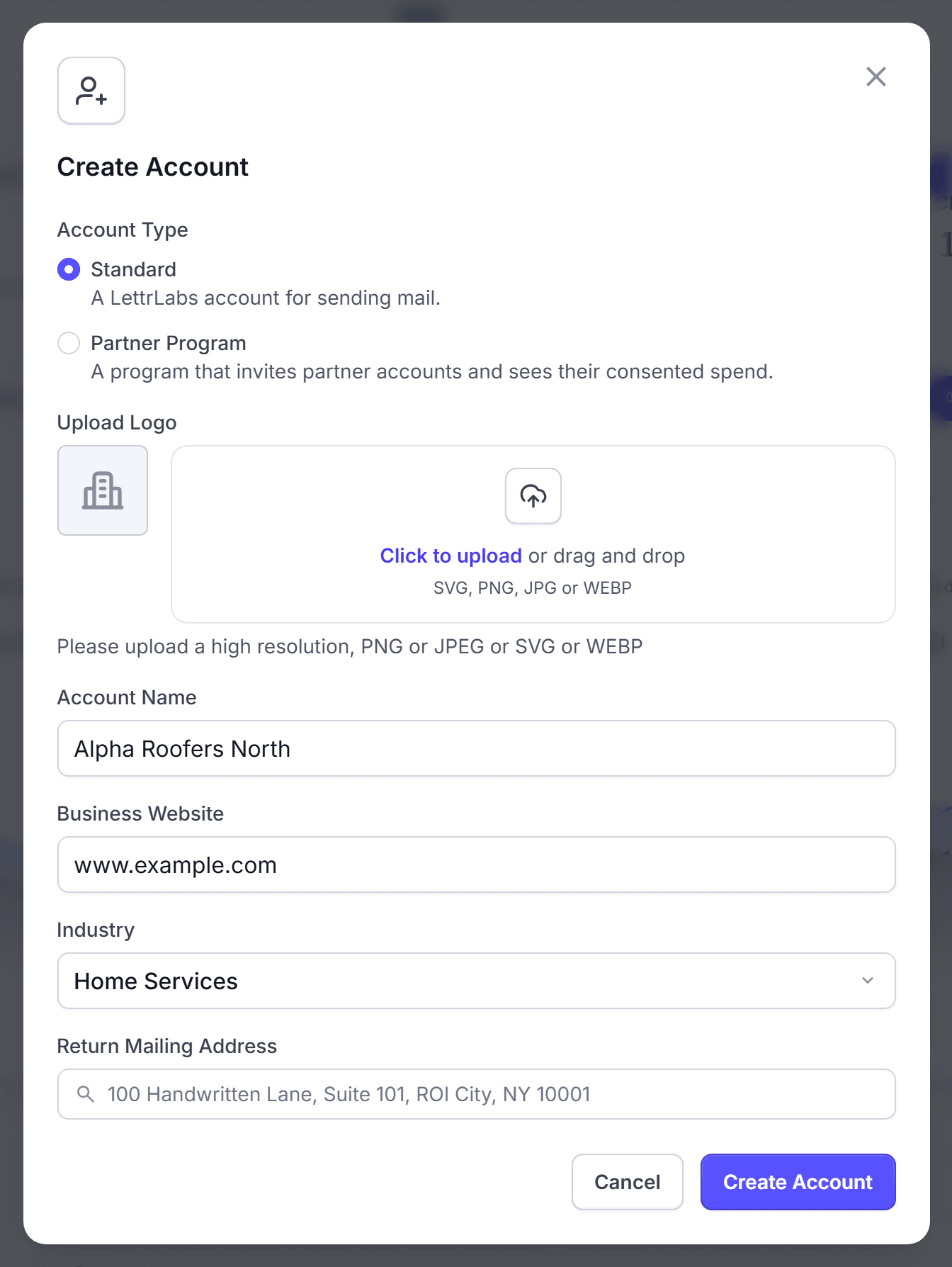
Optional: In Business Website, enter the website address, for example www.example.com.
In Industry, select the industry from the list.
In Return Mailing Address, enter the address and select it from the list. It is the return address for your mail.
Click Create Account.
You're done when the message "Account created successfully" shows. The new account shows in the Accounts list. Switch to it to start work in it.
The Partner Program type is for a company that runs a program for partner accounts. It needs only a Program Name. To learn more, read Partner programs.
Create an account when you have none
When you sign in with no account, LettrLabs shows an empty-account screen. It shows the invitations sent to your email address.
Sign in to LettrLabs. The screen reads "Welcome to LettrLabs", "Join your team on LettrLabs" or "You are not part of an account yet".
To join a team, click Accept and join on the invitation. To refuse it, click Decline, then Decline again to confirm. To create your own account, click Create a new account.
If you clicked Create a new account, complete the onboarding steps. To learn the steps, read Create your account.
You're done when the app opens in the account you joined or created.
Open the Organization or Partner Program app
An organization manages a group of accounts. A partner program invites partner accounts. Each has its own app. The Switch app item shows only when you belong to one of them.
At the foot of the left navigation, under Settings, click Switch app. The LettrLabs Apps menu opens.
Click Organization or Partner Program.
To come back, open the app menu again and click LettrLabs.
You're done when the app you picked opens. To learn what you can do there, read Organizations or Partner programs.
FAQ
Related
Create your account
Sign up and finish the onboarding.
Team members
Invite people to your account.
Organizations
Manage a group of accounts in one place.
Steps checked 2026-11-16.