Other AI assistants
Connect Claude Code, Cursor and other assistants to LettrLabs with a LettrLabs key.
Overview
You can connect LettrLabs to an AI assistant that runs in your terminal or your code editor. Examples are Claude Code, Cursor, Windsurf, Continue, Zed and Cline. These assistants do not open the LettrLabs sign-in page. They send your LettrLabs key with each request.
You can use LettrLabs in these assistants to:
- Ask about your orders and their status.
- Read the results of an order or a campaign.
- Ask for the price of an order before you place it.
- Place an order from one of your templates, after you confirm it.
What each assistant needs
Each assistant needs the same two values. The menu names and the file names are different in each assistant.
| Value | What you enter |
|---|---|
| Server address | https://mcp.lettrlabs.com/mcp |
| Header | The name X-API-KEY, with your LettrLabs key as the value |
To use Claude in a browser or on the desktop, read Use LettrLabs in Claude. To use ChatGPT, read Use LettrLabs in ChatGPT.
Make a LettrLabs key for your assistant
Make one key for each assistant. Then you can stop one assistant and keep the others.
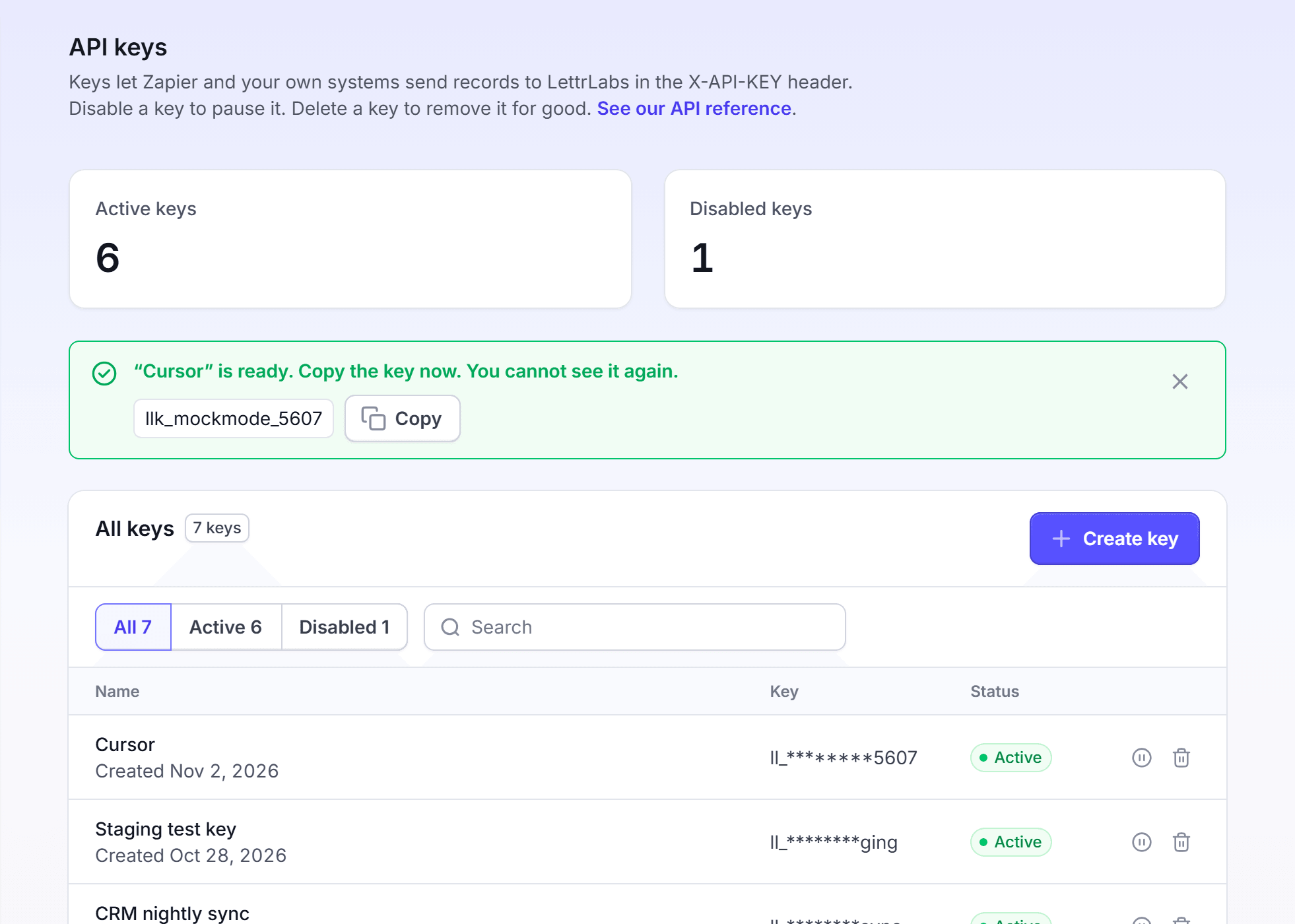
In LettrLabs, click Integrations > API keys.
Click Create key. The Create an API key dialog opens.
In Name, enter the name of the assistant, for example Cursor.
Click Create key. The message "Copy the key now. You cannot see it again." shows with the new key.

Click Copy.
You're done when the key shows on the API keys page with the status Active. The key costs nothing.
Connect Claude Code
Use this task one time, in a terminal where Claude Code is installed.
Open a terminal.
Enter the command below. Replace <your-key> with the key that you copied.
claude mcp add --transport http lettrlabs https://mcp.lettrlabs.com/mcp --header "X-API-KEY: <your-key>"Start Claude Code, and enter /mcp. Find lettrlabs in the list.
Ask a question about your account, for example "List my last five LettrLabs orders."
You're done when Claude Code answers with data from your LettrLabs account. A question only reads your account, and nothing is charged.
Connect Cursor or another code editor
Use this task one time, in the assistant of your code editor. The editor reads the connection from a settings file.
The table gives the settings file of three editors. For another editor, read the help of that editor.
| Editor | Settings file |
|---|---|
| Cursor | ~/.cursor/mcp.json |
| Windsurf | ~/.codeium/windsurf/mcp_config.json |
| Continue | ~/.continue/config.json |
Open the settings file of your editor in a text editor. If the file does not exist, create it.
Add the lettrlabs entry below. Replace <your-key> with the key that you copied.
{
  "mcpServers": {
    "lettrlabs": {
      "url": "https://mcp.lettrlabs.com/mcp",
      "headers": {
        "X-API-KEY": "<your-key>"
      }
    }
  }
}
Save the file. Then start the editor again.
In the assistant of the editor, ask a question about your account.
If the file already holds other entries, add lettrlabs inside the mcpServers block that is there. Do not add a second block.
You're done when the assistant answers with data from your LettrLabs account. Nothing is charged.
Stop an assistant
Use this task when an assistant must no longer read your account, or when a key is in a shared file.
In LettrLabs, click Integrations > API keys.
On the row of the key, click Disable key to stop it for a short time. Or click Delete key to stop it for good.
In the dialog, confirm the action. To delete, enter delete in Type delete to confirm, then click Delete key.
Remove the lettrlabs entry from the assistant, or replace the old key with a new key.
You're done when the key has the status Disabled, or the key is not on the API keys page.
FAQ
Related
Use LettrLabs in Claude
Add LettrLabs to Claude as a connector.
Use LettrLabs in ChatGPT
Add LettrLabs to ChatGPT as a connector.
Connect an AI assistant (developers)
The technical detail of the LettrLabs connection.
Steps checked 2026-11-10.