Use LettrLabs in Claude
Add LettrLabs to Claude as a connector, so you can ask Claude about your orders, campaigns and results in a chat.
Overview
You can add LettrLabs to Claude as a connector. Then you can ask Claude about your orders, campaigns, recipients and results in a chat. The connection uses a LettrLabs key that you make and control.
You can use LettrLabs in Claude to:
- Ask about your orders and their status.
- Read the results of an order or a campaign.
- See which automated campaigns are on.
- Ask for the price of an order before you place it.
How the connection works
Claude connects to LettrLabs through a connector that you add one time. The connection has three parts:
- You make a LettrLabs key for Claude in LettrLabs.
- You add the LettrLabs connector in Claude. Claude opens the LettrLabs sign-in page.
- You paste the key on the LettrLabs sign-in page. Claude uses that key from then on.
The key belongs to your LettrLabs account. When you disable or delete the key, Claude loses its access.
Make a LettrLabs key for Claude
Use this task before you add the connector in Claude. Any user of the account can make a key.
In LettrLabs, click Integrations > API keys.
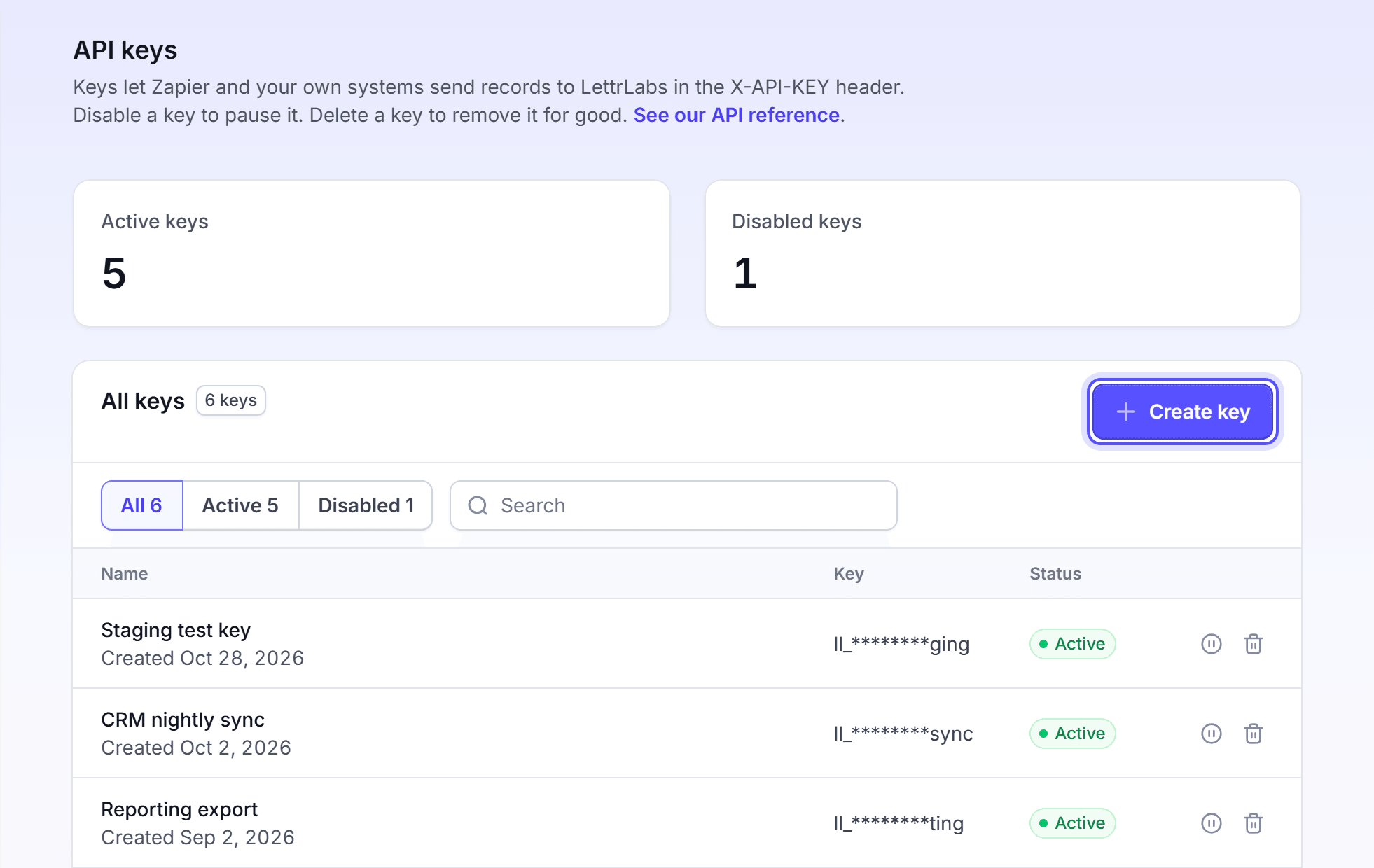
Click Create key. The Create an API key dialog opens.
In Name, enter Claude. The name tells you later which system uses the key.
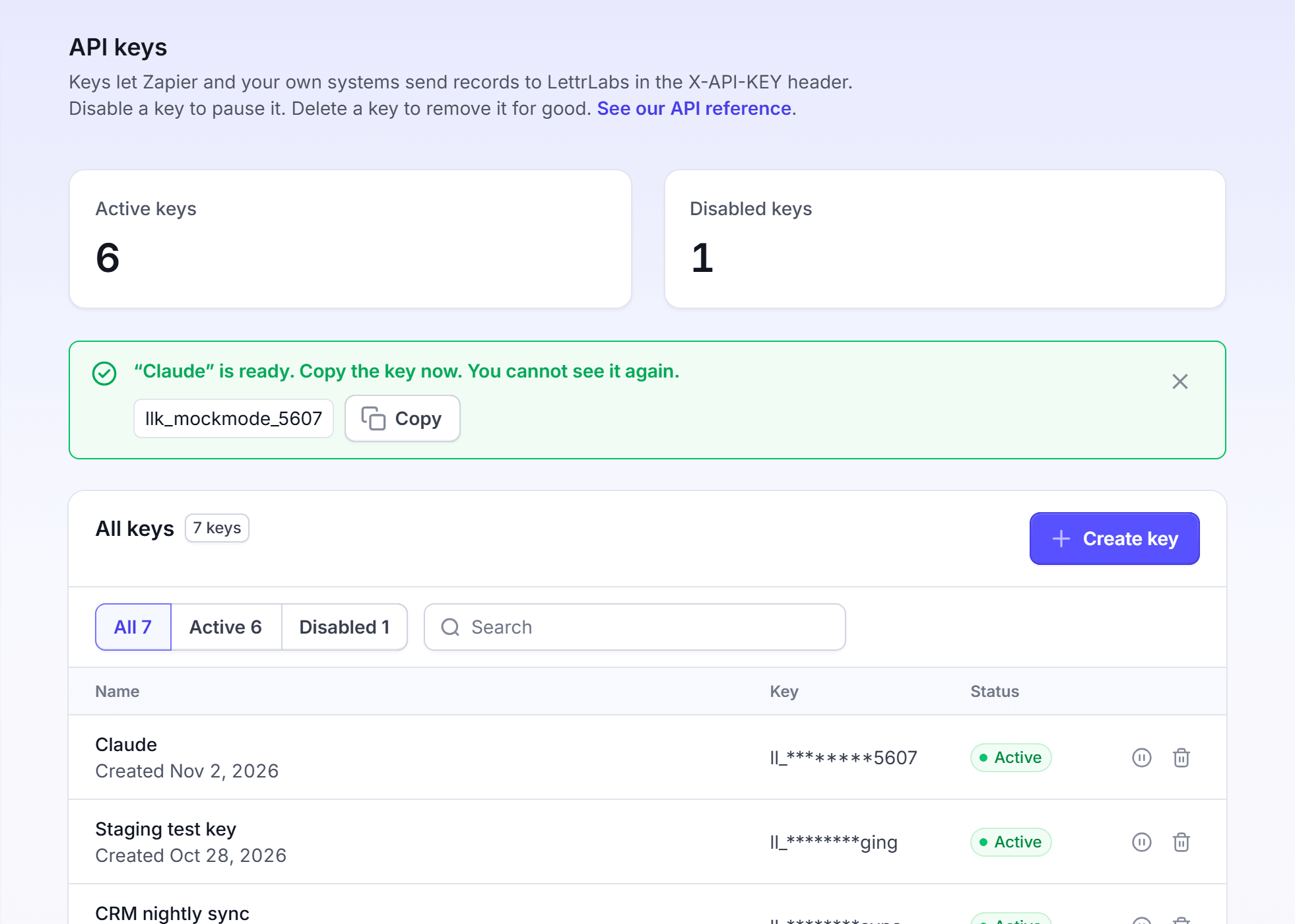
Click Create key. The message "Copy the key now. You cannot see it again." shows above the table, with the new key.
Click Copy.

Keep the key in a safe place until you finish "Add LettrLabs to Claude".
You're done when the key Claude shows on the API keys page with the status Active. The key costs nothing. When you lose it before you use it, delete it and make a new key.
Add LettrLabs to Claude
Use this task one time, after you make the key. You do these steps in Claude.
In Claude, open Settings > Connectors.
Click Add custom connector.
Enter the name LettrLabs.
In the server URL field, enter https://mcp.lettrlabs.com/mcp.
Leave the client ID and client secret fields empty.
Save the connector, then click Connect. The LettrLabs sign-in page Authorize Claude opens.
In LettrLabs API key, paste the key that you copied.
Click Authorize.
You're done when Claude shows LettrLabs as connected. Nothing is charged. Next, turn on the connector in a chat.
Ask Claude about your account
Use this task each time that you want Claude to read your LettrLabs account.
Start a new chat in Claude.
Open the tools menu of the chat, and turn on LettrLabs.
Ask a question about your account, for example "List my last five orders."
The table lists four questions to try with the demo account, and the answer that you get.
| You ask Claude | You get |
|---|---|
| "List my last five orders." | Five orders with their status and date |
| "How did order 1234 do?" | The deliveries and the attributed results for that order |
| "Which automations are on?" | Your automated campaigns and their state |
| "What does my account look like?" | Your company name and account details |
You're done when Claude answers with data from your LettrLabs account. A question only reads your account, and nothing is charged.
What Claude can do in your account
With the LettrLabs connector, Claude can read your orders, recipients, proofs, results, transactions, automations and conversions.
Claude places an order only after you confirm it in the chat. Claude can get the price of an order first. Confirm the order only after you read the price.
What LettrLabs reads and when
LettrLabs reads your data only when Claude asks LettrLabs for it. The table lists what moves, when, and what LettrLabs writes.
| Data | When | What LettrLabs writes |
|---|---|---|
| Your question and what Claude asks LettrLabs for | Each time Claude asks LettrLabs | The answer goes back to Claude |
| Orders, recipients, campaigns, results | Only when Claude asks for them | Nothing, except an order that you confirm |
LettrLabs reads nothing from your Claude account.
Pause Claude's access
Use this task to stop Claude for a short time and keep the connector.
In LettrLabs, click Integrations > API keys.
On the Claude row, click Disable key.
In the dialog, click Disable key.
You're done when the message "“Claude” is disabled." shows, and the key has the status Disabled. Claude stops within a minute. To turn access on again, click Enable key on the row.
Disconnect Claude
Use this task when you no longer want Claude to read your account.
In Claude, open Settings > Connectors, and remove LettrLabs.
In LettrLabs, click Integrations > API keys.
On the Claude row, click Delete key.
In Type delete to confirm, enter delete.
Click Delete key.
You're done when the message "“Claude” is deleted." shows, and the key Claude is not on the API keys page. Claude has no access to your account. To connect again, make a new key and add the connector again.
FAQ
Related
Use LettrLabs in ChatGPT
Add LettrLabs to ChatGPT as a connector.
Other AI assistants
Connect Claude Code or an editor assistant.
Connect an AI assistant (developers)
The technical detail of the LettrLabs connector.
Steps checked 2026-11-09.