How integrations work
What LettrLabs reads from your tools, when it syncs, and how to keep each connection healthy.
Overview
An integration connects LettrLabs to a tool that you use every day, such as your CRM or your store. LettrLabs reads from the tool. It never writes to it. Each connection shows its health, so you know when a connection needs you.
You can use Integrations to:
- Find a tool and connect it.
- See the health and the last sync of each connection.
- Fix a connection that stopped.
- Ask LettrLabs for a tool that is not in the list.
What LettrLabs reads and when
The way LettrLabs gets your records depends on the tool. The table gives each kind of integration and when new records arrive.
| Integration | How records arrive |
|---|---|
| ServiceTitan, AccuLynx, Salesforce | LettrLabs syncs once a day. The first sync can take up to an hour. You cannot change the sync time. |
| Klaviyo, Shopify | No daily sync. The connection details show On change as the next sync. |
| Zapier, webhooks | The tool sends each record to LettrLabs when it happens. |
A record that changes in a daily-sync tool shows in LettrLabs after the next daily sync. LettrLabs never changes data in the tool.
Find and connect an integration
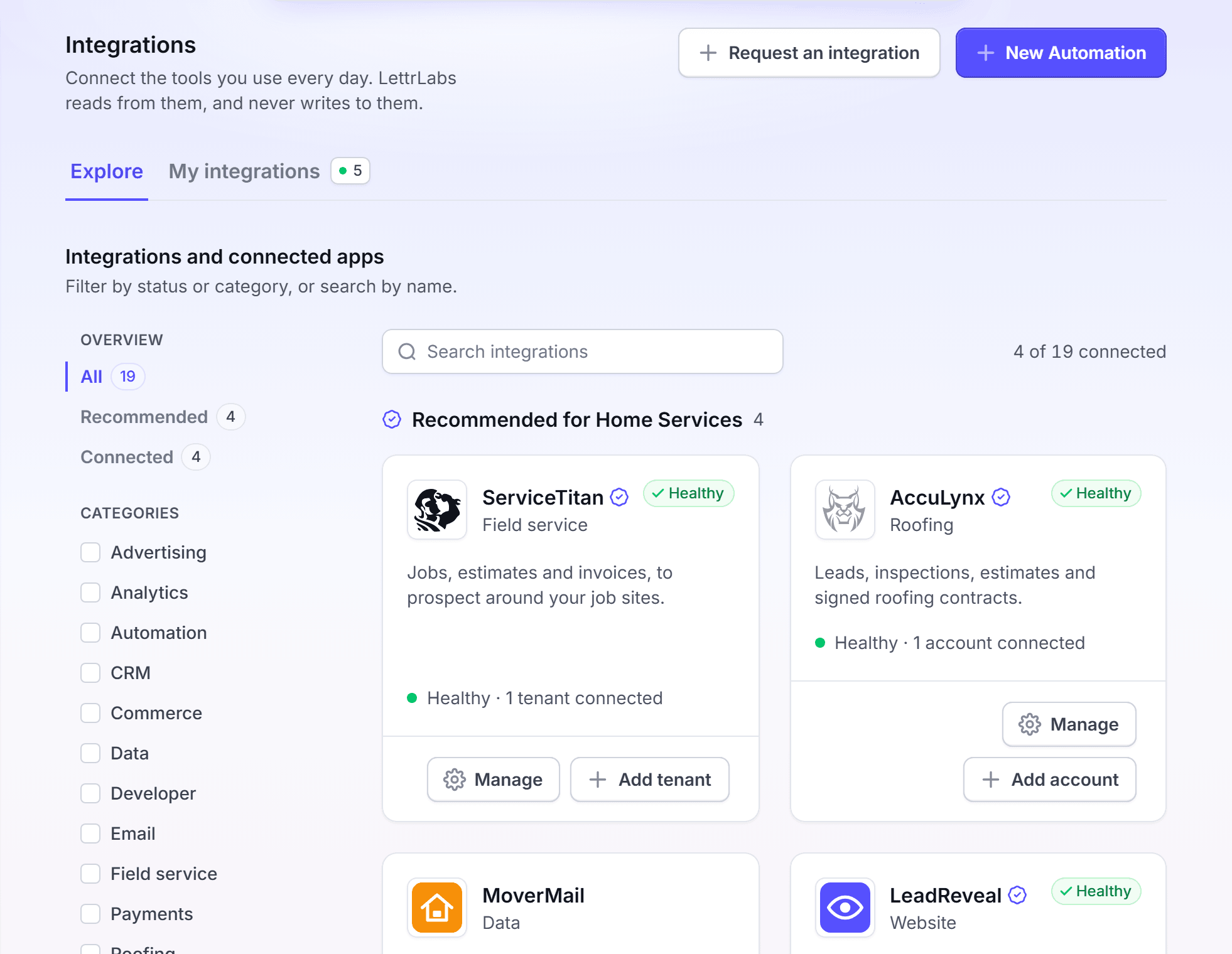
Find the tool on the Explore tab, then connect it from its card. Each integration has its own page with the full steps.
Click Integrations > Integrations. The Explore tab opens.
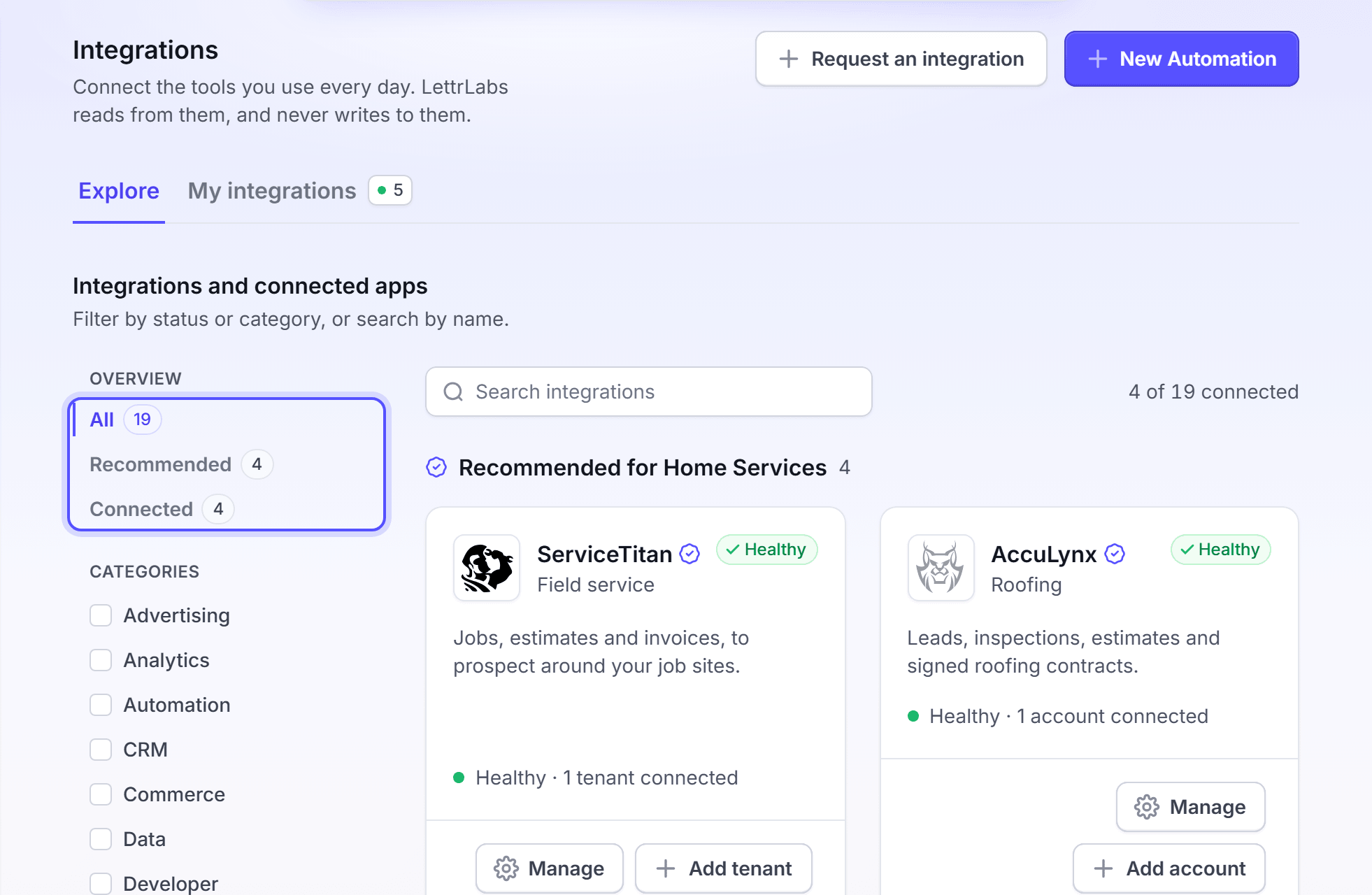
To narrow the list, click All, Recommended or Connected under Overview. Or select a category under Categories.
To find a tool by name, type in Search integrations.
On the card of the tool, click Setup. Then follow the page of that integration.
You're done when the card shows a health, such as Healthy. The line under it gives the count, for example "1 account connected".
The cards show these states before you connect:
- Not connected: You can click Setup.
- Coming soon: LettrLabs plans the tool. Click Request to ask for it.
- Disconnected: The tool was connected before, and the connection was turned off.
- Paused: The connection exists, but it is turned off.
See Native integrations, Zapier and Webhooks.
Request an integration
Ask LettrLabs for a tool that is not in the list, or for a tool that shows Coming soon.
Click Integrations > Integrations.
Click Request an integration. Or click Request on a Coming soon card.
In Integration name, enter the name of the tool. A Request from a card fills it for you.
In Website, enter the address of the tool.
In What should it do?, write what LettrLabs must do with the records. For example, "mail every customer whose job is completed".
Click Send request.
You're done when the message "Thanks. We saved your request" shows.
See the health of your connections
Check your connections when the Integrations item in the sidebar shows a count. The count is the number of connections that need attention.
Click Integrations > Integrations > My integrations.
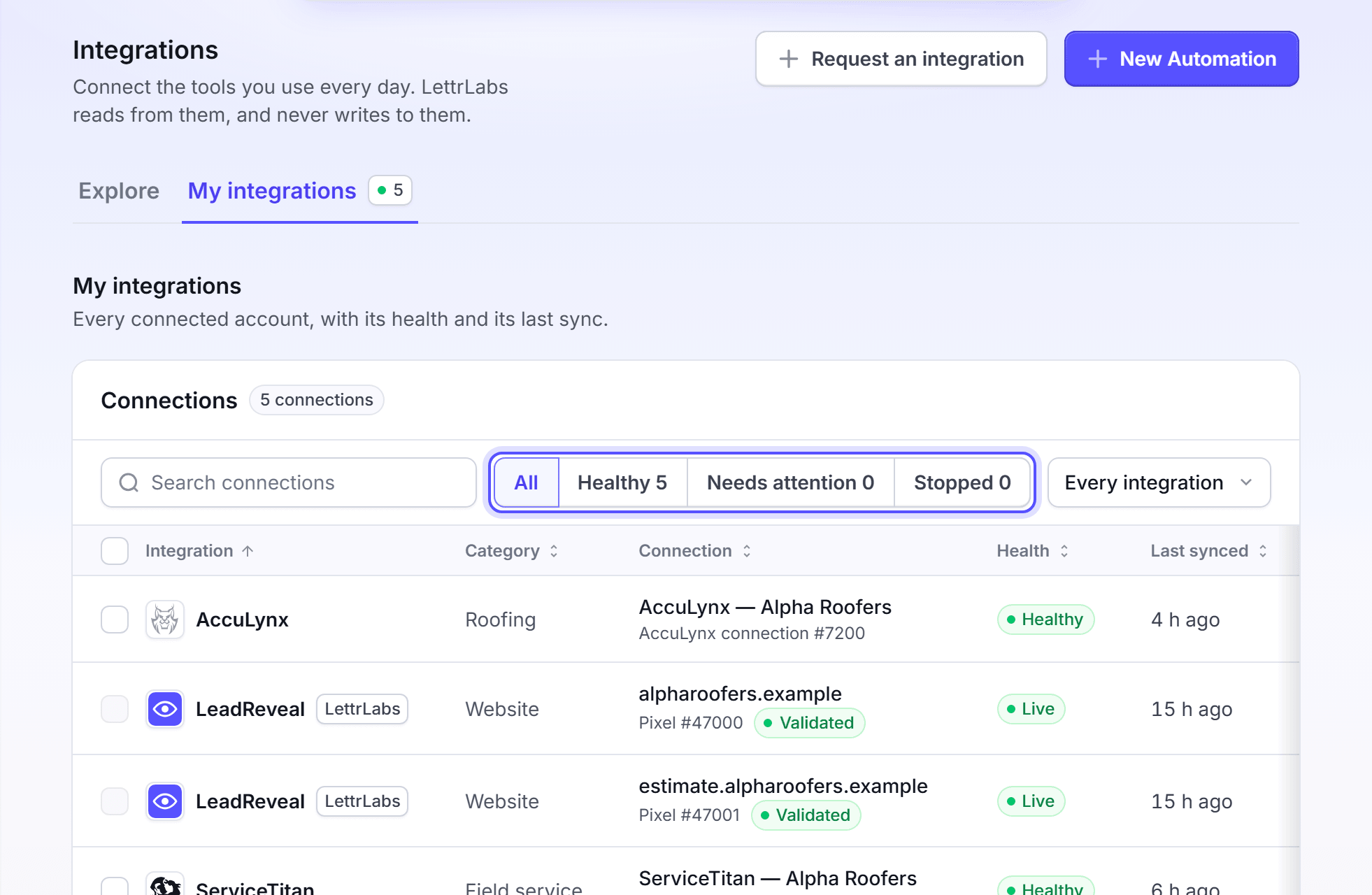
To show only one health, click Healthy, Needs attention or Stopped above the table.
To show one tool, select it in Every integration.
Read the Health and Last synced columns of each row.
The table lists each health and what it means.
| Health | What it means |
|---|---|
| Healthy | The connection works. The last sync finished. |
| Syncing | A sync runs now. |
| Setting up | LettrLabs is setting up the connection. No sync runs yet. |
| Needs attention | The last sync failed, the setup is not finished, or the connection is paused. |
| Stopped | The setup failed, or the tool did not accept your details. LettrLabs reads nothing until you fix it. |
Change a connection's settings
Change the name of a connection, or the branches of a ServiceTitan connection.
On My integrations, open the menu on the row, and click Settings. For a Klaviyo, Shopify or Zapier row, click the row. The connection panel opens.
In Name, change the name. LettrLabs shows this name on campaigns and reports.
For ServiceTitan, change Branches to set the branches that LettrLabs mails and measures. Every branch still syncs.
Click Save changes. Or click Discard to undo your changes.
You're done when the message "Saved." shows. You can rename each connection in its panel.
The panel also shows Last synced, Next sync, Rows synced and Connected for the connection. Next sync reads After setup or After approval until the setup ends.
Fix a failed connection
Fix a connection when it reads Needs attention or Stopped. Open the panel first: on My integrations, open the menu on the row, and click Settings. The panel shows a message and a button for the problem.
The table lists each button in the panel and when it shows.
| Button | When it shows | What it does |
|---|---|---|
| Try again | A tool that takes your keys, such as AccuLynx, did not accept your details. | Opens the Connect step again, so you can enter new details. |
| Reconnect | The sign-in of a tool such as Salesforce failed, or was revoked. | Deletes the connection, then opens the sign-in again with the same name. |
| Retry sync | The panel reads "Last sync failed". | Starts a new sync now. |
| Try setup again | The setup did not finish. | Runs the setup again with the details you entered. |
| Delete and reconnect | LettrLabs could not create the connection in the tool. | Deletes the connection, then opens the connect window. |
| Finish setup or Activate | The test passed, but the connection is not active. | Turns the connection on. |
For a failed sign-in tool, the menu on the row also shows Reconnect.
Read the message in the panel, below the health.
Click the button that the panel shows.
Wait for the next sync, then check the health again.
You're done when the row reads Healthy. A message such as "Salesforce sync requested, it may take a few minutes to complete" shows after Retry sync. If the row still reads Stopped, delete the connection and connect the tool again.
Customize attribution for a connector
Some connectors have an extra setup step for attribution. In it, you tell LettrLabs at which stage a person first becomes a lead. Today, Salesforce has this step. You can do it only after the connection test passed.
On My integrations, open the menu on the row, and click Settings.
Click Customize attribution. The Attribution Setup page opens.
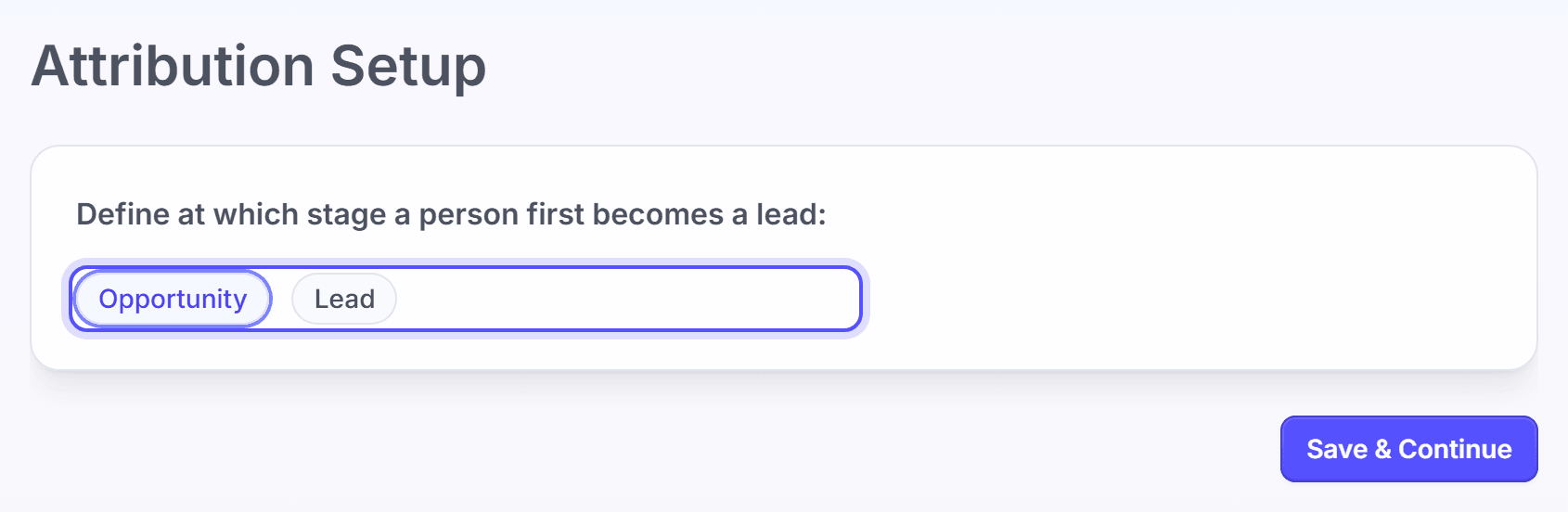
Under "Define at which stage a person first becomes a lead", select one option.
Click Save & Continue.
You're done when the page saves with no error. To set the attribution window for your account, see How attribution works.
Create an automation from a connection
Start an automation from an active AccuLynx or Salesforce connection. The automation uses that connection as its source.
On My integrations, open the menu on the row, and click Settings.
At the bottom of the panel, click Create an automation.
You're done when the automation setup opens with the connection as its source.
Delete a connection
Delete a connection when you stop using the tool.
On My integrations, open the menu on the row, and click Delete. To delete more than one, select the rows, and click Delete in the bar at the bottom.
In the Delete this connection? dialog, click Delete.
You're done when the message "Deleted." shows, and the row is no longer in the table. A Zapier row has Manage API keys in place of Delete. To stop Zapier, see Zapier.
FAQ
Related
Native integrations
Connect the CRM and store tools that LettrLabs reads.
Zapier
Send records from thousands of apps.
Webhooks
Send records from your own systems.
Steps checked 2026-11-16.