Approvals
Read, edit, approve or skip the runs that wait for you.
Overview
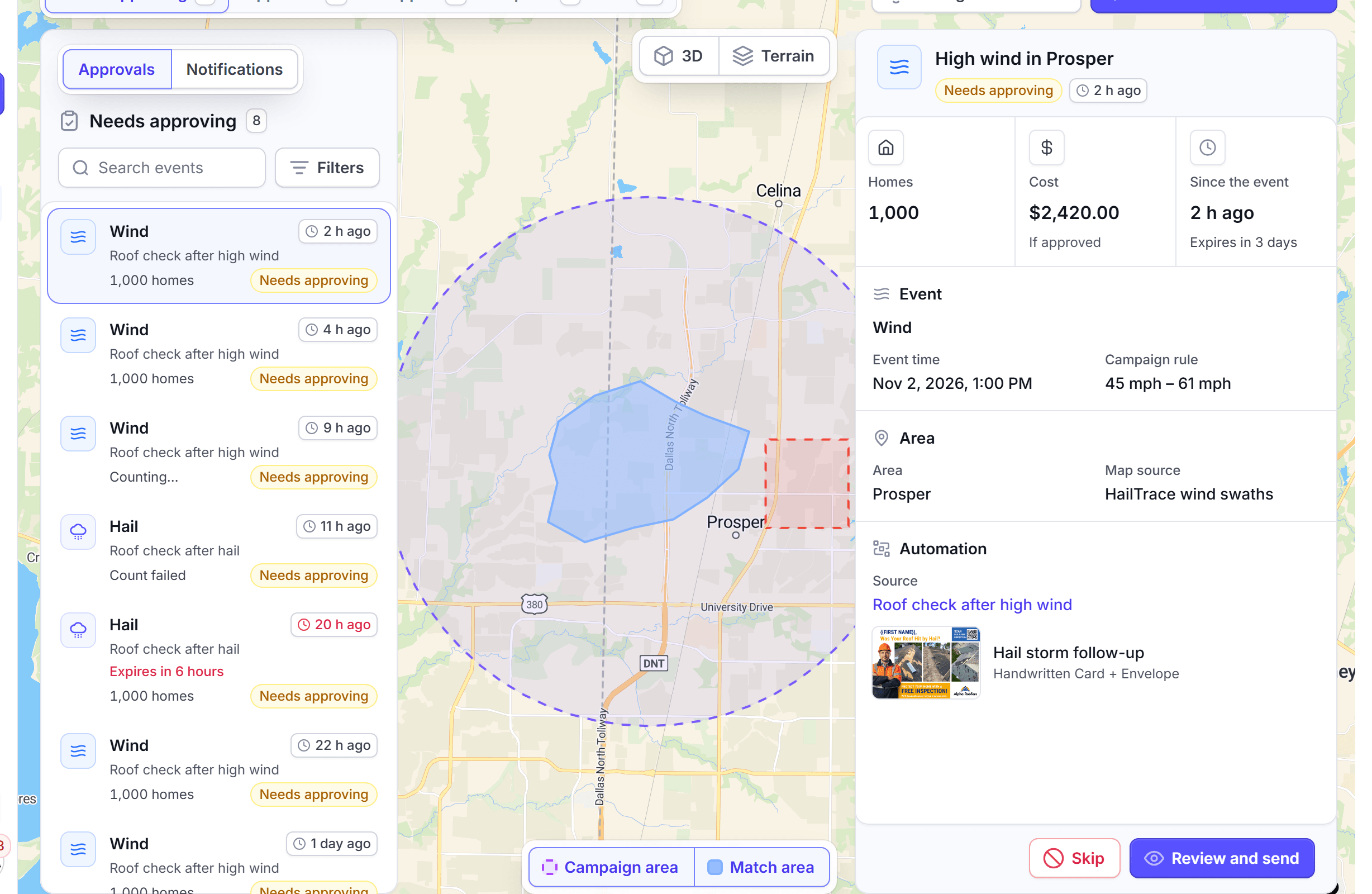
Approvals holds each run that waits for a person before it mails. A run waits when its campaign is set to Approve each run. A run also waits when LettrLabs holds it, for example after a failed payment. The page shows each event on a map, with what it would mail and what it would cost.
You can use Approvals to:
- See each run and event that waits for you, and how soon it expires.
- Review and approve a run, or skip it.
- Change the homes, the template or the holdout of a run before you approve it.
- Get an email when a storm waits for you.
How approvals work
An automation with Approve each run holds each run until you approve it. Auto-approve mails each run when it is ready. You set the choice on the Budget step of Send Mail.
A run waits until you decide, or until it expires. The campaign sets the time in Approval expires after, from 1 to 30 days. A run that nobody approves in that time expires and mails nothing.
LettrLabs can also hold a run or a touch for a check. These are the common reasons:
| Reason | What it means |
|---|---|
| Payment failed | The payment failed. LettrLabs tries the card again once a day. |
| Far more homes than usual | The run found far more homes than the campaign usually mails. |
| Above the price ceiling | The price of the run is above the most the campaign pays. |
| Not enough discount codes | A coupon list has fewer free codes than the homes to mail. |
| Merge field missing | A merge field has no value for any home, and the touch has no fallback. |
| Plan does not include automations | Your plan does not include automations, so the automation is paused. |
The tabs of the page show each run by its state:
| Tab | What it shows |
|---|---|
| Needs approving | The runs that wait for you. |
| Approved | The runs that you approved. |
| Skipped | The runs that you skipped, and the runs that were canceled. |
| Expired | The runs that nobody approved in time. |
| All | Every run and event. |
A waiting run that expires in less than one day shows the hours left on its card.
Approve or skip a run
Do this when the left navigation shows a count beside Approvals.
In the left navigation, click Approvals. The Needs approving tab opens.
Optional: In Search events, enter a name. Click Filters to filter by Event type, Source, Status, Area, Impacted structures or the campaign.
Click an event in the list. The map shows its area, and the panel shows the homes, the cost and the card.
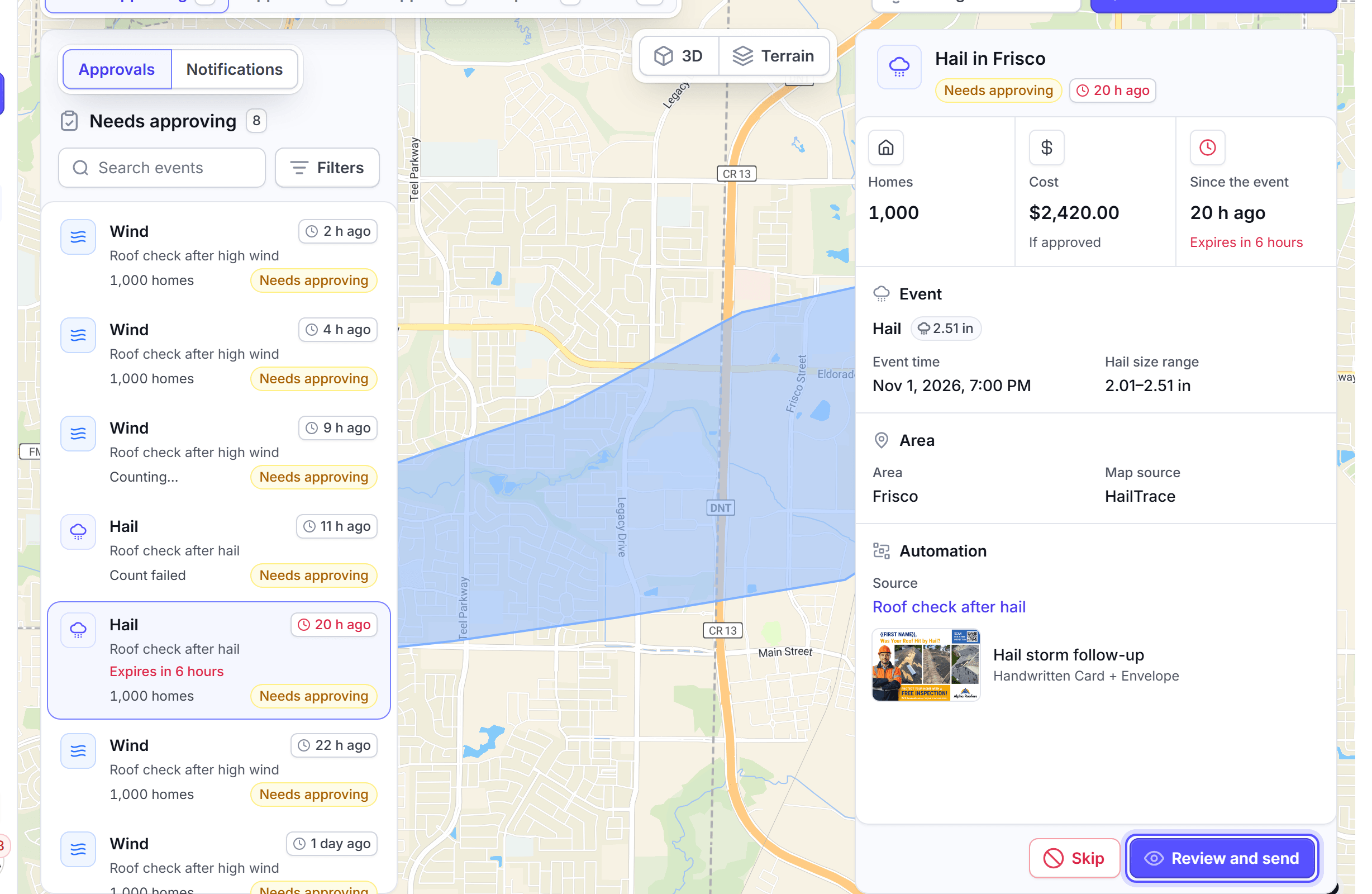
To mail it, click Review and send. The review page of the run opens.
Check the Order summary, then click Approve and pay.
To skip it, click Skip. In the Skip this event? dialog, click Skip event.
You're done when the run leaves the Needs approving tab. An approved run shows on the Approved tab, and its cards go to production.
Edit a run before you approve it
Do this to change the homes, the template or the holdout of one run. The campaign keeps its own settings.
On the Approvals page, click the event, then click Review and send.
In Severity band or Severity threshold, widen or narrow the range of the event that gets a card.
In Max homes or Max mail quantity, set the most cards this run sends. The homes with the highest severity come first.
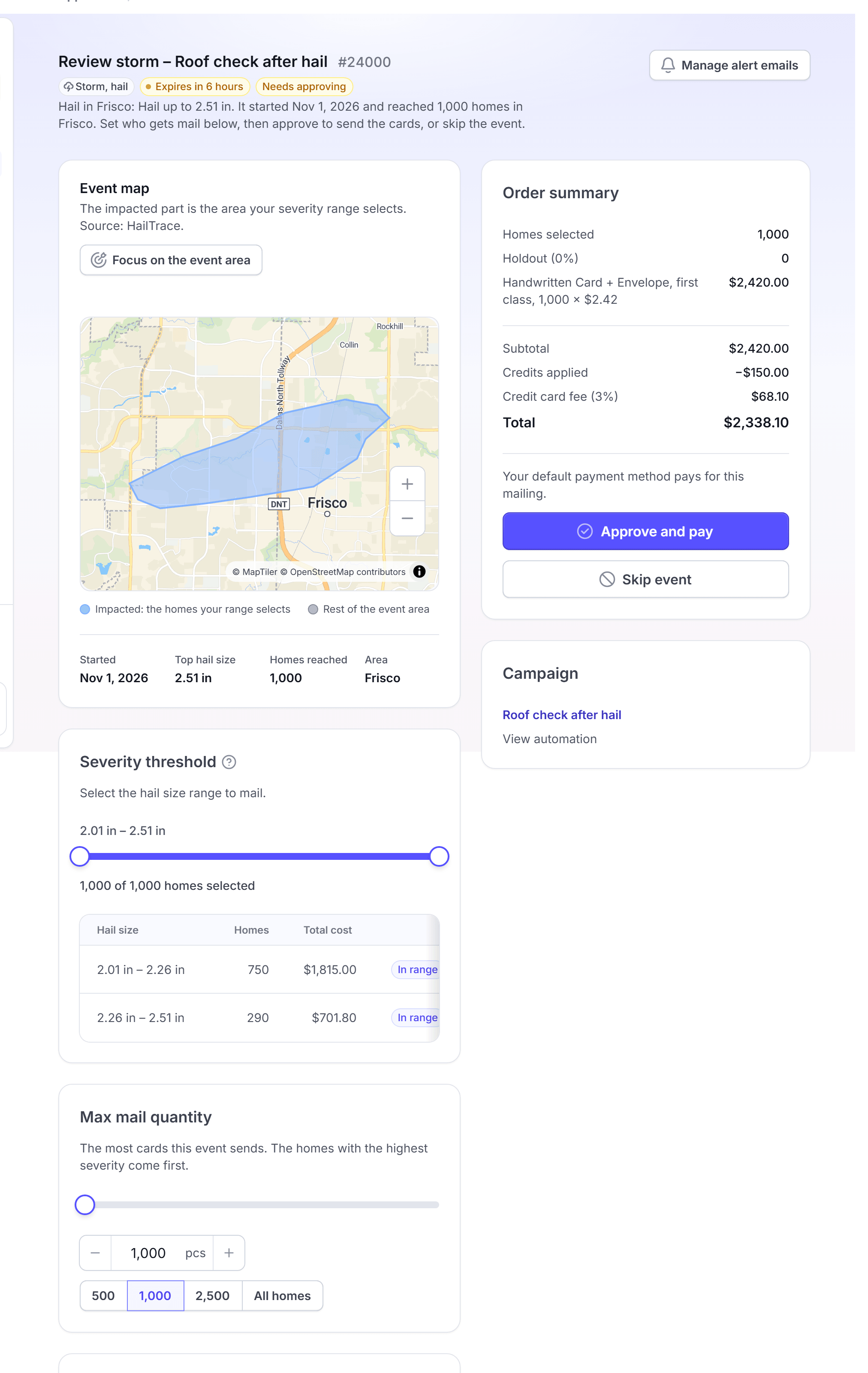
Optional: Set the Holdout, the share of homes to hold back.
Optional: In Card template, click Change and pick another template.
Check the Order summary, then click Approve and pay.
A storm event also offers Advanced targeting: the Property type, the Occupancy and the Targeting strategy. Maximum reach mails every home inside the impacted area. High accuracy mails the homes that the weather maps confirm.
A value that a playbook sets shows its limits. A Processing payment dialog shows while the payment runs. Keep the page open.
You're done when the run shows Approved. The cards go to production with your changes.
Manage alert emails
Do this to get an email when a storm waits for your review.
On the Approvals page, click Manage alert emails.
In Alert emails, enter an email address, then press Enter.
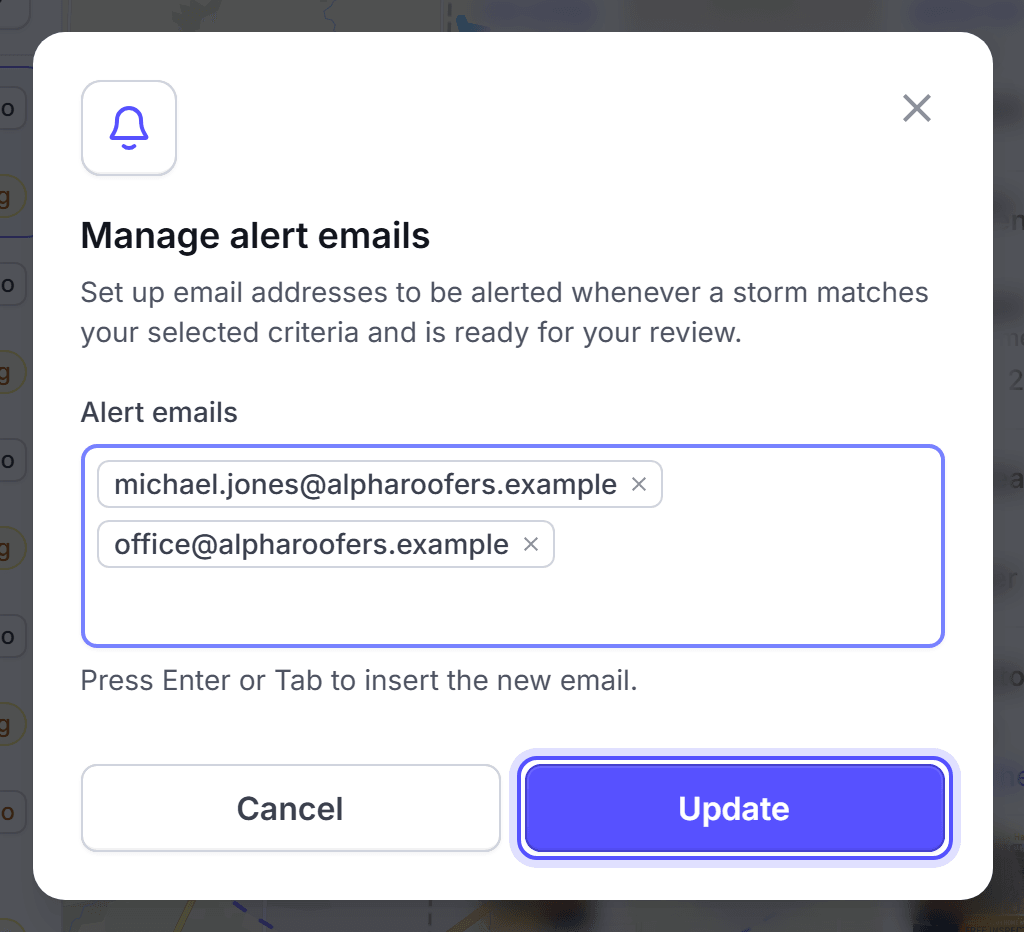
Add more addresses, or remove one.
Click Update.
The list must hold one address at least.
You're done when the message "Storm alerts updated." shows.
Act on a held touch
Do this when a touch of a campaign waits on the Approvals page with a hold reason.
On the Approvals page, click the held touch. The Held touch panel shows the reason.
Do the fix that the panel names, when it names one. For example, click Add coupons or Edit the campaign.
To mail the touch, click Approve and send. When the campaign is paused, the The campaign is paused dialog opens first. Click Retry to continue.
In the Approve and send? dialog, click Approve and send.
To drop the touch, click Skip. In the Skip this held touch? dialog, click Skip touch.
The fixes depend on the reason. For Plan does not include automations, upgrade your plan and activate the automation. For Template no longer available, get access to the design again. To keep the touch as it is, click Keep it on hold.
You can also retry or cancel a held touch from its campaign page. Automated campaigns gives the steps.
You're done when the touch leaves the Needs approving tab.
FAQ
Related
Weather and outages
Set up the campaigns whose runs wait here.
Automated campaigns
Retry or cancel a held touch from the campaign page.
Payment methods
Add the card or bank account that pays for each run.
Steps checked 2026-11-16.