Weather and outages
Mail the homes that a storm or a power outage hit, soon after the event.
Overview
A weather or outage campaign watches your area for an event, such as hail or a power outage. When an event matches your rule, the campaign mails the homes that the event hit. You can approve each event before it mails.
You can use weather and outage campaigns to:
- Mail homes after hail, wind, a tornado, a hurricane or a flood.
- Mail homes before or during a freeze, a heat wave, rain or snow.
- Mail homes that lost power in an outage.
- Cap the homes that one event mails, and approve each run.
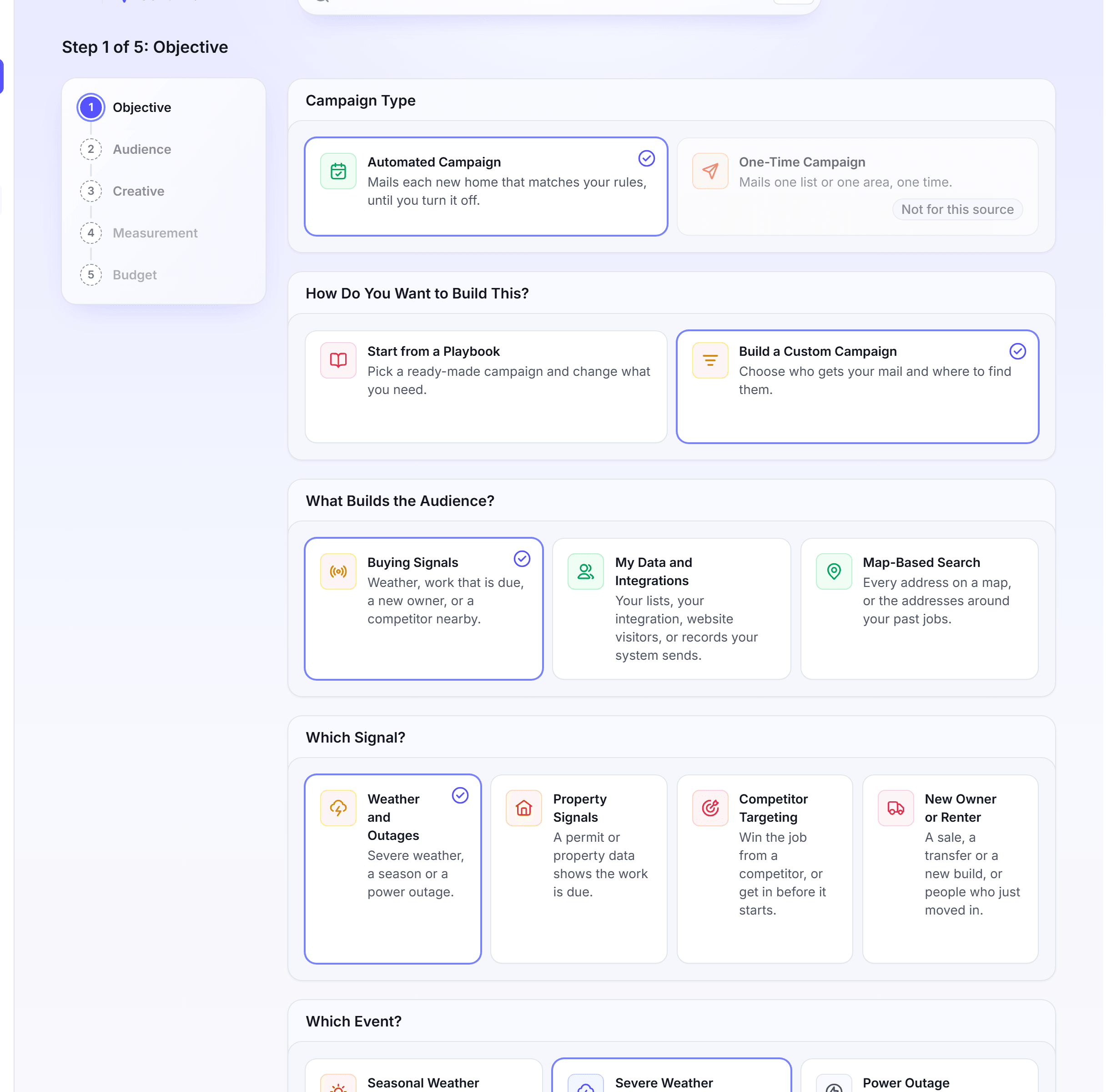
The events you can mail on
Under Which Event?, the events sit in three groups. A rule can act on the weather that occurred, and some events can also act on a forecast.
| Group | Events | Forecast |
|---|---|---|
| Severe Weather | Hail, Wind, Tornado, Hurricane, Flooding | Hurricane only |
| Seasonal Weather | Freeze, Heat, Rain, Snow, Ice Storm, Air Quality | Freeze, Heat, Rain and Snow |
| Power Outage | Power Outage | No |
A forecast rule mails before the weather comes. An actual rule mails after the weather occurred.
A Hurricane rule asks How strong is the storm?. It takes a range with two handles, from a tropical storm to Category 5. The top handle at Category 5 reads "or stronger".
Mail homes after a storm or severe weather
Do this to reach the homes that hail, wind or another storm hit, while the owners need a repair.
In the left navigation, click Send Mail.
Under Campaign Type, click Automated Campaign. Then click Build a Custom Campaign.
Under What Builds the Audience?, click Buying Signals. Under Which Signal?, click Weather and Outages.
Under Which Event?, click Severe Weather or Seasonal Weather. Then click the event, such as Hail.
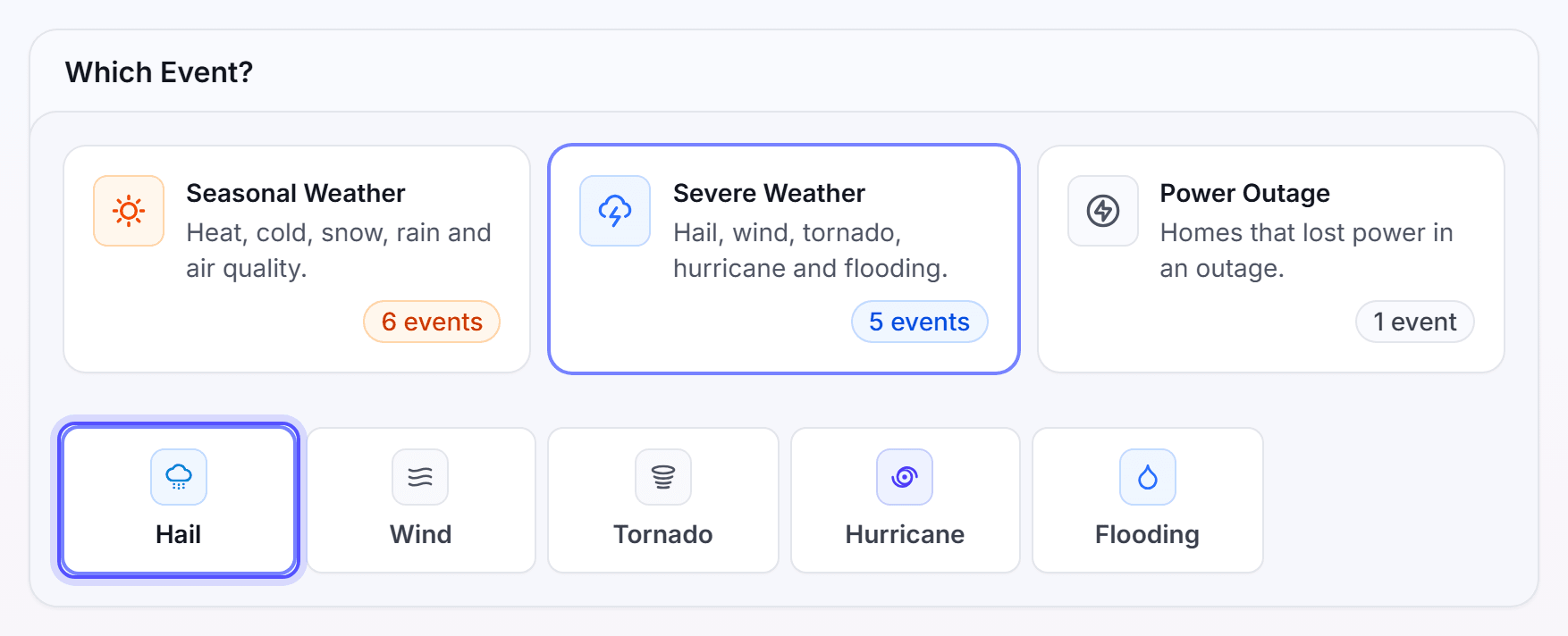
Click Next. On the Audience step, set the rule, such as the smallest hail size to mail.
Optional: Under Weather trigger, select the actual weather or the forecast, where the event offers both.
Under Where it mails, select My service areas or A custom area, and pick the area.
Optional: Set the property filters, and set Who shouldn't get this card.
Click Next. On the Creative step, pick a template for each touch.
Click Next until the Budget step opens. Set the Budget, then set Approval.
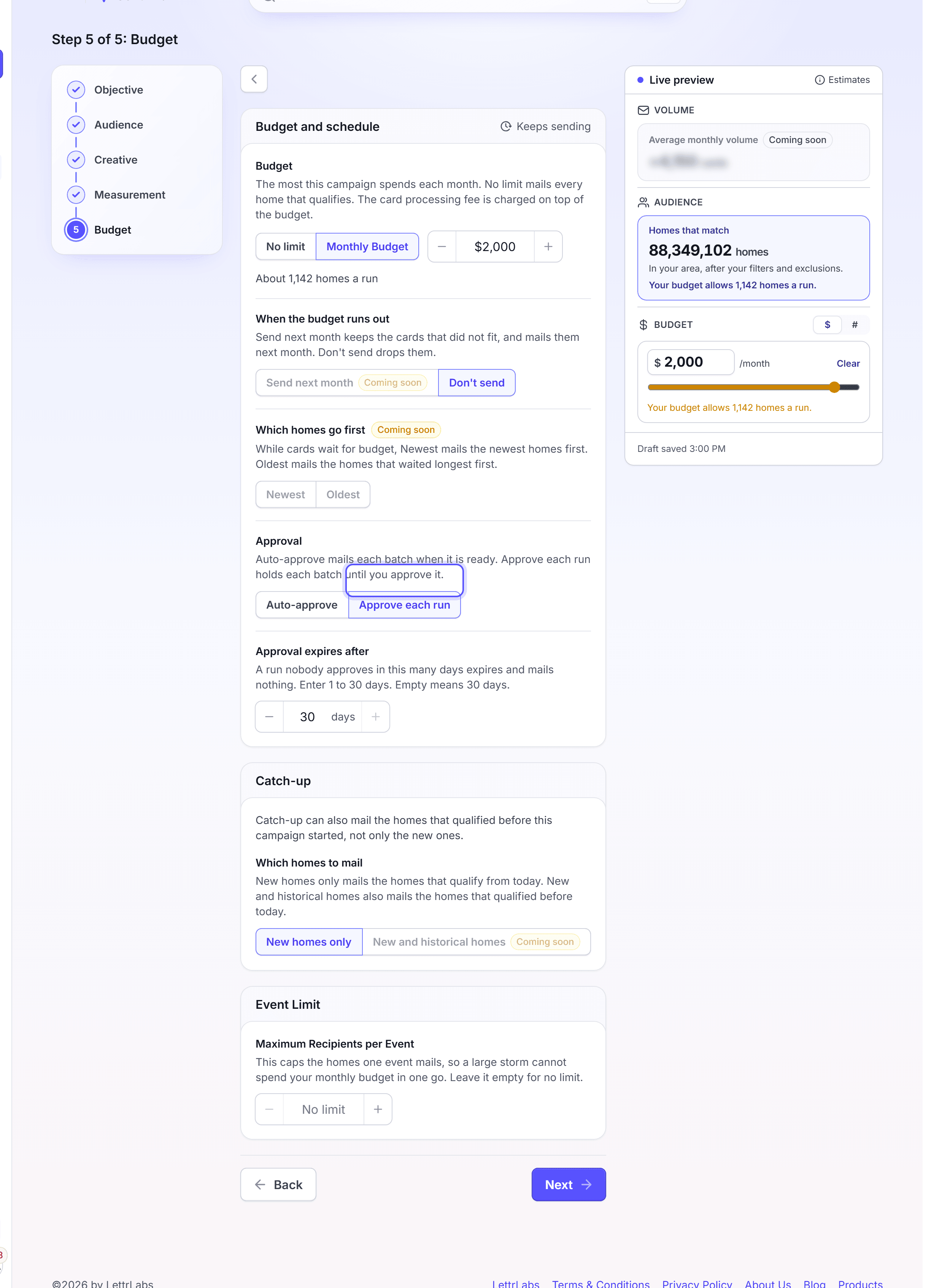
Optional: In Event Limit, enter the Maximum Recipients per Event.
Click Turn it on. In the Name your campaign dialog, click Turn it on.
The Approval choices work like this:
| Choice | What happens to each event |
|---|---|
| Auto-approve | The run mails when it is ready. |
| Approve each run | The run waits for you on the Approvals page. |
With Approve each run, set Approval expires after from 1 to 30 days. A run that nobody approves in that time expires and mails nothing. An empty field means 30 days.
The Event Limit caps the homes one event mails. A large storm then cannot spend your monthly budget in one go. Leave it empty for no limit.
You're done when the message "Your automation is on" shows. The campaign watches for the next event that matches the rule. You can pause it at any time from Campaigns.
Mail homes after a power outage
Do this to reach the homes that lost power, for example to sell a generator.
In Send Mail, click Automated Campaign, then Build a Custom Campaign.
Click Buying Signals, then Weather and Outages.
Under Which Event?, click Power Outage.
Click Next. On the Audience step, answer the outage questions.
Under Where it mails, pick the area.
Finish the Creative, Measurement and Budget steps, as for a storm.
Click Turn it on. In the Name your campaign dialog, click Turn it on.
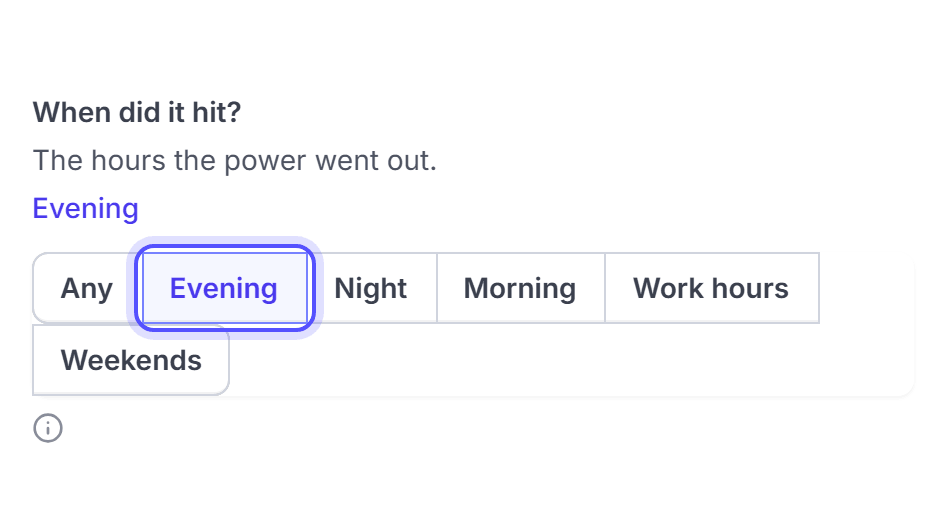
The outage questions narrow which outages mail. The Trigger page always asks the first two:
| Question | What it sets |
|---|---|
| How long was the power out? | The shortest outage that mails, for example 8 h or more. Shorter outages are left alone. |
| When did it hit? | The hours the power went out: Any, Evening, Night, Morning, Work hours or Weekends. |
To ask more, click a chip under the questions. Each chip adds its question:
| Chip | Question | What it sets |
|---|---|---|
| Outage impact | How bad was the outage? | A preset for the size of the outage. |
| Outage length | How long did it last? | Whether the outage ran into a second or third day. |
| Temperature at the time | How hot or cold was it? | Hot is 90°F or more. Cold is 20°F or less. |
| Homes out at once | How many homes lost power? | The homes out at the same time. |
| Repeat outages only | Only homes that lost power before? | Homes with an outage in the last 12 months. |
You're done when the message "Your automation is on" shows. Each outage that matches the rule then starts a run.
Approve the runs of a weather campaign
With Approve each run, each event waits for you. The Approvals page in the left navigation shows a count of the runs that wait.
To get an email when a storm waits for you, open Approvals and click Manage alert emails. Add the email addresses, then click Update. Approvals gives the steps to approve, edit or skip a run.
Manage an older storm automation
A storm automation made before Send Mail keeps its own setup. Its campaign page shows the source Storms (HailTrace). You cannot make a new automation of this kind. A new storm campaign uses the steps in Mail homes after a storm or severe weather.
In Campaigns, click the Automations tab, and open the older storm automation.
Click Actions, then click Edit.
Change a row of the storm setup. The table below lists the main rows.
Click Save changes.
| Row | What it sets |
|---|---|
| Targeting | Maximum reach mails every home that the storm maps show. High accuracy mails the homes that the weather maps confirm. |
| Cards a storm | The most cards that one storm mails. Set 250 or more. |
| Sending season | The months that the automation mails. A storm outside them is skipped, not queued for later. |
| Skip recently mailed | How long a home waits before it can get a card from a new storm. |
You're done when the message "Campaign saved" shows.
An older storm automation has no Test mode. When you pause it, it stops the storm checks in your service areas, and it mails no more cards until you turn it on again. When it asks for approval, its runs wait on the Approvals page.
Ideas for weather and outage campaigns
Send Mail offers ready playbooks for some trades. For an automated campaign, click Start from a Playbook to see the playbooks of your trade. These are some of them:
- Windstorm inspection: roofing homes after strong wind gusts.
- Hail panel inspection: solar homes after hail.
- Hail damage AC inspection: HVAC homes after hail.
- Windstorm siding sweep and Windstorm fence sweep: siding and fence homes after wind.
A playbook that shows Coming soon cannot launch yet. To mail on hail for a different trade, use Build a Custom Campaign with Hail. See Playbooks.
FAQ
Related
Approvals
Approve, edit or skip the runs that wait for you.
Automated campaigns
Add touches, set the budget and edit an automation.
Service Areas
Draw the areas where you work once, and use them in each campaign.
Steps checked 2026-11-16.