Your profile
Change your name, your phone and your mailing address, and choose the order emails you get.
Overview
Your profile holds your own details: your name, your phone and your personal mailing address. It also holds the order emails that LettrLabs sends you. Each user of an account has an own profile. A change to your profile does not change the profile of another user.
You can use your profile to:
- Change your first name and your last name.
- Add or change your phone number.
- Give LettrLabs an address for sample pieces of your campaigns.
- Turn the order emails on or off.
To open your profile, click Settings, then click Profile. The page shows Manage Profile at the top and Notification Settings under it. One Cancel and one Save at the foot of the page apply to both sections.
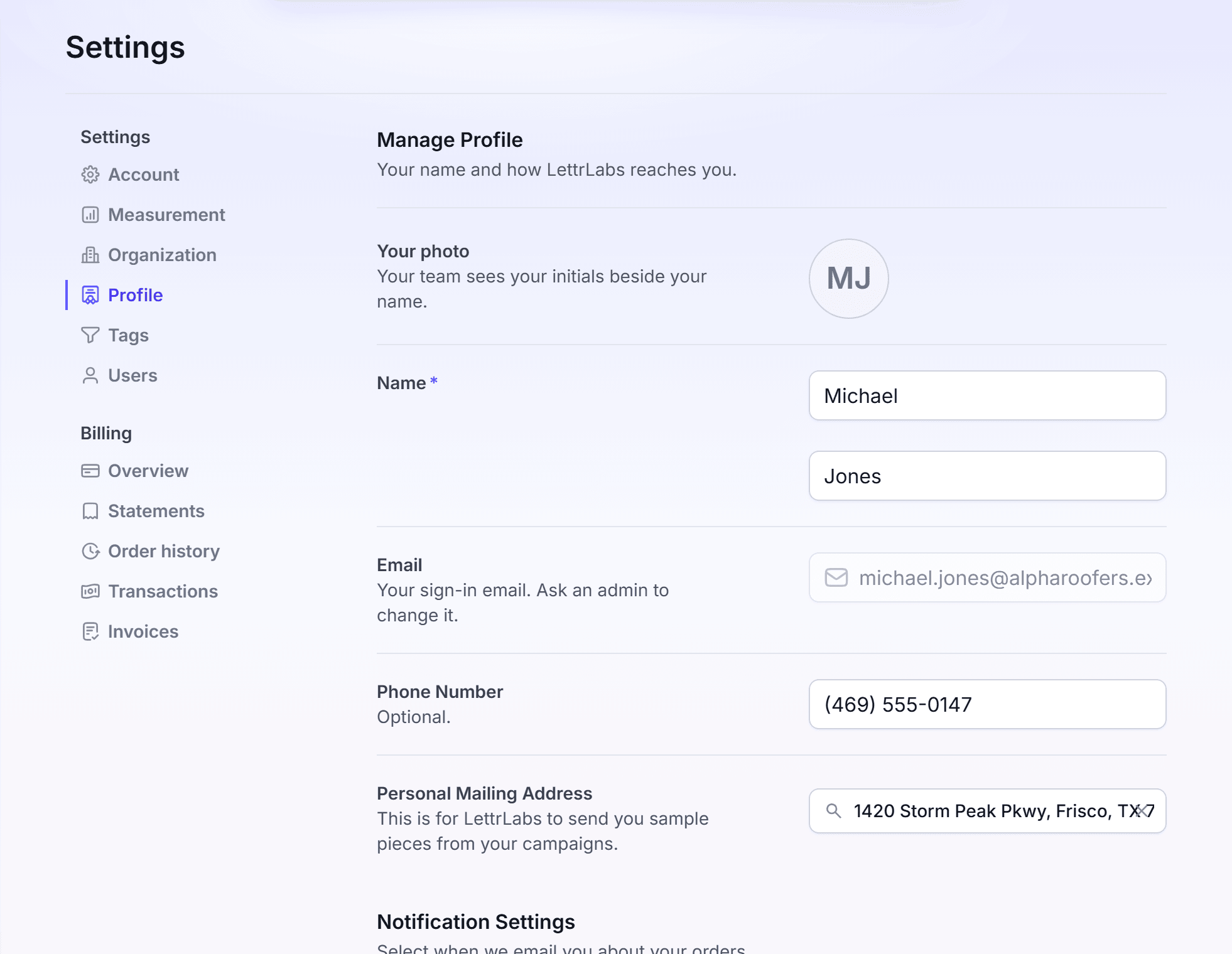
Edit your name, phone and mailing address
Edit your profile when your name or your phone changes. Add a mailing address when you want sample pieces of your campaigns.
Click Settings, then click Profile.
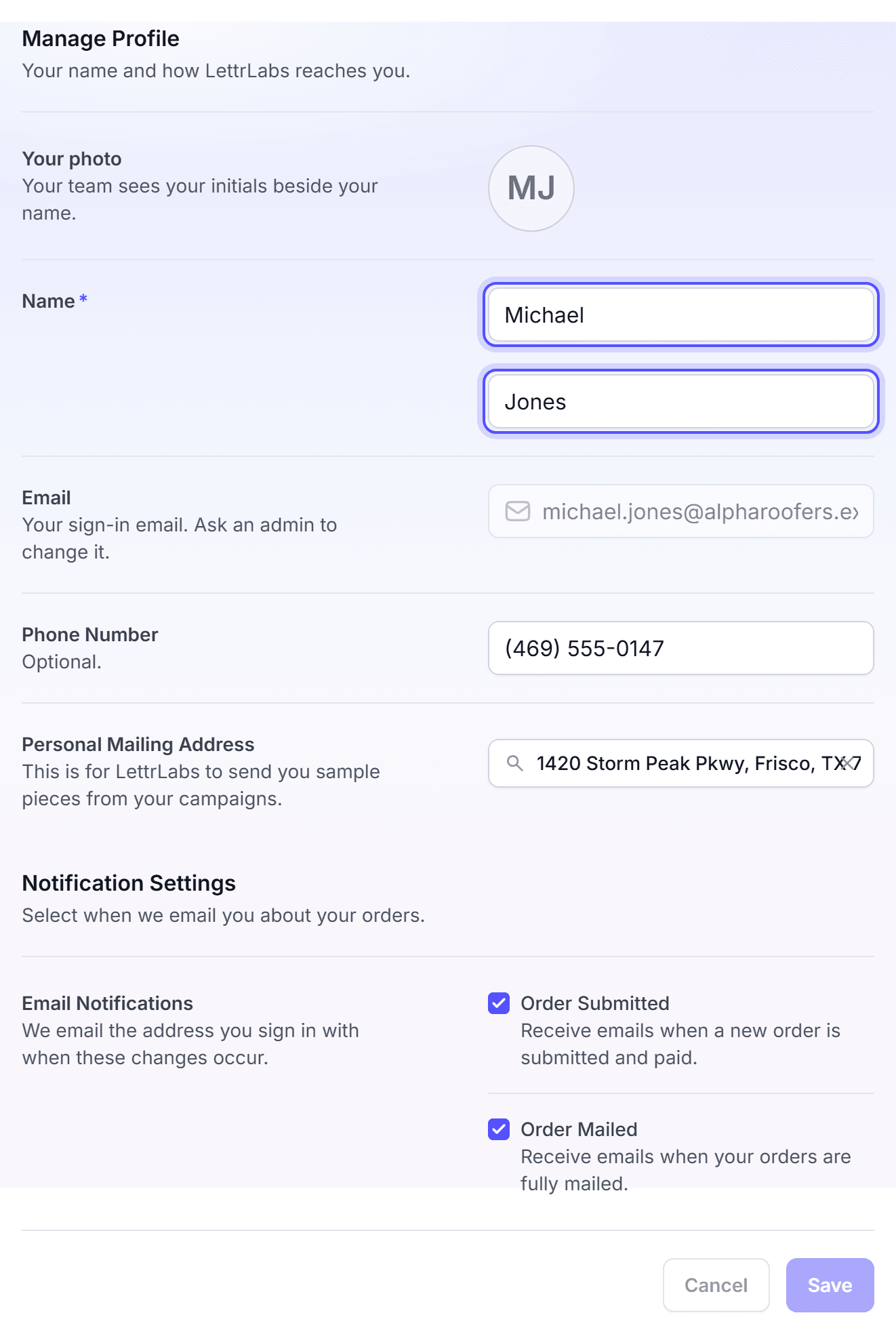
In Name, enter your first name and your last name. Both are required.
Optional: In Phone Number, enter a 10-digit phone number. LettrLabs formats it as (555) 555-5555.
Optional: In Personal Mailing Address, type the start of your address. Then select it from the list.
Click Save at the foot of the page.
Your photo shows the initials of your name. You cannot upload a photo. Email is your sign-in email, and you cannot change it here. Ask an admin of the account to change it.
LettrLabs uses the Personal Mailing Address only to send you sample pieces from your campaigns. It does not print on your mail. The return address of your mail is on the company profile.
You're done when the message "Your changes are saved." shows. Save writes only the sections that you changed. To undo your changes before you save, click Cancel. Cancel undoes the changes in both sections.
Choose your order emails
LettrLabs can email you when an order is submitted and when an order is mailed. Turn an email off when you do not want it. Both emails are on for a new user.
Click Settings, then click Profile.
Scroll to Notification Settings.
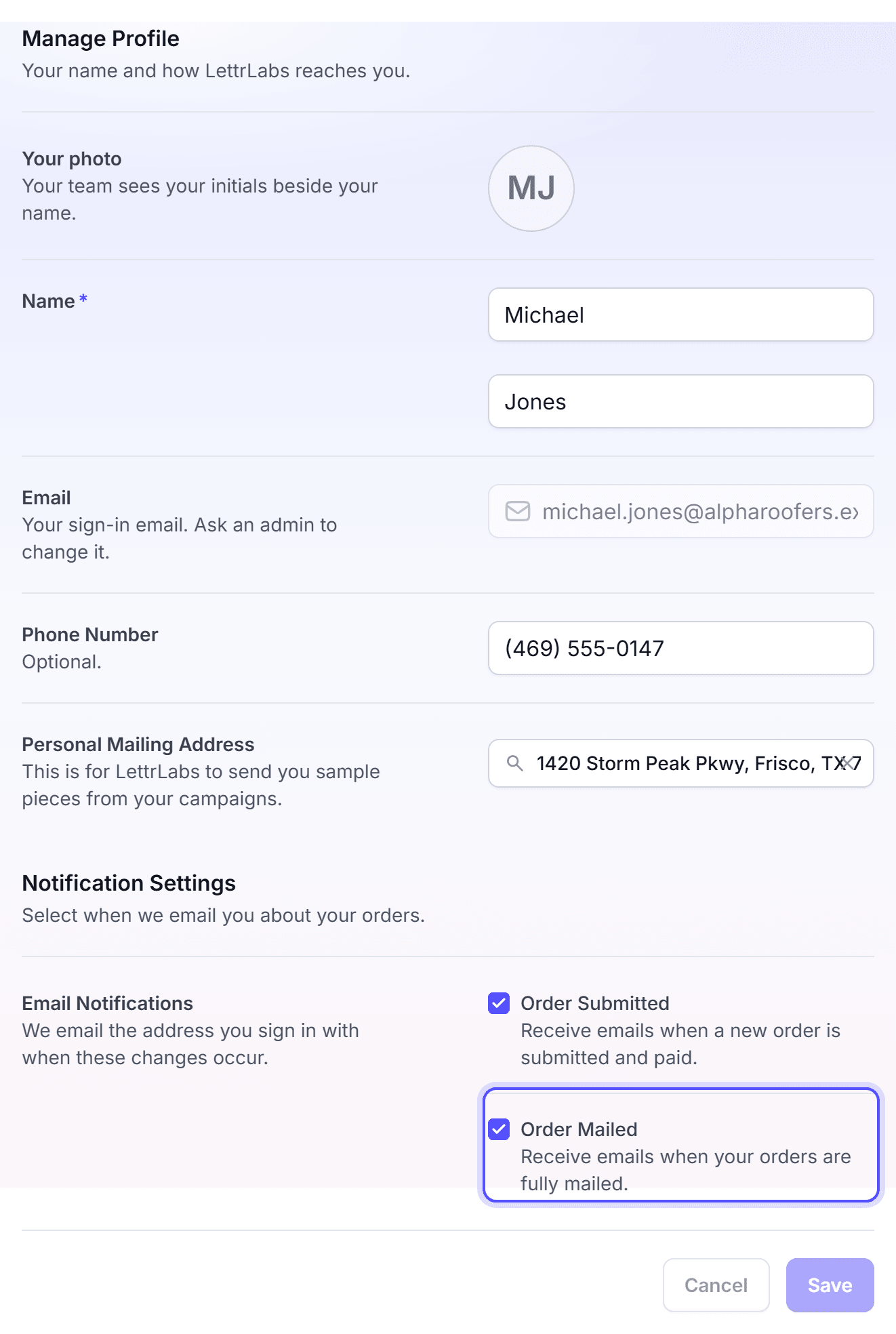
Under Email Notifications, select or clear each checkbox.
Click Save at the foot of the page.
The emails are in the table below.
| When LettrLabs sends it | |
|---|---|
| Order Submitted | When a new order is submitted and paid. |
| Order Mailed | When your orders are fully mailed. |
LettrLabs sends these emails to the address that you sign in with.
You're done when the message "Your changes are saved." shows. The change applies to the next order.
FAQ
Related
Company profile
Set the details that print on your cards.
Team members
Invite your team, and set what each person can do.
Create your account
Sign up and sign in to LettrLabs.
Steps checked 2026-11-16.