Area and radius mail
Mail the new homes of an area each month, or the homes around your jobs and the addresses that you give LettrLabs.
Overview
Area and radius mail finds the homes for you. An area campaign mails the homes inside an area on the map. A radius campaign mails the nearest homes around each address that you give it, such as a job that you finished.
You can use area and radius mail to:
- Mail the homes of your service area each month, inside a monthly budget.
- Mail the neighbors of each new job in your CRM.
- Mail the homes around a list of addresses once.
- Mail the people or the addresses that your own systems send to LettrLabs.
To mail every home in an area once, use One-time campaigns.
Mail new homes in an area each month
Do this to stay in front of the homes in your service area, with no list and no CRM. The campaign keeps mailing each month, at the pace your monthly budget allows.
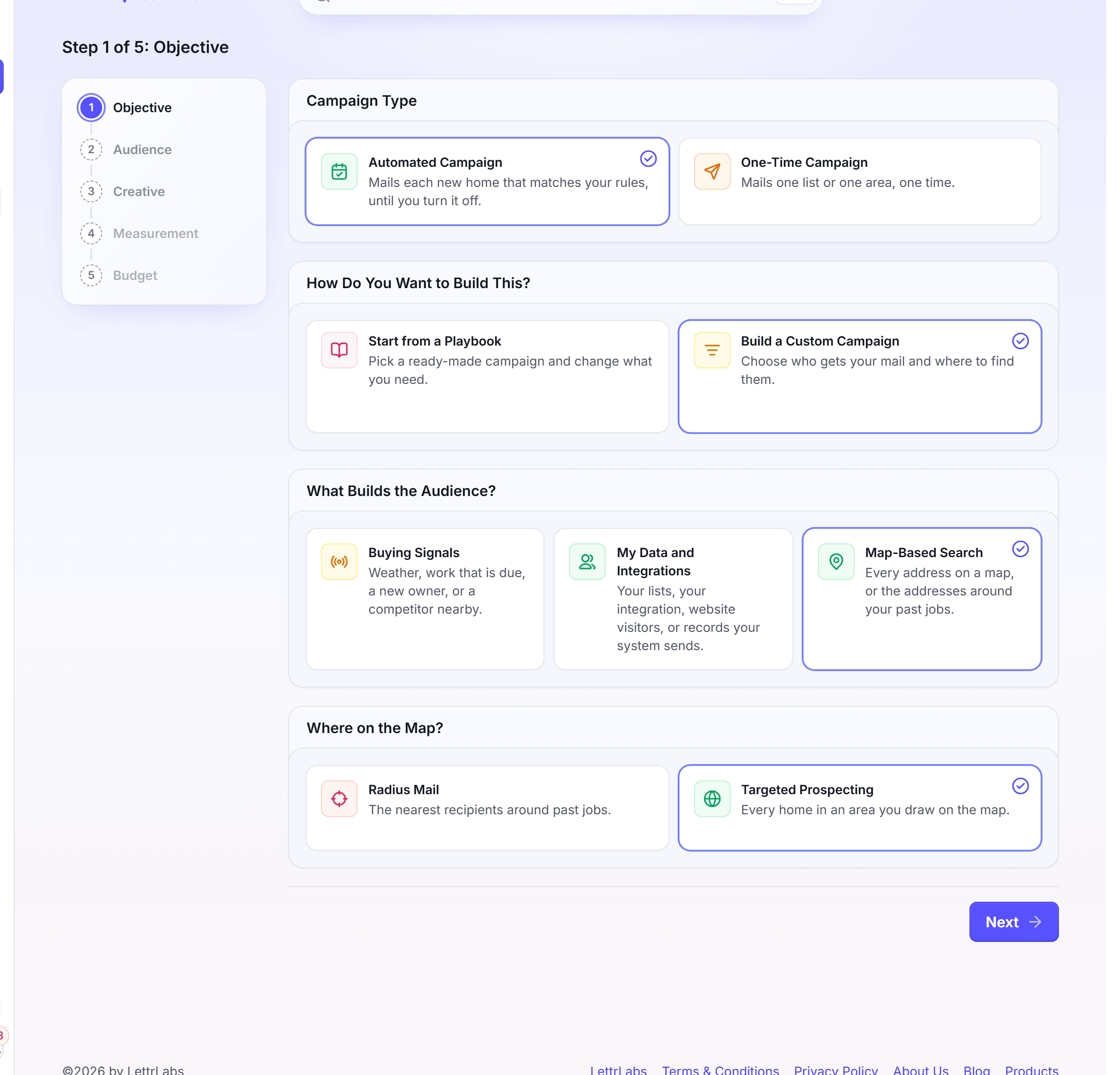
In the left navigation, click Send Mail.
Under Campaign Type, click Automated Campaign.
Click Build a Custom Campaign, then Map-Based Search, then Targeted Prospecting.
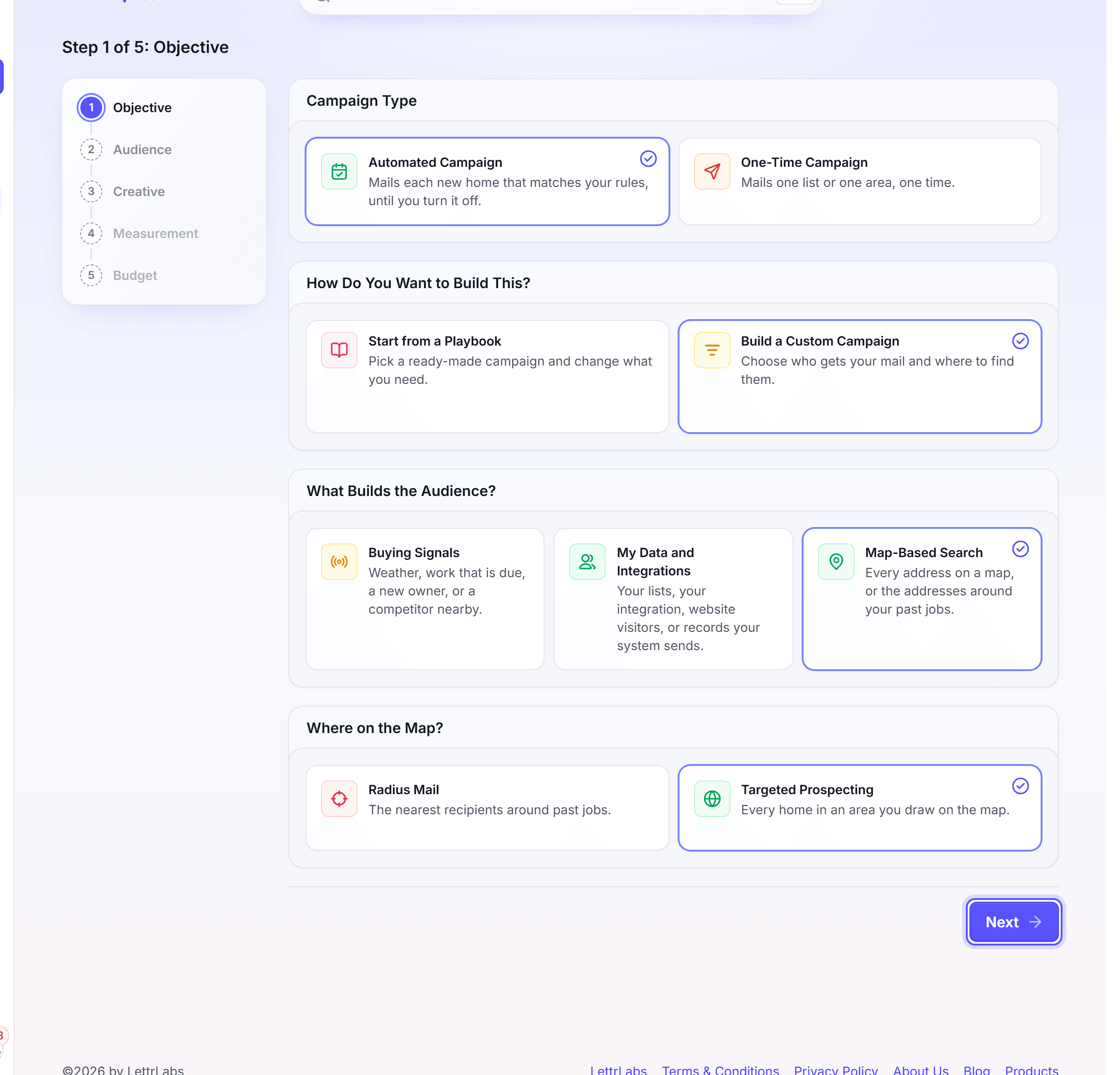
Click Next. The Audience step opens.
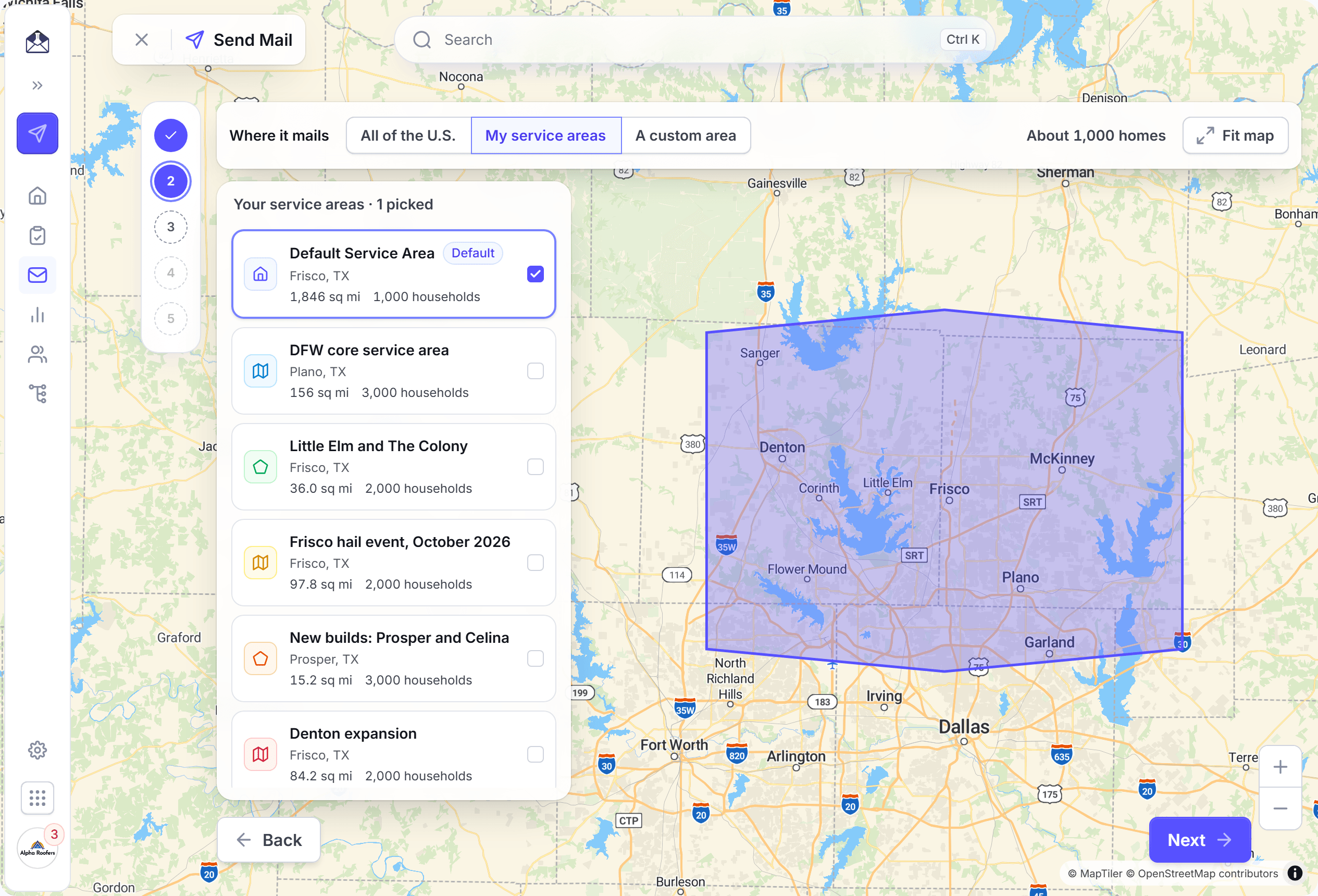
In Location, under Where it mails, select My service areas.
Select one or more of your service areas. The section shows the number of homes.
Optional: On the Filters page, under Advanced filters, set filters on the homes, such as the home value.
Optional: In Who shouldn't get this card, set how soon a home can get a card again.
Click Next. On the Creative step, under Pick your first touch, click your template. Then click Use this design.
Optional: Click the postage tag of the touch, and select First Class or Standard. In Mailing and timing, select a Production speed.
Click Next. On the Measurement step, keep the attribution window and the holdout, or change them.
Click Next. In Budget, enter a monthly budget from 10,000,000.
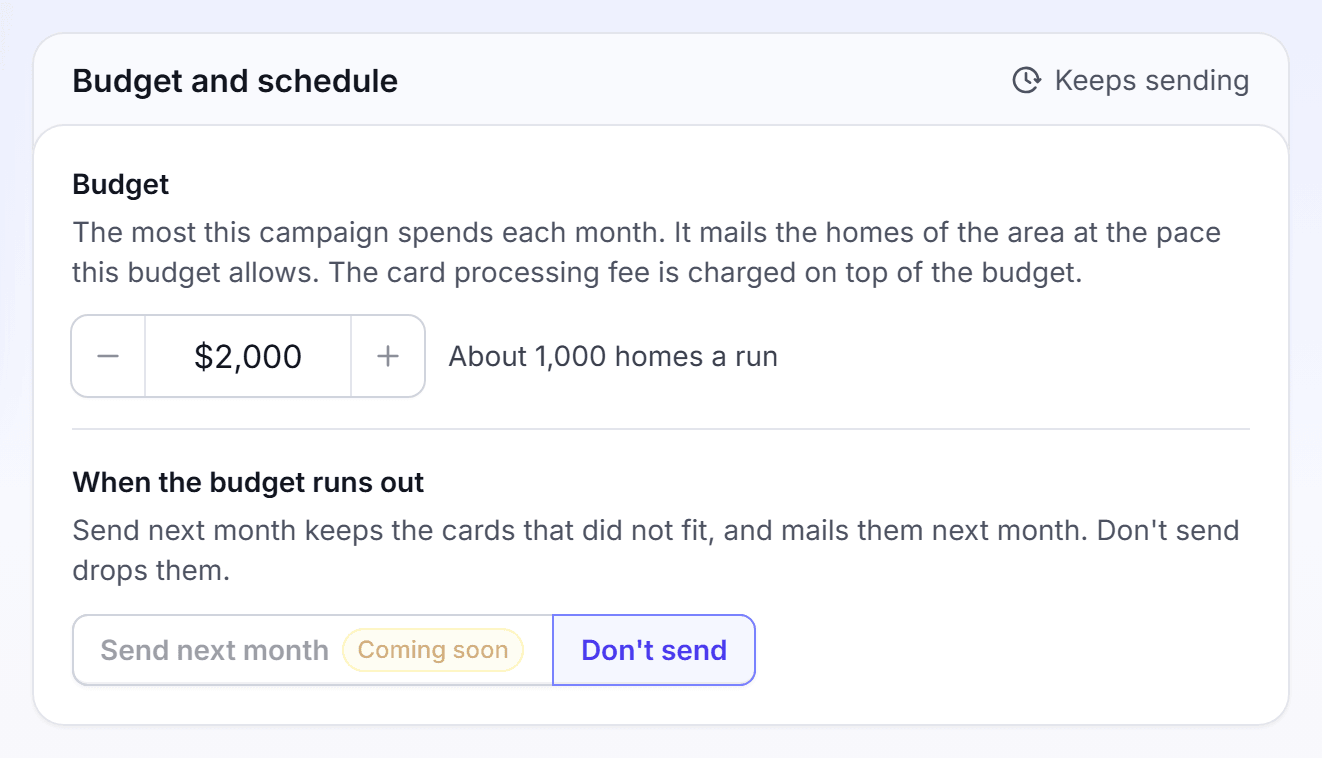
In When the budget runs out, select Don't send.
Read the Review, then click Turn it on.
In the Name your campaign dialog, enter a Name, such as North Frisco monthly. Then click Turn it on.
Do not mail is always on. It keeps out everyone who asked LettrLabs to stop. To mail a new shape, select A custom area in place of My service areas, and draw the area on the map.
You're done when the message "Your automation is on" shows. A dialog says that the campaign is on. Click Done. The campaign shows in Campaigns with the status Active.
LettrLabs charges each run, up to the monthly budget. The campaign mails the homes of the area at the pace that the budget allows. You can pause the campaign at any time from Campaigns.
Mail the homes near each new CRM job
Do this to mail the neighbors of each job that you finish. LettrLabs reads the new jobs from your CRM each day.
You need a connected ServiceTitan, AccuLynx or Salesforce account, and the Core plan or higher.
In the left navigation, click Send Mail.
Click Automated Campaign, then Build a Custom Campaign, then Map-Based Search.
Click Radius Mail.
Under Around Which Addresses?, click My CRM Jobs.
Under Choose Your Integration, click your CRM.
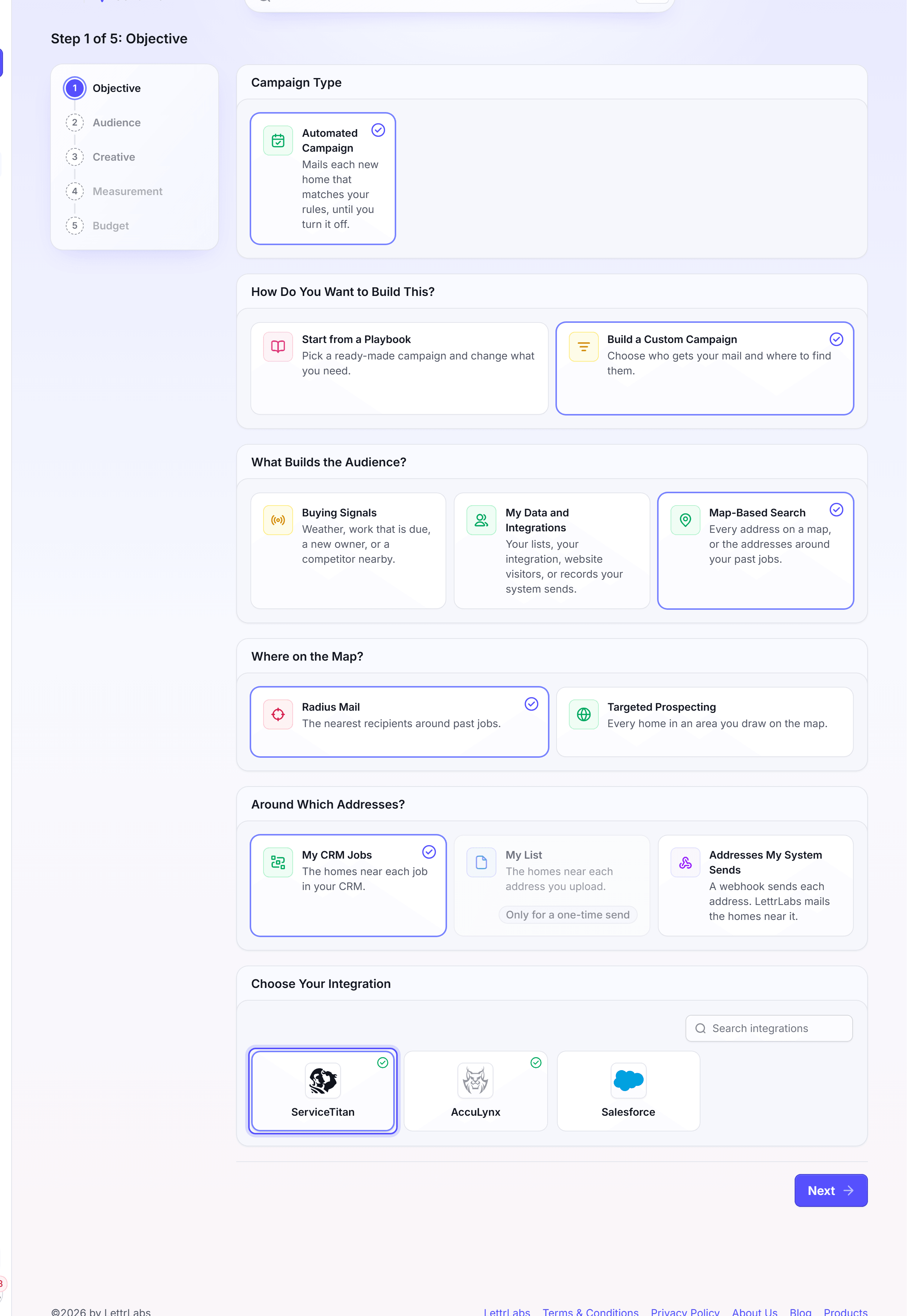
Click Next. In How many homes per address?, set the number of homes around each job.
Optional: Set the filters on the homes around each job.
Finish the Creative and Measurement steps. On the Budget step, set the Monthly limit, or leave it empty for no limit.
Click Turn it on, then confirm the name.
In the Enable Automation dialog, click Enable Automation.
You're done when the message "is created" shows with the campaign name. The campaign page opens. Each new job in your CRM then starts a mailing to its neighbors. You can pause the campaign at any time.
Mail the homes around addresses you upload
Do this once to mail the nearest homes around a list of addresses, such as last month's jobs. The addresses themselves get no card.
In the left navigation, click Send Mail.
Click One-Time Campaign, then Build a Custom Campaign, then Map-Based Search.
Click Radius Mail. Under Around Which Addresses?, click My List.
Click Next. The Audience step opens.
In Homes near an address, click Upload a list, and select your file.
Optional: In Add an address, search for one more address.
In How many homes around each address?, enter a number, then click Apply to all.
Finish the Creative, Measurement and Budget steps.
Click Go to checkout, and confirm the name. Select a payment method, then click Launch the campaign.
To change the number of homes for one address, edit its row.
You're done when the message "is launched" shows with the campaign name. The campaign mails on the send date. To mail more addresses later, open the campaign and click Add recipients.
Mail what your systems send
Do this when your own software, a Zap or a form sends people or addresses to LettrLabs. Each record that arrives gets mail.
You need a connection first. A Webhook campaign needs the Premium plan to turn on. On a lower plan, the Webhook card shows a Premium tag. Zapier and OpenAPI come with each plan.
In the left navigation, click Send Mail, then click Automated Campaign and Build a Custom Campaign.
Click My Data and Integrations, then My System Sends Them.
Under How Does Your System Send Them?, click Webhook, Zapier or OpenAPI.
For a webhook, select it in Which webhook?.
In Select Action, select Mail to Recipients or Radius Mail.
Match the fields of the sample record to the address fields.
Finish the Creative and Measurement steps. On the Budget step, set the Monthly limit.
Click Turn it on, then confirm the name. In the Enable Automation dialog, click Enable Automation.
The connections do these things:
| Connection | What it does |
|---|---|
| Webhook | Your system posts each person to a LettrLabs URL. |
| Zapier | A Zap sends people from the apps you use. |
| OpenAPI | Your developer sends people with a LettrLabs key. The Developers tab has the steps. |
Mail to Recipients mails the person in each record. Radius Mail mails the homes around the address in each record. You can also start from Radius Mail and pick Addresses My System Sends.
To mail what a webhook sends beside another source, turn on Also mail what a webhook sends on the Audience step.
You're done when the message "is created" shows with the campaign name. Each record that arrives then mails, inside the monthly limit. You can pause the campaign at any time.
Ideas for radius mail
- Mail around each finished job. The Radius mail around your job sites playbook mails the nearest homes of each job that ServiceTitan records. The card reaches the neighbors while they still see your work on their street. Open Start from a Playbook in Send Mail to start from the playbook.
- Mail around a list of past jobs. Upload the addresses of last month's jobs, and mail the homes around them one time.
- Mail around the addresses that your CRM sends. Use a webhook when your CRM has no native integration. See CRM recipes.
FAQ
Related
Service Areas
Draw the areas where you work once, and use them in each campaign.
Automated campaigns
Edit an automation, set its budget and approve its runs.
Inbound webhooks
Set up the webhook that sends records to LettrLabs.
Steps checked 2026-11-16.