Payment methods
Add the card or bank account that pays for your mail, and choose what each charge uses.
Overview
LettrLabs charges a payment method for your mail sends, postage and automation credits. You need a payment method before you pay for your first campaign at checkout.
You can use payment methods to:
- Add a credit card or a bank account.
- Choose which method pays each type of charge.
- Choose what happens when an automation runs out of credits.
- Redeem a promo code.
The payment methods are on the Payment methods card. To open it, click Settings, then click Overview under Billing. The method that pays Usage is your default payment method.
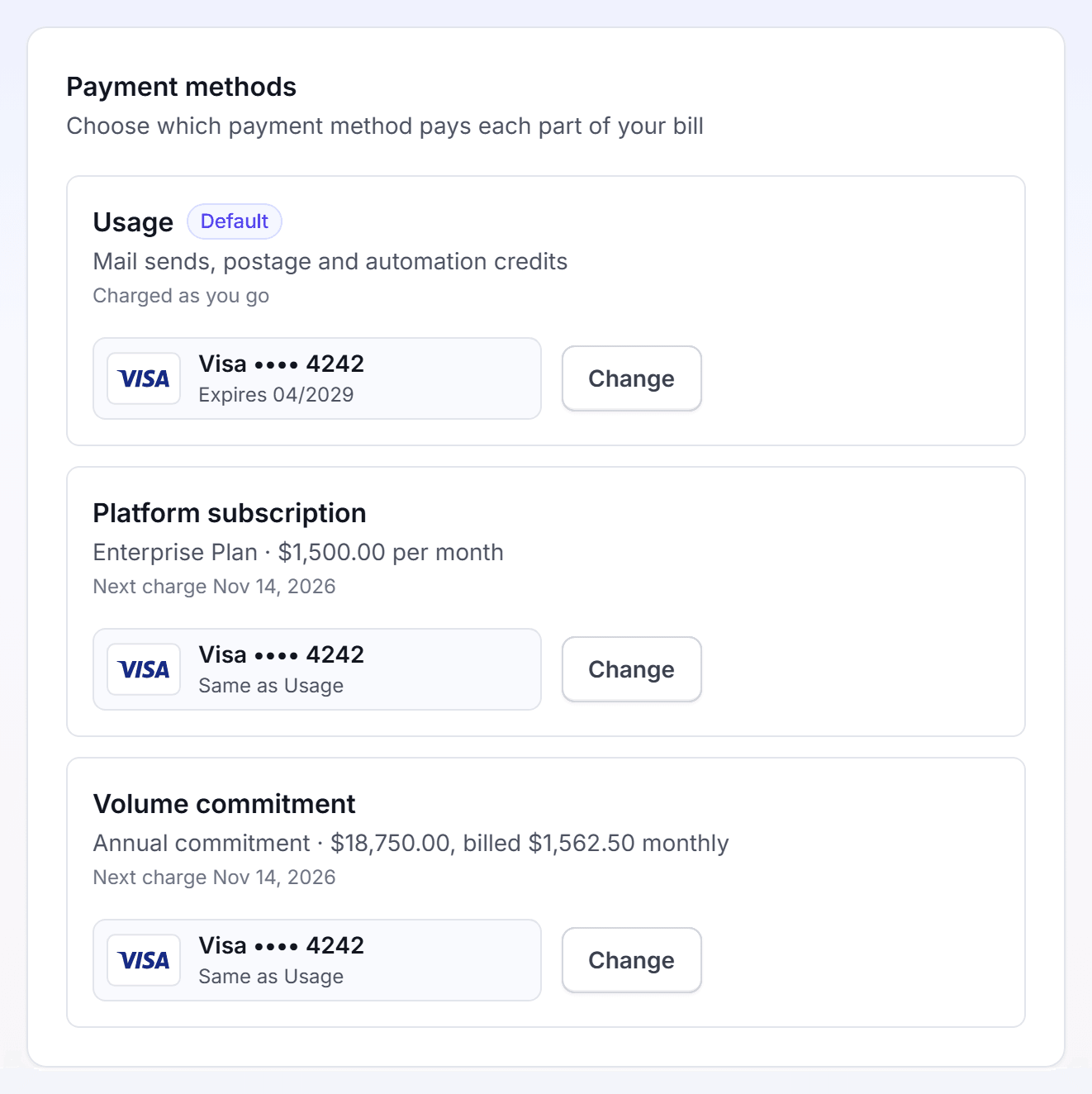
Add a payment method
Add a payment method before your first checkout, or when your card changes. A user who is not an admin sees "Only an account Admin can change the payment methods".
Click Settings, then click Overview under Billing.
On the Payment methods card, find the Usage row.
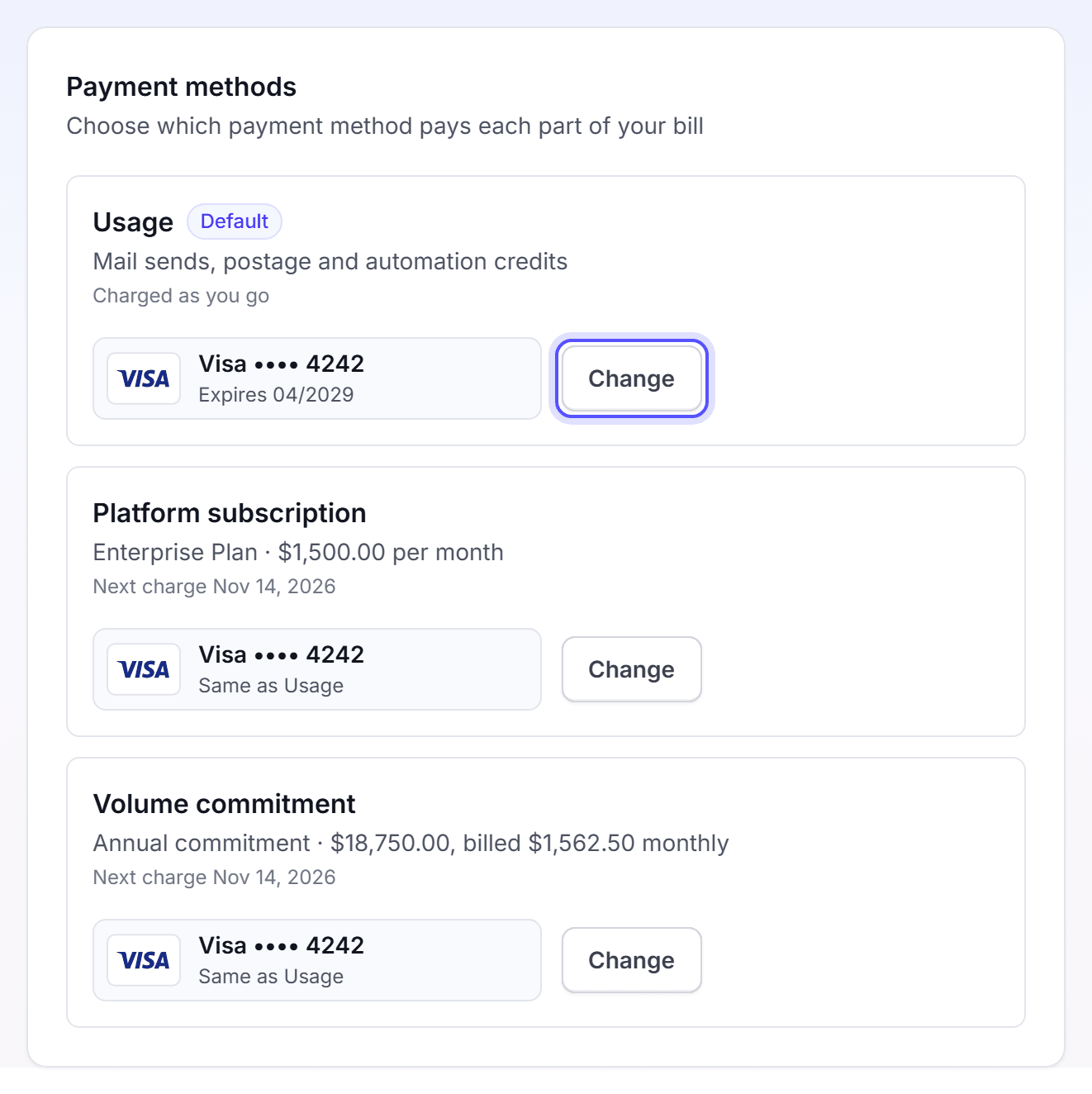
Click Add. If the row already has a method, click Change, then click Add New.
Under Choose your payment method, select Credit Card.
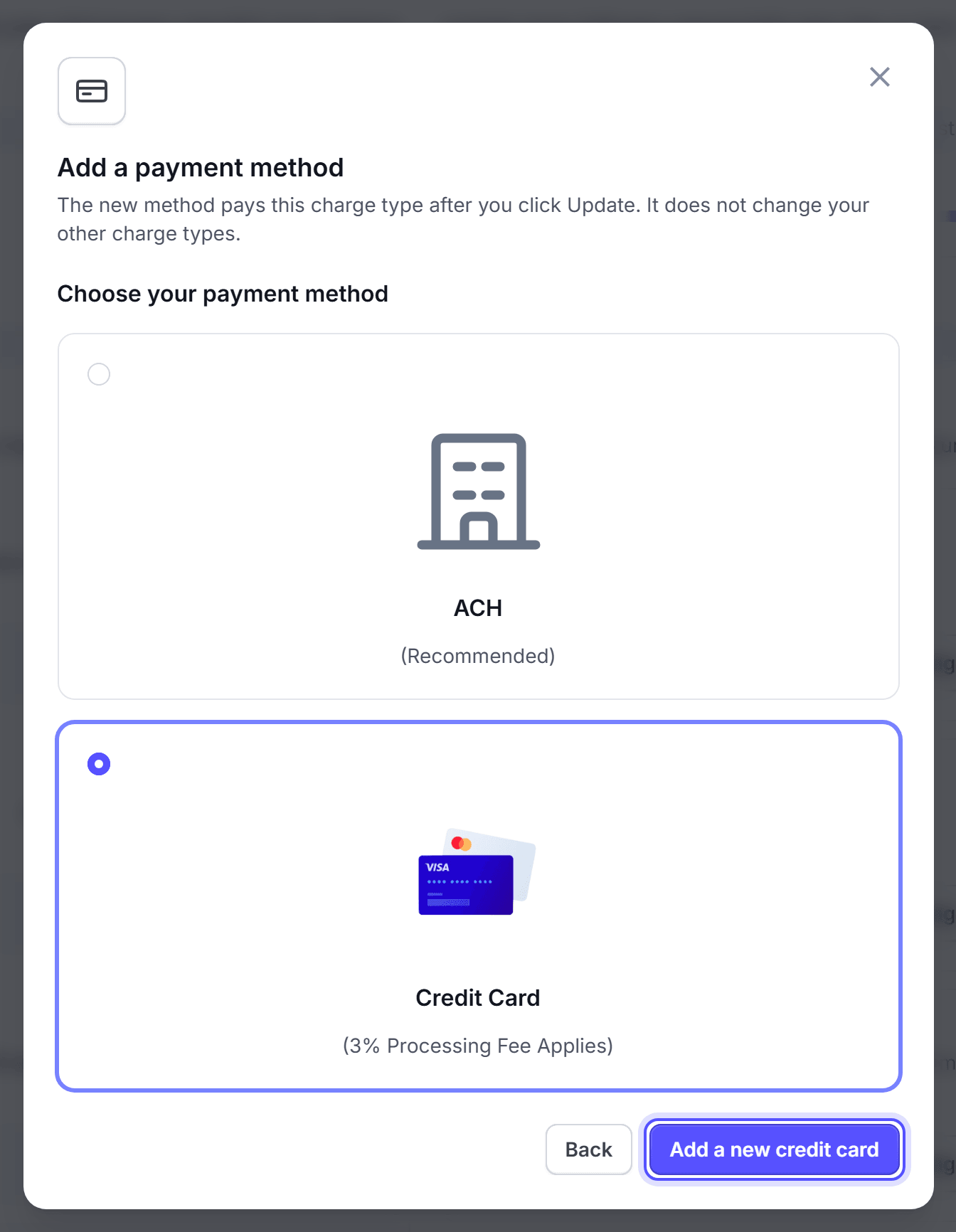
Click Add a new credit card.
Enter the card number, the expiry date and the CVC.
Click Save credit card. The message "Payment method added successfully." shows.
Make sure the new card is selected, then click Update.
You're done when the Usage row shows the card, for example "Visa •••• 4242", with the badge Default. A notice reads, for example, "Usage now uses Visa •••• 4242 · 04/2029."
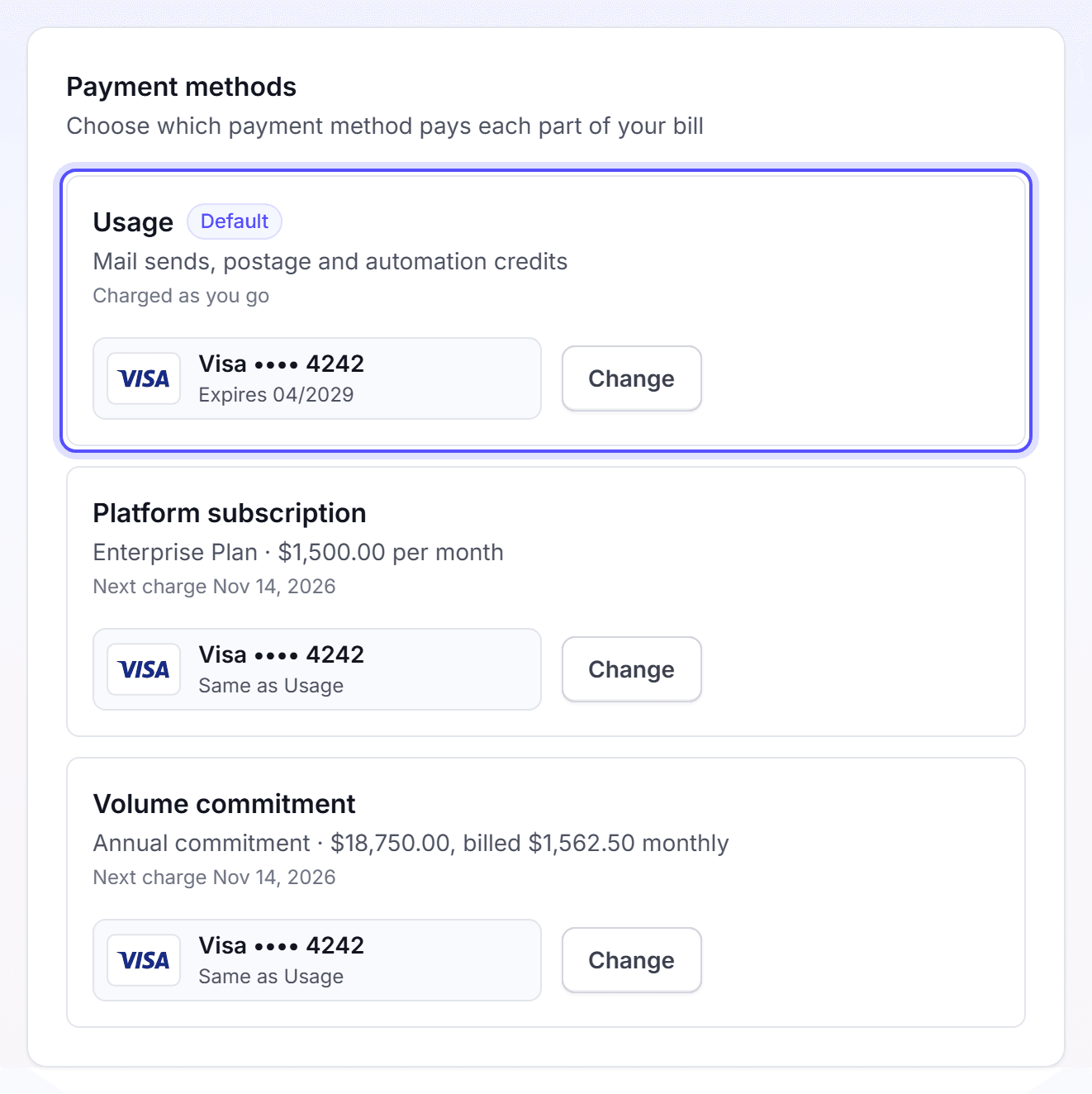
A bank account (ACH) is available only to deal customers and annual-plan customers. When ACH is not available, ACH is not in the list. ACH has no card fee.
Click Settings, then click Overview under Billing.
On the Usage row, click Add. If the row already has a method, click Change, then click Add New.
Under Choose your payment method, select ACH.
Click Add a new bank account.
Click Verify bank account. The Stripe bank window opens.
Sign in to your bank in the Stripe window, and select the account.
When "Bank Account Has Been Verified" shows, click Go to Manage Payment Methods.
Make sure the bank account is selected, then click Update.
You're done when the Usage row shows the bank account, for example "ACH •••• 6789".
Some banks cannot verify at once. Then LettrLabs shows "Bank Account Has Been Added", and Stripe sends two small microdeposits in 1 to 2 business days. The bank account shows Pending verification until you confirm the deposits. To confirm them, open the Change dialog. Click Complete verification on the bank account. A Stripe page opens. Enter the two amounts on that page, then come back to LettrLabs.
LettrLabs charges the Usage method at checkout and for automation credits, after it uses your balance. Adding a method charges nothing. You can change or delete the method later.
Choose which method pays each charge
Your account can have up to three charge types. Give a charge type its own method when, for example, your subscription must go on a company card.
Click Settings, then click Overview under Billing.
On the Payment methods card, click Change on the row of the charge type.
Select a method. On a subscription row, you can select Same as Usage.
Click Update.
The charge types are in the table below.
| Charge type | What it pays |
|---|---|
| Usage | Mail sends, postage and automation credits. It is charged as you go. |
| Platform subscription | The price of your plan. |
| Volume commitment | Your annual commitment, billed in parts. |
Usage must have a method before another charge type can have one. A row shows only when your account has that charge.
You're done when the notice names the new method, for example "Platform subscription now uses Visa •••• 4242." The next charge of that type goes to the new method.
Set automation auto-billing
Auto-billing decides what LettrLabs does when an automation runs out of credits. Set it before you start an automated campaign.
You must be an account admin to do this.
Click Settings, then click Overview under Billing.
On the Automation Auto-Billing Settings card, select an option.
If you selected Top off with a fixed amount, enter the Top-off amount.
Click Save.
The options are in the table below.
| Option | What it does |
|---|---|
| Charge only the amount required | Charges the amount that the automation needs. This is the default. |
| Top off with a fixed amount | Charges the fixed amount that you set. The amount is a whole number of dollars, from 50,000. You can type a dollar sign and commas, for example $1,000. An amount with cents shows an error under the field. |
| Do not charge my payment method | Charges nothing. |
You're done when the message "Auto-billing settings saved." shows. LettrLabs uses the option at the next time an automation runs out of credits. You can change it at any time.
Redeem a promo code
Redeem a promo code when LettrLabs gives you one.
Click Settings, then click Overview under Billing.
On the Promo Code card, enter the code.
Click Redeem.
You're done when a success message shows, for example "Promotion code redeemed.". The code applies to your account.
Delete a payment method
Delete a method that you no longer use. You can delete only a method that pays no charge type.
Click Settings, then click Overview under Billing.
On the Payment methods card, click Change on any row.
Find the method, and click its delete icon.
In the dialog Delete payment method, click Delete.
When the delete icon is not available, the method is in use. Its tooltip reads "This method is in use". Select another method for that charge type first.
You're done when the message "Payment method removed." shows. To use the method again, add it again.
FAQ
Related
Plan and balance
See your plan and your balance.
Postage and checkout
Pay for a campaign at checkout.
Company profile
Set the details that print on your cards.
Steps checked 2026-11-16.