Plan and balance
See your plan and your balance, and upgrade your plan.
Overview
Your plan decides which features your account can use. Your balance is the credit that LettrLabs uses first on each charge. The Billing Overview shows both, with your volume commitment and the renewal date of your plan.
You can use this page to:
- See your plan, its price and its renewal date.
- See your balance.
- Upgrade your plan when a feature needs a higher plan.
- See which plan each feature needs.
The plans are Starter, Core, Premium and Enterprise, from low to high.
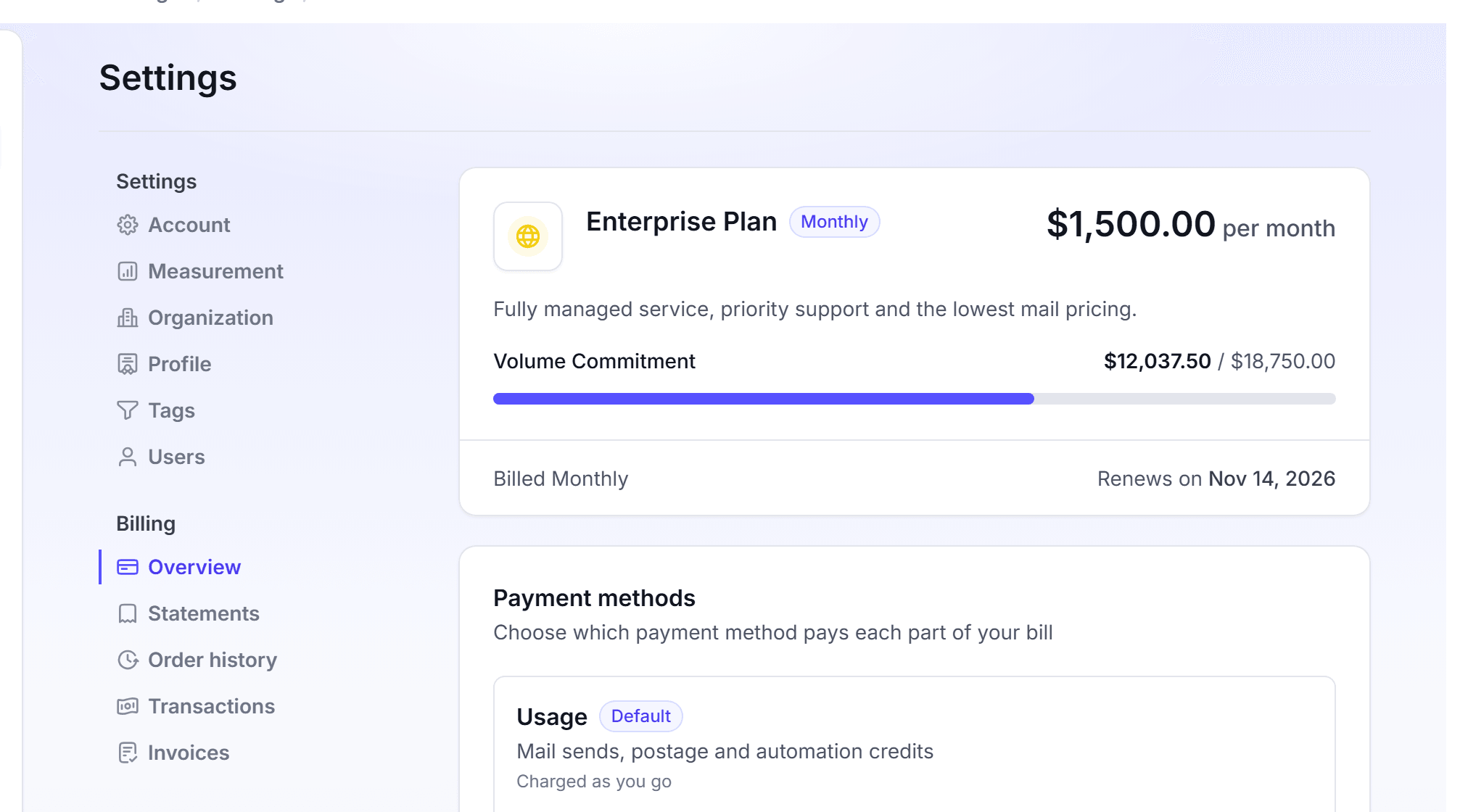
See your plan and balance
Check your plan and your balance before a large campaign, or when a charge surprises you.
Click Settings, then click Overview under Billing.
Read the plan card. It shows the name of the plan, for example Premium Plan, and the price.
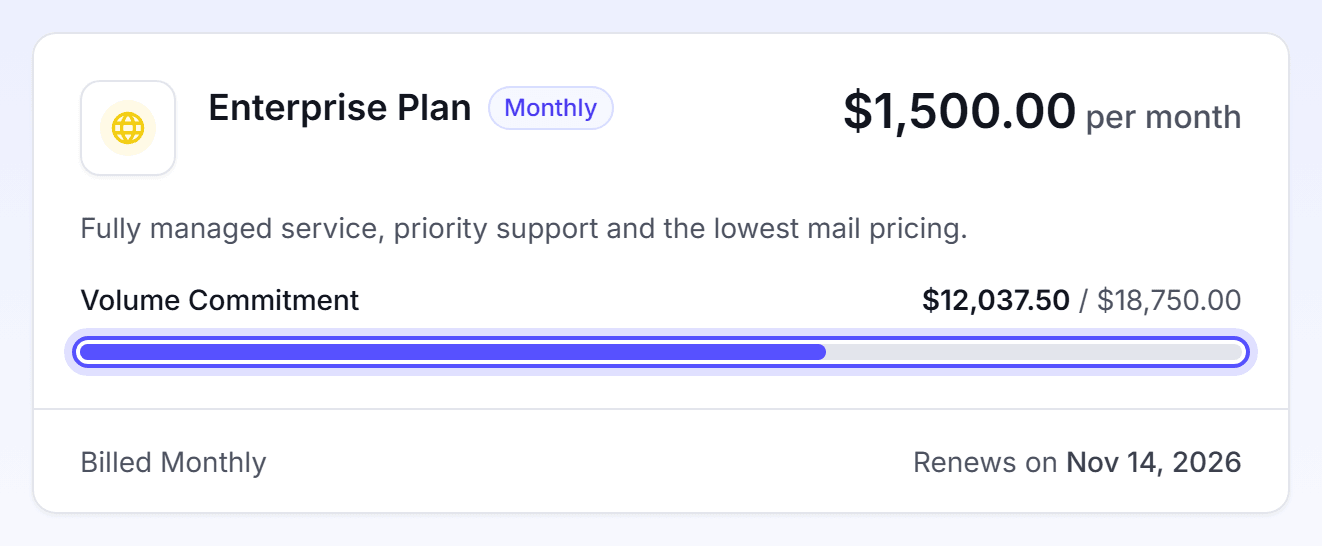
Under Volume Commitment, read the amount that you used of your commitment.
At the foot of the card, read the billing period, for example "Billed Monthly", and the Renews on date.
Read the Balance card. It shows your remaining balance.
The price shows Free for a free plan. It shows Custom pricing for a plan with a price that LettrLabs agreed with you. A plan with no renewal date, for example a free plan, shows no Renews on line.
You can also see your balance at a glance. The account card at the foot of the left navigation shows the amount and the word Balance.
You're done when you know your plan, its renewal date and your balance. Reading the page changes nothing.
Upgrade your plan
Upgrade when you open a feature that your plan does not include. LettrLabs then shows Upgrade required and opens the upgrade dialog. Some features show an upgrade button in their place, for example Get Premium Account.
Open the feature that needs the upgrade. If the dialog is closed, click View upgrade options.
Read the features of the plan in the dialog. To compare all plans, click Compare Plans.
Click Go to Checkout. The Upgrade plan page opens.
Under Subscription, check the plan, the price and the total.
Under Select Payment Method, select a saved card or bank account. Or click Add new credit card or Add new bank account (ACH).
Click Subscribe.
Add new bank account (ACH) shows only for an annual plan or a deal from LettrLabs sales.
You're done when the message "Payment received. We are activating your subscription." shows. The plan card on the Billing Overview then shows the new plan. The feature that needed the upgrade is available.
Upgrade to Enterprise
A feature that needs Enterprise opens the dialog Choose your plan, with a Premium card and an Enterprise card. On the Enterprise card, click Talk to Sales. The dialog then reads "Our sales team will contact you soon to help you upgrade to Enterprise." Enterprise has no online checkout. To upgrade to Premium from this dialog, click Go to Checkout on the Premium card.
Plans and features
A feature that your plan does not include stays visible in most places. When you open it, LettrLabs shows the upgrade dialog. Some menu entries hide when your plan does not include them.
The table lists the features that the app gates by plan.
| Feature | Plan it needs | What you see without it |
|---|---|---|
| Webhooks (Integrations) | Core or higher | The menu entry hides. A link to the page shows Upgrade required. |
| Suppressions (Do Not Mail List) | Premium or higher | The menu entry hides. A campaign shows Get Premium Account in its place. |
| Some automated campaigns and data sources | Premium or Enterprise | The upgrade dialog, when you start the campaign. |
| Organizations | Enterprise | "Upgrade your plan to use organizations", with Contact Sales. |
The upgrade dialog offers Premium and Enterprise only. When a feature needs Core, the dialog offers Premium.
The dialog Upgrade to Premium lists what Premium adds, for example these items:
- Lower Handwritten Mail Prices
- Acct. Mgmt: Guided Support
- Custom Direct Mail Designs
- Do Not Mail List
- Lower Postcard Prices
The Enterprise card adds, for example, Unlimited Custom Direct Mail Designs, Automation Setup & Onboarding and Priority Support. For all plans and prices, click Compare Plans in the dialog.
FAQ
Related
Billing
How your balance and charges work.
Payment methods
Add the card that pays for your plan.
Organizations
Run mail for many accounts from one organization.
Steps checked 2026-11-16.