Statements and invoices
Download your statements, receipts, transactions and invoices.
Overview
LettrLabs keeps a record of each order, each charge and each plan invoice of your account. Four Billing pages hold these records. You can download each record as a PDF, or export a list for your accounting.
You can use these pages to:
- Download a monthly statement.
- Find an order, and download its receipt.
- Find a credit or a debit on your balance, and its receipt.
- Preview and download the invoices of your plan.
To open the pages, click Settings. The Billing group in the left list holds Statements, Order history, Transactions and Invoices.
The table lists what each page holds.
| Page | What it holds |
|---|---|
| Statements | One row for each month, with the totals of the month and a PDF statement. |
| Order history | Every order the account paid for, with its line items and receipt. |
| Transactions | Every credit and debit on the account balance. |
| Invoices | The invoices of your LettrLabs plan. |
Download a monthly statement
Download a statement at the end of each month, for your accounting.
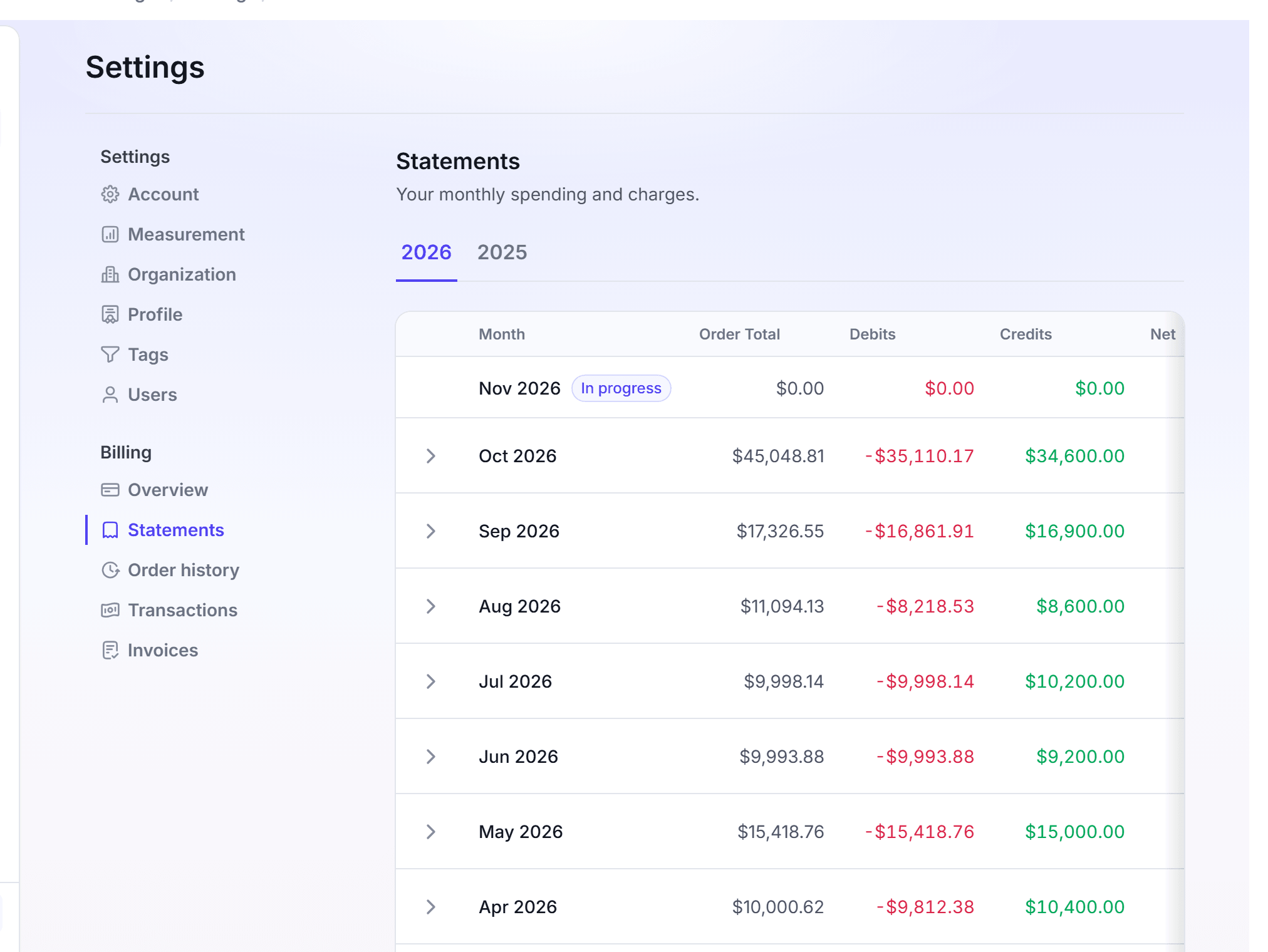
Click Settings, then click Statements under Billing.
If your account has orders in more than one year, click the year tab.
Find the month. Each row shows Order Total, Debits, Credits and Net.
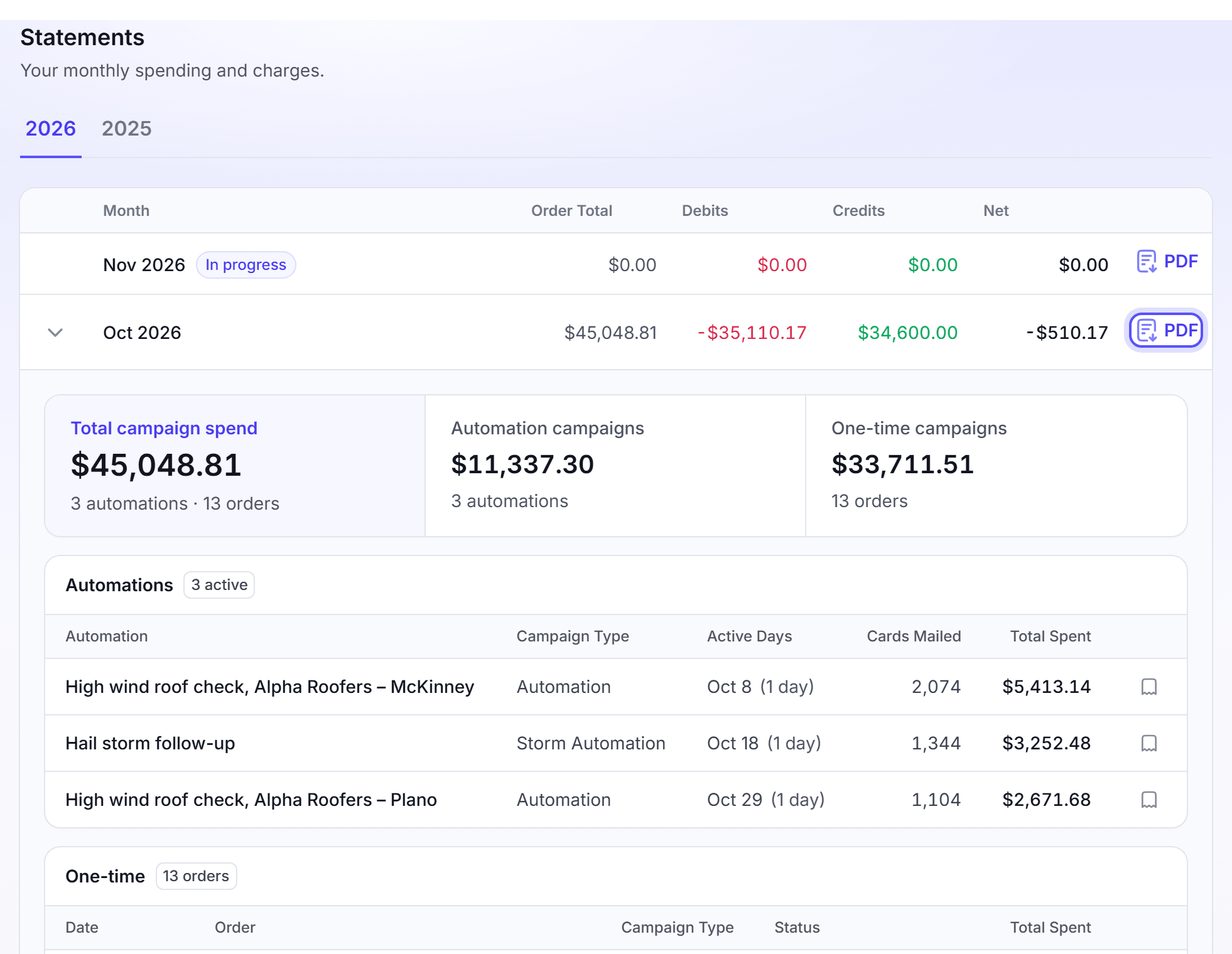
Optional: Click the month to see its orders. The orders show in an Automations section and a One-time section.
Optional: To see the invoice of one automation or order for that month, click its Invoice icon.
Click PDF on the row of the month.
The month that is not over yet shows the tag In progress. A month that has no order cannot open.
You're done when the PDF statement of the month downloads.
Find an order and download its receipt
Use Order history to find one order, or to export all orders of a period.
Click Settings, then click Order history under Billing.
Find the order. Use Search orders, the date range or the Status list.
To see the line items and the payment of the order, click the Order details icon.
To download the receipt, click the Download receipt (PDF) icon on the row.
To export the orders, click Export. LettrLabs downloads a ZIP file with two CSV files: the orders and their line items. The export uses the filters that you set.
You're done when the receipt PDF downloads, for example Receipt_1042.pdf.
Find a transaction and its receipt
Use Transactions to see why your balance changed. Each row is a credit or a debit, for example an Order Payment, a Refund or a Subscription Payment.
Click Settings, then click Transactions under Billing.
Find the transaction. Use the search box "What are you looking for?", the date range, the Transaction type list or the Credit and debit list.
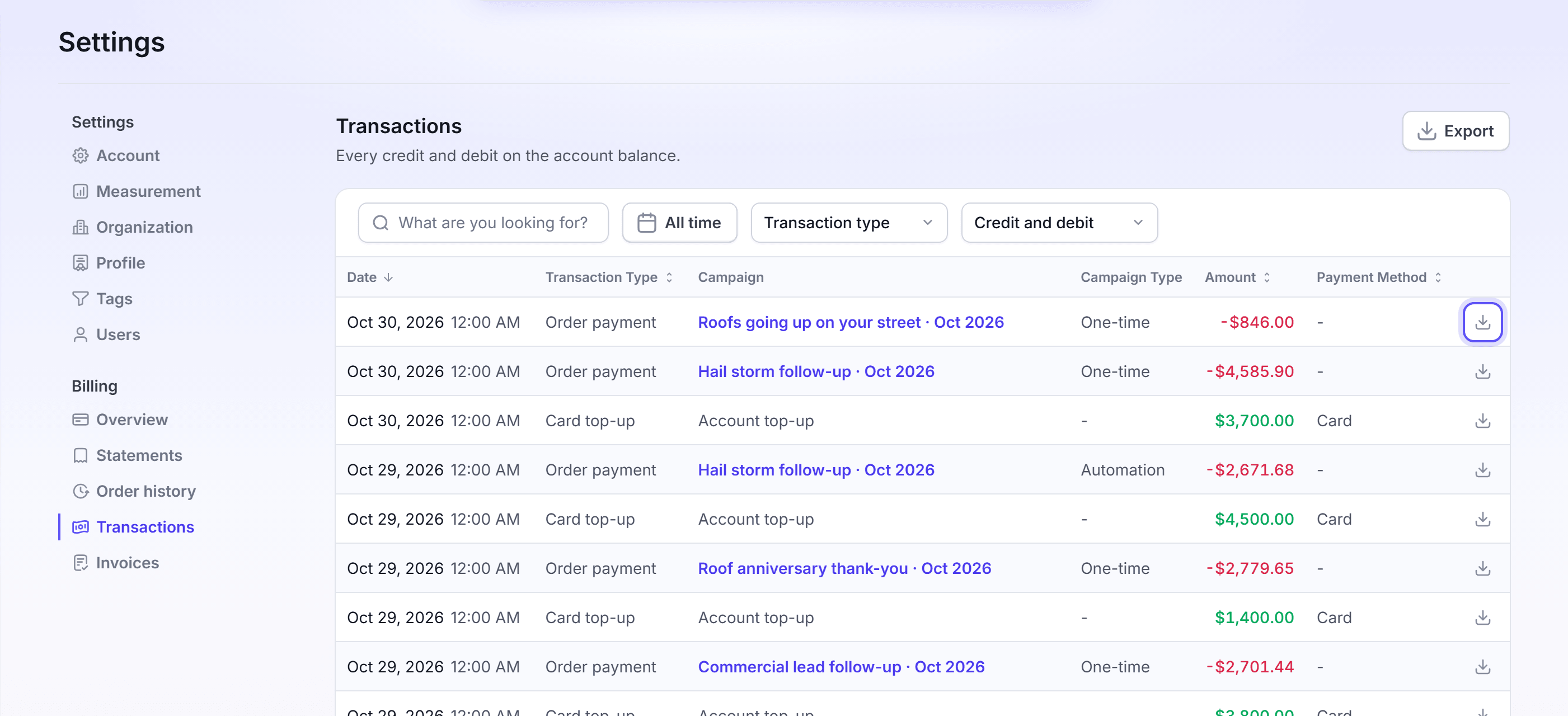
Click the download icon on the row. Its tooltip reads View Receipt or Download Receipt.
A transaction that Stripe charged opens its Stripe receipt in a new tab. Another transaction downloads a receipt PDF.
To export the transactions, click Export. LettrLabs downloads a CSV file.
You're done when the receipt opens or downloads.
Download invoices
The Invoices page holds the invoices of your LettrLabs plan. A mail order has a receipt in Order history, not an invoice here.
Click Settings, then click Invoices under Billing.
Find the invoice in Billing history. Each row shows Invoice, Amount and Status.
Click the invoice. The preview opens.
Click Download PDF. Or click View on Stripe to open the invoice on Stripe.
To download all invoices, click Download all. LettrLabs downloads one ZIP file, Invoices.zip.
You're done when the PDF or the ZIP file downloads.
FAQ
Related
Billing
How your balance and charges work.
Plan and balance
See your plan and upgrade it.
Campaigns
Find a campaign and its orders.
Steps checked 2026-11-16.