Radius Mail
Mail the homes near the address in each record that the webhook receives.
Overview
The Radius Mail action mails the homes nearest to the address in each record that a webhook receives. You set it up as an automated campaign in Send Mail. Each new record starts a new mailing around its address.
You can use Radius Mail from a webhook to:
- Mail the neighbors of each job that your CRM closes.
- Mail the homes near each new customer.
- Choose how many homes get mail around each address.
- Mail only around the records that pass your filters.
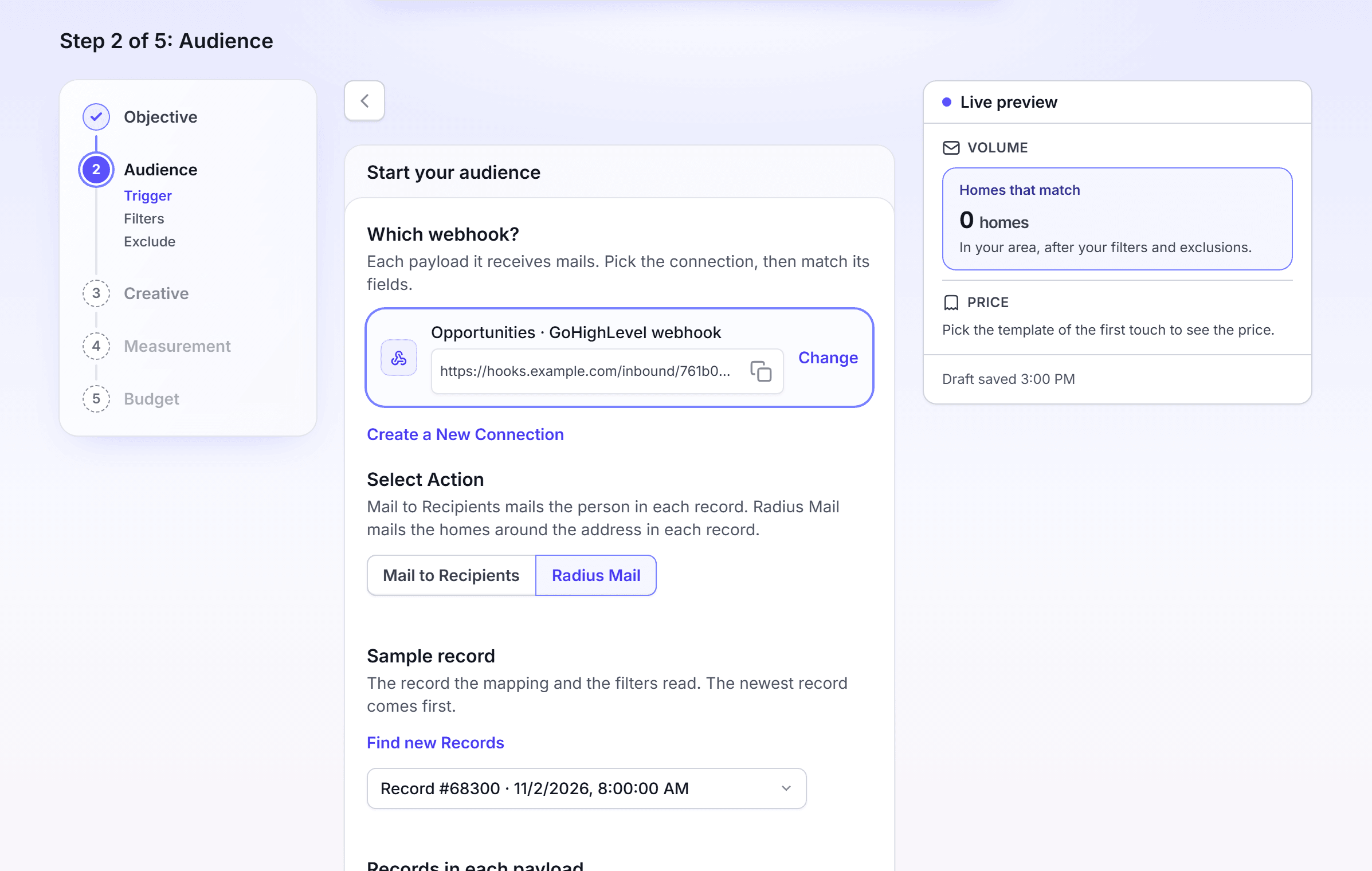
Mail the homes around each address a webhook sends
Make this campaign after your webhook received one test record. The record must hold an address.
In the left navigation, click Send Mail.
In Campaign Type, select Automated Campaign.
In How Do You Want to Build This?, select Build a Custom Campaign.
In What Builds the Audience?, select Map-Based Search.
In Where on the Map?, select Radius Mail.
In Around Which Addresses?, select Addresses My System Sends.
In How Does Your System Send Them?, select Webhook. A webhook campaign needs the Premium plan to turn on. On a lower plan, the Webhook option shows a Premium tag and the note "A Webhook campaign needs the Premium plan to turn on. Zapier and OpenAPI come with your plan."
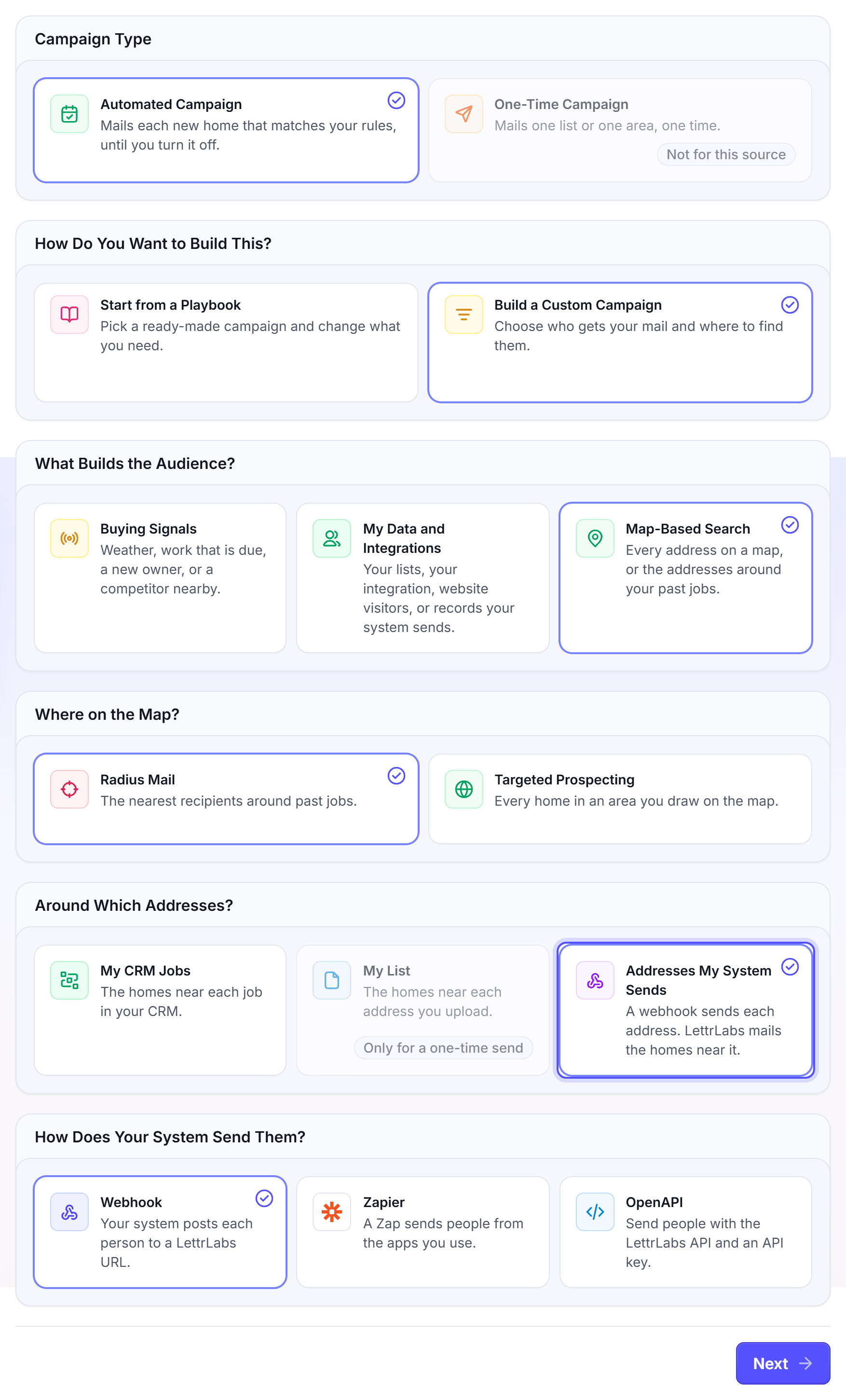
Click Next. The Audience step opens on Start your audience.
In Which webhook?, select your webhook. To make a new one, click Create a New Connection.
In Select Action, keep Radius Mail.
In Match the payload to the Radius Mail fields, map the address of the record. Map Address1, City, State and Zip Code, or map Full Address.
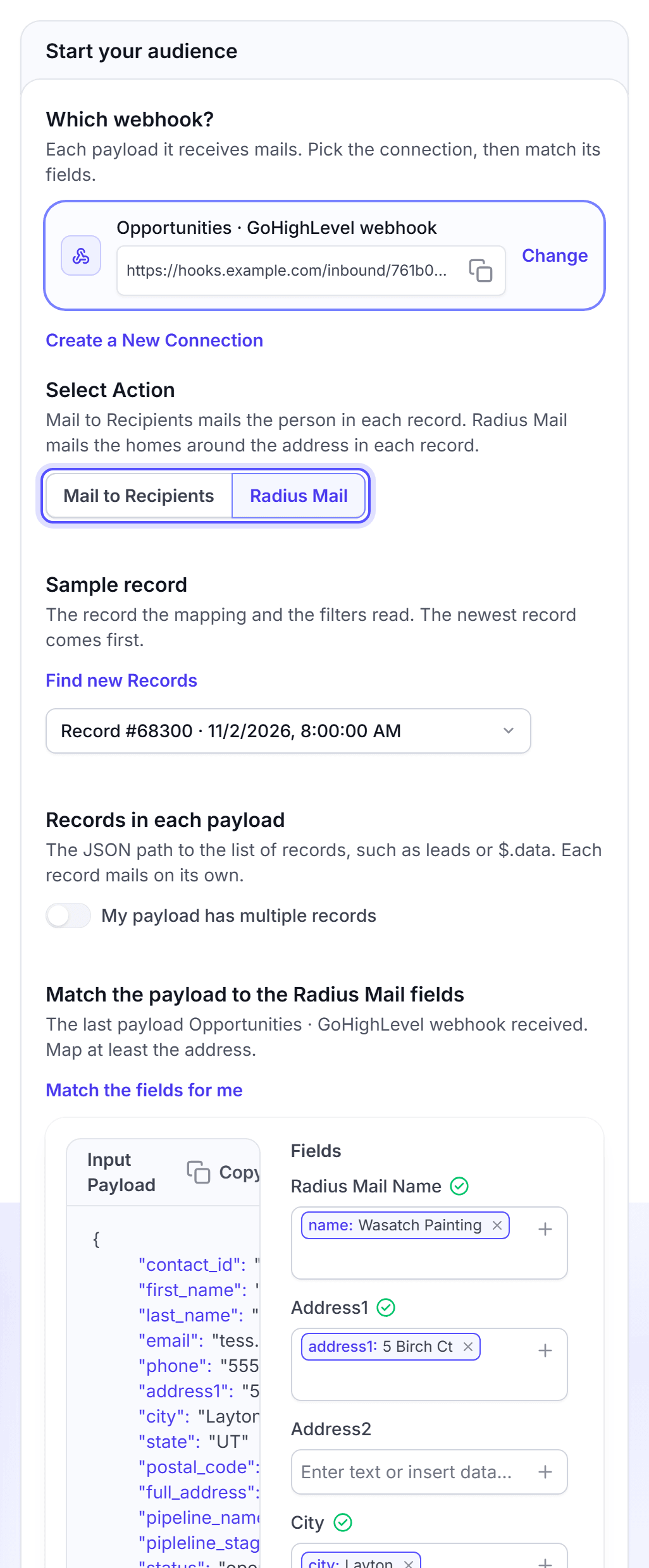
Optional: Map Radius Mail Name to a field, for example the customer name.
Optional: Under Filters, click Advanced settings, and add the filters. See Fields and filters.
In How many homes around each address?, set the number of homes. The question shows the range you can pick.
Click Next. Finish the Creative, Measurement and Budget steps, as for each automated campaign.
Click Turn it on.
You're done when the message "Your automation is on" shows. The campaign shows in Campaigns with the status Active.
Each record mails many homes. For example, 10 records and 100 homes each can mail 1,000 pieces. LettrLabs charges for each piece, up to the budget.
Change Mail to recipients to Radius Mail
You can change the action of a webhook campaign before you turn it on. You do not need to start again.
In the Audience step, find Select Action.
Click Radius Mail or Mail to Recipients.
Check the field mapping again. The two actions have different fields.
You're done when the line under the setup names the new action. For Radius Mail, it says "mail the homes around the address in each payload".
FAQ
Related
Fields and filters
Match the record to the mail fields, and choose which records mail.
Mail to recipients
Mail the person in each record.
Area and radius mail
Radius Mail around your service areas and your lists.
Steps checked 2026-11-16.