Fields and filters
Match the webhook data to the mail fields, and choose which records mail.
Overview
A webhook campaign reads each record that your system sends. The field mapping tells LettrLabs which part of the record goes into which mail field. The filters tell LettrLabs which records mail.
You set both in the Audience step of Send Mail, under Which webhook?. Both mail actions use them: Mail to recipients and Radius Mail.
You can use the fields and filters to:
- Put the name and the address of the record on the mail.
- Mail each record of a payload that holds a list of records.
- Mail only the records that match your rules.
- Mail each person one time only.
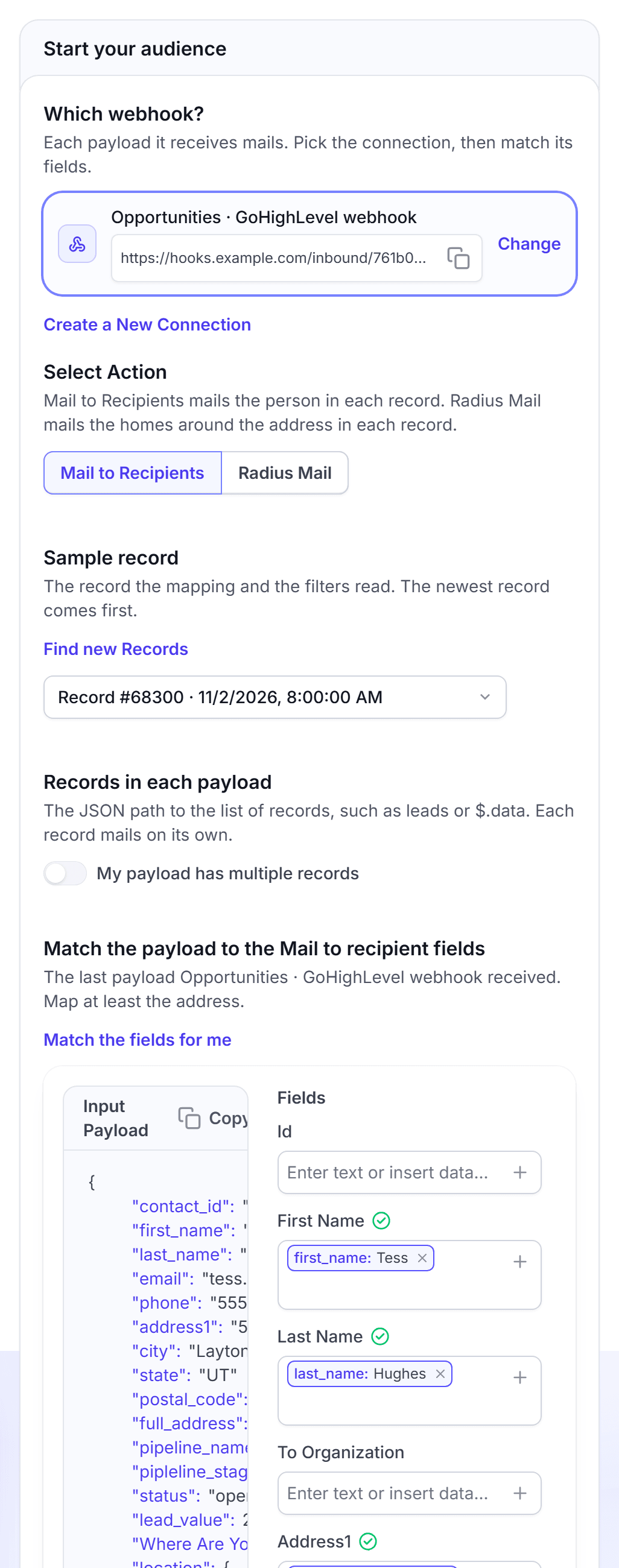
What the webhook accepts
Your system sends each call as a JSON object, with the header Content-Type: application/json. The mapping and the filters read the JSON. A body in a different format, such as form data or XML, has no fields to map.
- One record: send one JSON object, for example
{"first_name": "Ana", "address": "14 Elm St", "zip": "74103"}. - Many records: put the list under a name, for example
{"leads": [ ... ]}. Then enterleadsas the path. A list at the top of the body has no path, so wrap it in an object. - An address: each record needs an address. Map Address1 or Full Address.
LettrLabs matches these names for you, in lower case:
| Mail field | Names that LettrLabs matches |
|---|---|
| First Name | firstname, first_name, fname, givenname |
| Last Name | lastname, last_name, lname, surname, familyname |
| Radius Mail Name | name, fullname, full_name, customername, customer_name |
| Address1 | address1, address, street, street1, address_1, addressline1, line1 |
| Address2 | address2, street2, address_2, addressline2, line2, unit |
| City | city, town, locality |
| State | state, region, province, state_code |
| Zip Code | zipcode, zip, postalcode, postal_code, postcode, zip_code |
Map each other field by hand. The return address fields are never matched for you.
Pick the sample record
The mapping and the filters read one sample record. By default, it is the newest record that the webhook received.
In Sample record, open the list. Each item shows the record number and the time it arrived.
Select the record that shows all the fields you need.
Optional: To load records that arrived after you opened the page, click Find new Records.
You're done when the mapping on the right shows the fields of the record you selected.
If the webhook has no record yet, the setup shows "Waiting for webhook events...". Send one record to the webhook URL. The page checks for it every 20 seconds.
Mail each record in a list
Some systems send many records in one call, as a list. Tell LettrLabs where the list is, so that each record mails on its own.
In Records in each payload, turn on My payload has multiple records.
Click the name of the list, when LettrLabs shows it as a button. Or enter the path to the list, for example leads or $.data.leads.
Read the line under the field. It says how many records the last payload holds at this path.
You're done when the line says "The last payload holds" and a number of records. The mapping then reads the first record of the list.
The path is a list of names with dots between them. It can have 500 characters at most.
Map the fields
Map each mail field to a part of the record. LettrLabs matches the fields with common names for you, such as first_name or zip.
In Match the payload to the Mail to recipient fields, or Match the payload to the Radius Mail fields, read the fields that LettrLabs matched.
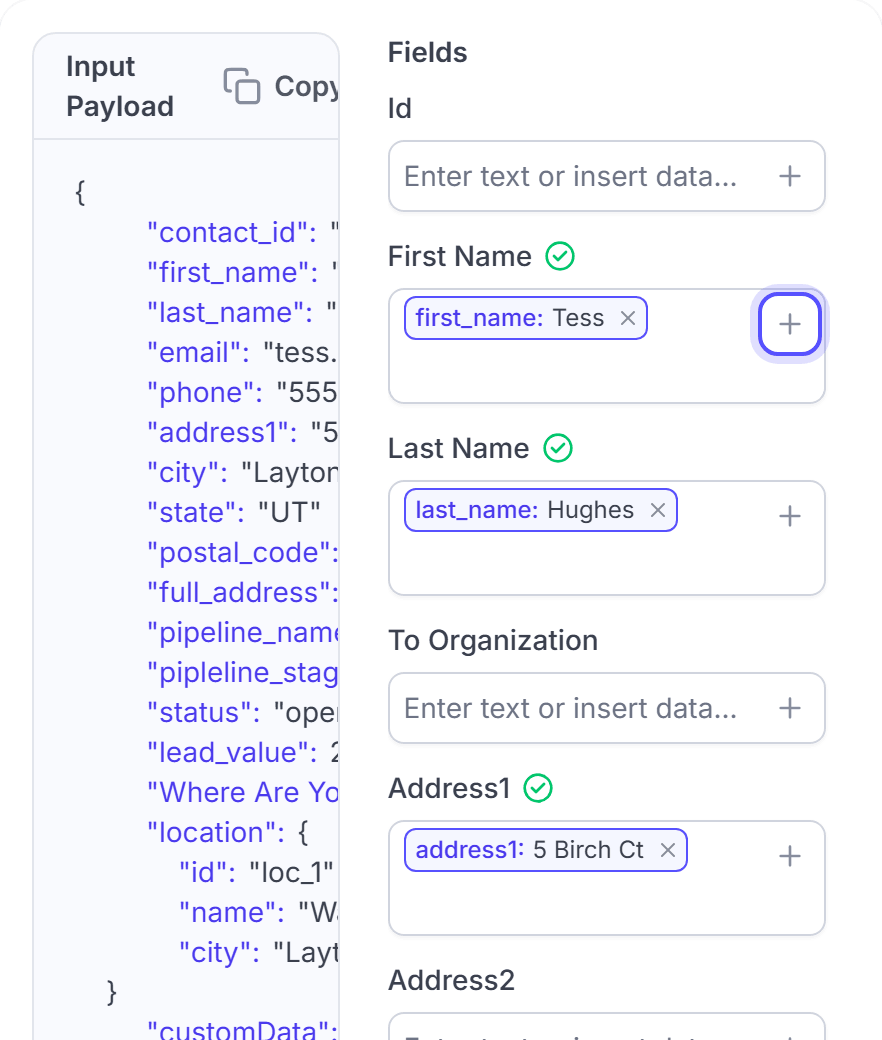
To map a field, click the plus button in it. Then select the part of the record.
Optional: Type text around the data, for example Hi before the first name. A field can hold more than one part of the record.
To start again, click Match the fields for me.
You're done when the line under the setup says what the campaign mails. The line shows only when an address is mapped.
The table lists the main fields of each action.
| Action | Address fields | Other fields |
|---|---|---|
| Mail to recipients | Address1, Address2, City, State, Zip Code, Country, or Full Address | First Name, Last Name, To Organization, Salutation, Custom1 to Custom6, the return address fields, Qr Url |
| Radius Mail | Address1, Address2, City, State, Zip Code, or Full Address | Radius Mail Name, the return address fields |
Add filters
Add a filter when only some records must mail. For example, mail only the jobs with the status sold.
Under Filters, click Advanced settings.
In Pick a field, select a field of the record.
In Operator, select an operator. In Value, enter the value, when the operator needs one.
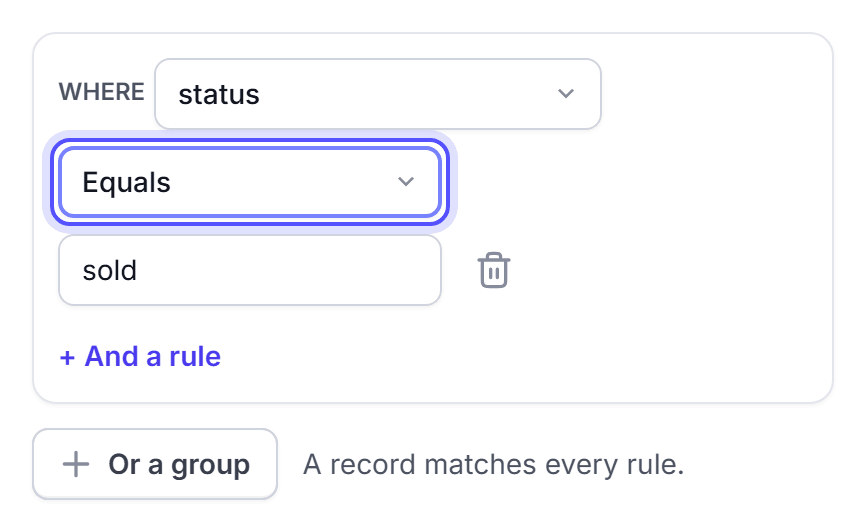
To add a rule that must also match, click + And a rule.
To add a second set of rules, click Or a group. A record then mails when it matches any one group.
You're done when the filter line says the number of filters, for example "1 filter · Only the payloads that pass mail."
The operators depend on the type of the field.
| Field type | Operators |
|---|---|
| All fields | Exists, Not exists, Changed, Unchanged, Equals, Not equals |
| Text | Contains, Not contains, Starts with, Ends with, In, Not in |
| Number | Greater than, Less than, Greater than or equal, Less than or equal, In, Not in |
For In and Not in, enter the values with commas between them, for example sold, won.
Changed and Unchanged compare the record with the last record that had the same unique id. So they need a unique id. See the next section.
Mail each record one time only
Some systems send the same record again each time it changes. Use a unique id and Run Once so that each person gets one mailing.
In Unique Id (Optional), select the field that names the record, for example job_id.
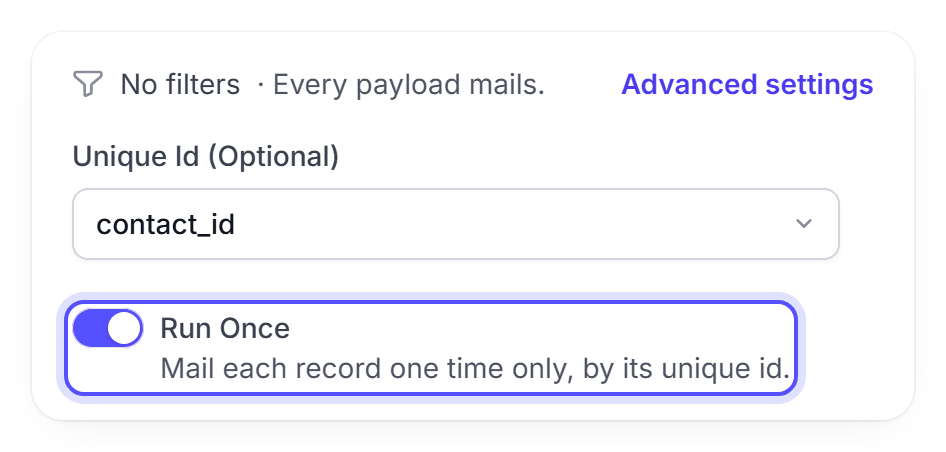
Turn on Run Once.
You're done when Run Once is on and no red message shows under it.
LettrLabs then skips a record when the action already mailed a record with the same id. The History tab shows that run as Deduplicated.
FAQ
Related
Mail to recipients
Mail the person in each record.
Radius Mail
Mail the homes near the address in each record.
Webhook history
See which records mailed, and why a record did not.
Steps checked 2026-11-10.