JobNimbus
Send JobNimbus contacts and jobs to LettrLabs with a JobNimbus automation or with Zapier.
Overview
JobNimbus can send a contact or a job to LettrLabs when a JobNimbus automation runs. LettrLabs then mails the contact, or the homes near the job.
You can send JobNimbus records in two ways:
- A webhook action in a JobNimbus automation sends each record to a LettrLabs webhook.
- A Zap reads JobNimbus and sends each record to LettrLabs.
Use a contact to mail the customer, for example a thank-you card. Use a job to mail the neighbors of the job, with Radius Mail.
Before you begin
- Access to Settings in JobNimbus.
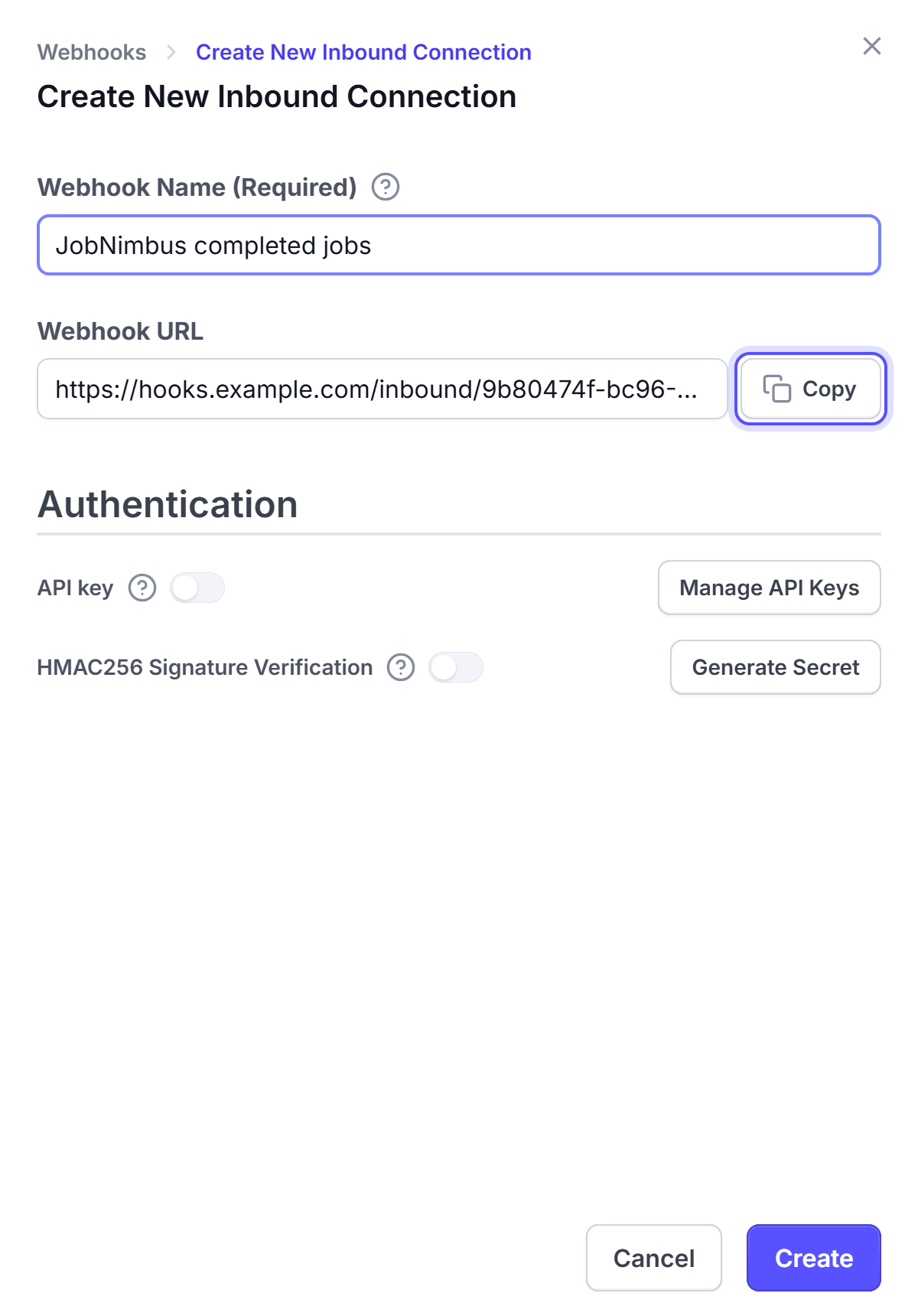
- A LettrLabs webhook with an API key. See The LettrLabs part of each recipe.
Send JobNimbus records with an automation
In JobNimbus, go to Settings > Automation, and click Add Automation.
For the trigger type, choose Events Based. Select the record type and the event, for example Job and Modified.
Click Add Action, and choose Webhook.
Paste the LettrLabs webhook URL.
Turn on Auth. Set the auth key to X-API-KEY, and the auth value to your LettrLabs API key.
Save the automation. Then change one test record so that the automation runs.
You're done when the test record shows on the History tab of the Inbound webhooks page. Then make the campaign, and set the webhook to Active.
Keep the JobNimbus trigger broad, for example any job change. Choose which records mail with the filters of the LettrLabs campaign. See Fields and filters.
The JobNimbus field names
JobNimbus sends its own field names. Match them to the mail fields in the campaign.
| Record | Fields that JobNimbus sends |
|---|---|
| Contact | first_name, last_name, address_line1, address_line2, city, state_text, zip, company |
| Job | address_line1, address_line2, city, state_text, zip, status_name |
The state is in state_text, not in state. For Radius Mail, match the address of the job, not the address of the contact.
Send JobNimbus records with Zapier
In JobNimbus, click your profile icon, then click Settings. Open the API tab, and click New API key. Choose Zapier as the description, and copy the key.
In Zapier, connect JobNimbus with that key.
Connect Zapier to LettrLabs. See Connect Zapier.
Start a Zap with the JobNimbus trigger for a contact or a job.
Add a Filter by Zapier step, for example to continue only when the status of the job is your completed status.
Add the LettrLabs app as the action. Pick your Zapier campaign, and map the name and address fields.
Test the Zap, then publish it.
You're done when the test record shows in your Zapier campaign in LettrLabs.
FAQ
Related
CRM recipes
Compare the recipes of each CRM.
Radius Mail
Mail the homes near each job.
Fields and filters
Match the JobNimbus fields to the mail fields.
Steps checked 2026-11-10.