HubSpot
Send HubSpot deals, contacts and form entries to LettrLabs with a workflow webhook or with Zapier.
Overview
HubSpot can send a deal, a contact or a form entry to LettrLabs when a workflow runs. LettrLabs then mails the person in the record, or the homes near its address.
You can send HubSpot records in two ways:
- A webhook action in a HubSpot workflow sends each record to a LettrLabs webhook.
- A Zap reads HubSpot and sends each record to LettrLabs.
The HubSpot labels on this page can differ a little on your HubSpot plan.
Before you begin
- For a webhook: a HubSpot plan that has the webhook action in workflows, and access to edit workflows.
- For Zapier: a HubSpot Super Admin, to connect HubSpot in Zapier.
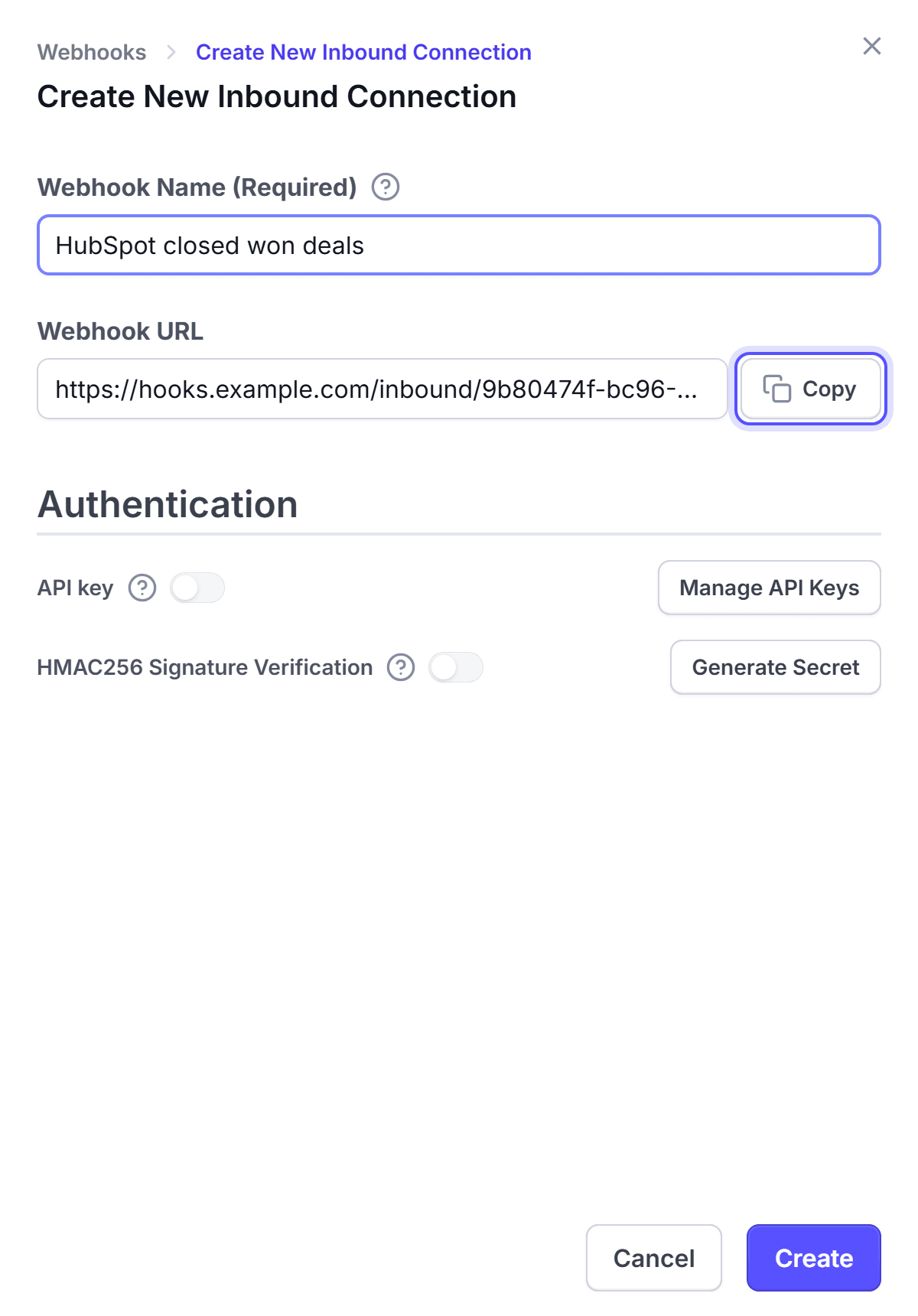
- A LettrLabs webhook with an API key. See The LettrLabs part of each recipe.
Send HubSpot records with a workflow webhook
In HubSpot, go to Automation > Workflows. Open or create the workflow for the record type, for example Deal.
Set the enrollment trigger, for example Deal Stage is Closed Won.
Add the webhook action. HubSpot names it Webhook or Trigger a webhook.
Set the method to POST. Paste the LettrLabs webhook URL.
Add a custom header with the name X-API-KEY. Paste your LettrLabs API key as the value.
If the action lets you choose the properties, send the first name, the last name and the address. Otherwise, send the full record.
Enroll one test record to send the webhook once.
You're done when the test record shows on the History tab of the Inbound webhooks page. Then make the campaign, and set the webhook to Active. See Mail to recipients.
Send HubSpot records with Zapier
Connect Zapier to LettrLabs. See Connect Zapier.
In Zapier, start a new Zap with HubSpot as the trigger app. Sign in with your HubSpot Super Admin.
Pick the trigger, for example Deal Property Change on Deal Stage, or New Form Submission.
Add the LettrLabs app as the action. Pick your Zapier campaign.
Map the HubSpot name and address properties to the LettrLabs fields.
Test the Zap, then publish it.
You're done when the test record shows in your Zapier campaign in LettrLabs.
A HubSpot form often asks for a name and an email only. Add a Filter by Zapier step that continues only when the address is not empty.
FAQ
Related
CRM recipes
Compare the recipes of each CRM.
Set up a webhook
Create the URL that HubSpot sends to.
Fields and filters
Match the HubSpot fields to the mail fields.
Steps checked 2026-11-10.