Integrations
Connect a native integration, and LettrLabs reads and sorts its attribution records for you.
Overview
When you connect a native integration, LettrLabs reads its records for you. You upload nothing. LettrLabs compares each record with the mail you sent, and it marks each record with one attribution state.
You can use a native integration to:
- Get the jobs, estimates, invoices or orders of your system in Attribution Data, each day.
- See which records your mail generated or influenced.
- Count your sales in attribution with no manual step.
What each integration sends
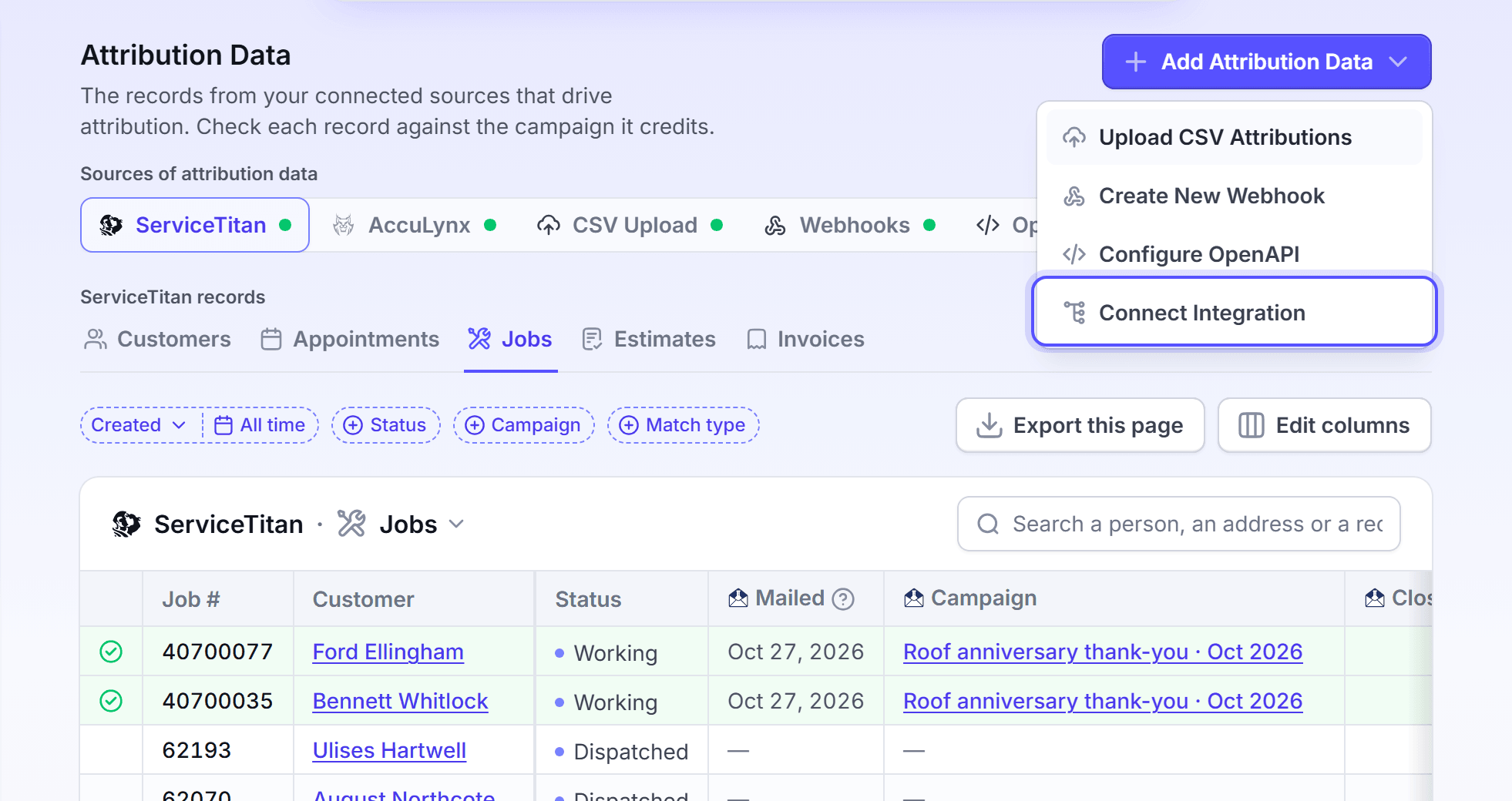
Each integration adds its own tab to Attribution Data. The tab shows after you connect the integration.
| Integration | Record types on its tab |
|---|---|
| ServiceTitan | Customers, Appointments, Jobs, Estimates and Invoices |
| AccuLynx | Customers and Jobs |
| Shopify | Customers and Orders |
The record types on the tab are the records that attribution uses. The Integrations page can list more data types for an integration. Those types feed other parts of LettrLabs, such as the filters of a campaign.
How LettrLabs sorts the records
LettrLabs gives each record one state.
| State | What it tells you |
|---|---|
| Generated | The record matches your mail, and its opportunity was created after the mail arrived, inside the attribution window. |
| Influenced | The record matches your mail, but its opportunity started before the mail arrived. |
| Not attributed | The record matches no mail in the attribution window. |
The attribution window and the other rules are in Settings > Measurement. See How attribution works.
When the records arrive
ServiceTitan and AccuLynx sync each day at 03:00 UTC. The panel of the connection shows Next sync in your own time zone. The panel of a Shopify connection reads On change in place of a time. You cannot change the time of a sync.
A new record shows in Attribution Data after its sync and the next attribution run. This can take up to one day.
Connect an integration
Connect the integration once. LettrLabs then reads it with no more steps.
In the left navigation, under Measurement, click Attribution Data.
Click Add Attribution Data, then click Connect Integration. The Integrations page opens.
Find the card of your integration, and follow the steps of its Help page: ServiceTitan, AccuLynx or Shopify.
You're done when the tab of the integration shows in Attribution Data. The tab reads "No ServiceTitan records yet", or the same text with the name of your integration, until the first records arrive.
To read the records and the reason for each state, see Attribution Data.
FAQ
Related
How integrations work
Connect a source, and keep the connection healthy.
Native integrations
The integrations you can connect.
Attribution Data
Read each record and its attribution.
Steps checked 2026-11-10.