Send by the API
Send your sales and leads to LettrLabs from your own system, with an API key.
Overview
The API lets your own system send each sale or lead to LettrLabs, with no file to upload. Your system sends the records with an API key. Each call shows as one batch on the CSV Uploads tab, beside your CSV uploads.
You can use the API to:
- Send the sales of your CRM or your store each day, with no manual step.
- Send up to 5,000 sales or leads in one call.
- Check the status of a batch, and delete a batch.
A developer usually writes the code that sends the records. This page tells you where to start in the app. The Attributions and conversions developer page gives the full request and the response.
Create an API key
Create a key for each system that sends records. A separate key lets you stop one system and keep the others.
In the left navigation, under Integrations, click API keys.
Click Create key. The Create an API key dialog opens.
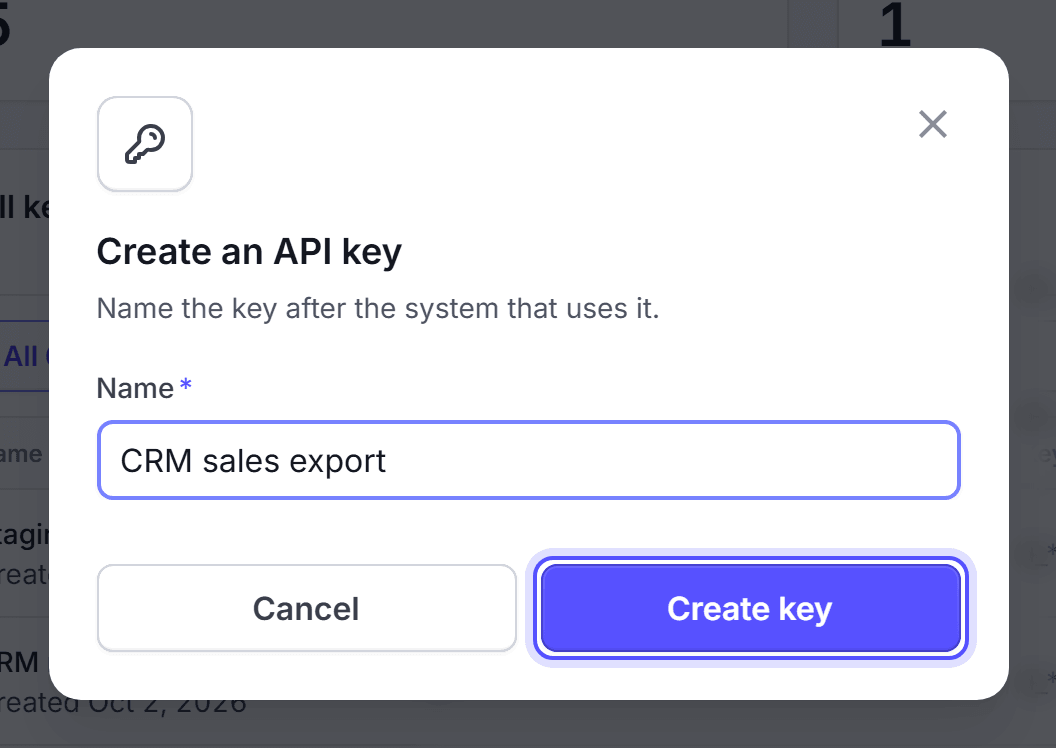
In Name, enter the name of the system that uses the key, for example CRM sales export.
Click Create key.
Click Copy, and give the key to your developer.
You're done when the banner reads that the key is ready, and All keys lists the new key.
Set up your system
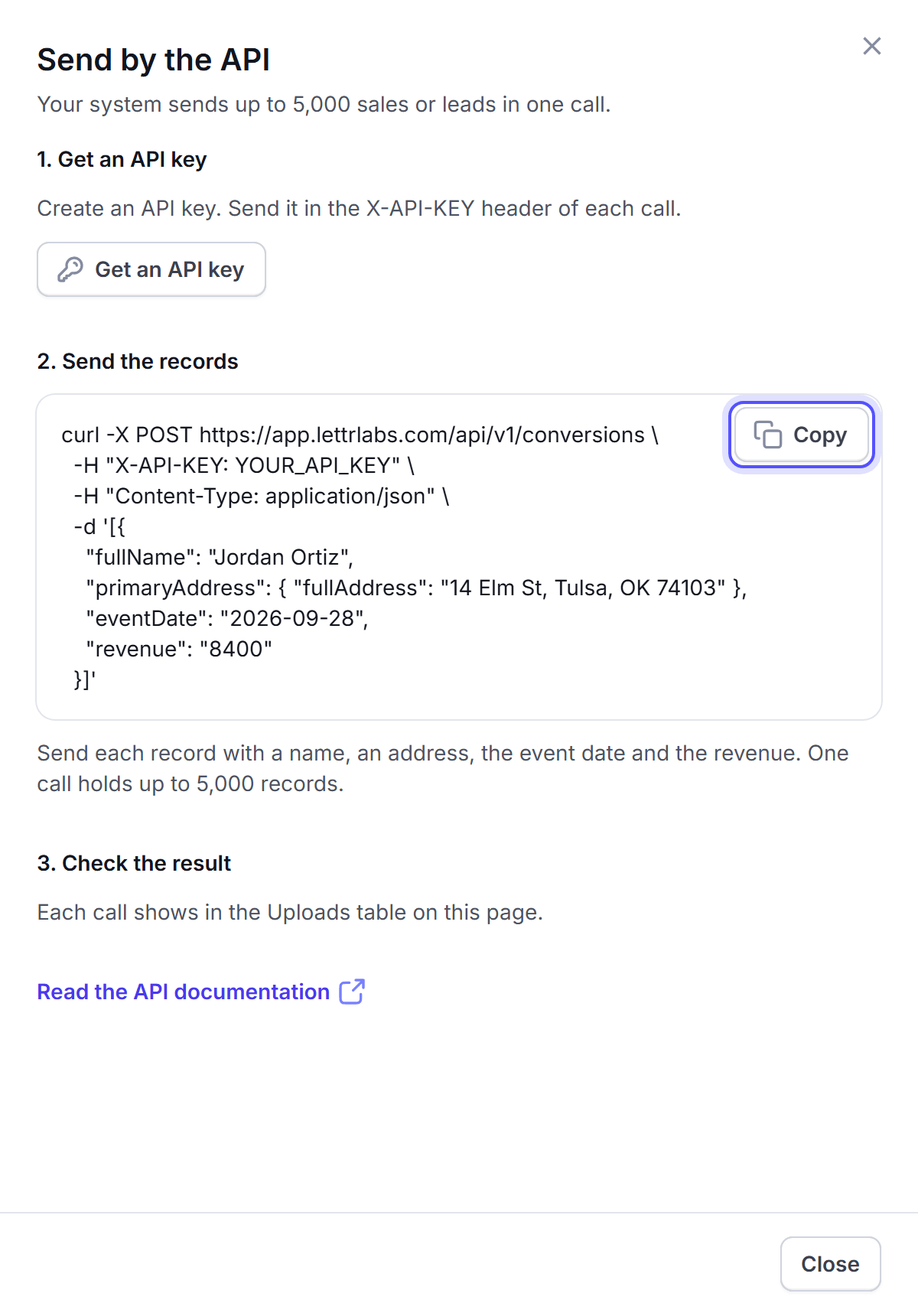
The Send by the API drawer shows an example call, with the address of your account.
In the left navigation, under Measurement, click Attribution Data.
Click Add Attribution Data, then click Configure API. The Send by the API drawer opens.
Under Send the records, click Copy. Give the example call to your developer.
Click Close.
You're done when your developer has the key and the example call.
What your system sends
Your system sends a POST request to /api/v1/conversions, with the key in the X-API-KEY header. The body is a JSON list of records. Each record is one sale or one lead.
| Field | What to put in it |
|---|---|
fullName, or firstName and lastName | The name of the person. |
primaryAddress | The address, as fullAddress, or as all four of address1, city, state and zipCode. |
primaryEmail, primaryPhoneNumber or couponCode | An identifier, when the record has no address. |
eventDate | The date of the sale or the lead, for example 2026-09-28. An empty date reads as the time of the call. |
revenue | The value of the sale. Leave it empty for a lead. |
type | Conversion for a sale, or Lead. |
Each record must hold one identifier: an address, an email, a phone number or a discount code. A conversion with no revenue is stored as a lead.
The API checks a record more strictly than a CSV upload:
- An address in parts needs all four fields:
address1,city,stateandzipCode. A CSV row passes with fewer. - An email or a phone number in the wrong format makes LettrLabs refuse the whole record. Leave a field out when you do not have a correct value.
A call with more than 5,000 records is refused, and LettrLabs keeps none of them. Split a larger set into more than one call.
The API also lists your batches, reads the status of one batch and deletes a batch. The developer page names these calls.
Check the result
Each call shows on the CSV Uploads tab as one batch.
In Attribution Data, click the CSV Upload tab, then click CSV Uploads.
In All sources, select API.
Click the row of the batch to open it. Read Records, Valid and Matched to mail.
You're done when the batch reads Completed. To see why a record was refused, see Review an upload.
FAQ
Related
Upload a CSV
Upload a file of your sales or leads.
Attributions and conversions
The developer reference of the conversions API.
Attribution Data
See each record and the campaign it credits.
Steps checked 2026-11-16.