Shopify
Connect your Shopify store so LettrLabs can mail your customers and your abandoned carts.
Overview
Connect your Shopify store to LettrLabs, and LettrLabs reads the orders, customers and abandoned carts of the store. You install the LettrLabs app in Shopify to connect. LettrLabs reads from Shopify. It never writes to Shopify.
You can use the Shopify connection to:
- Mail first-time buyers and the customers who did not buy again.
- Mail the shoppers who left a cart.
- Connect more than one store to one LettrLabs account.
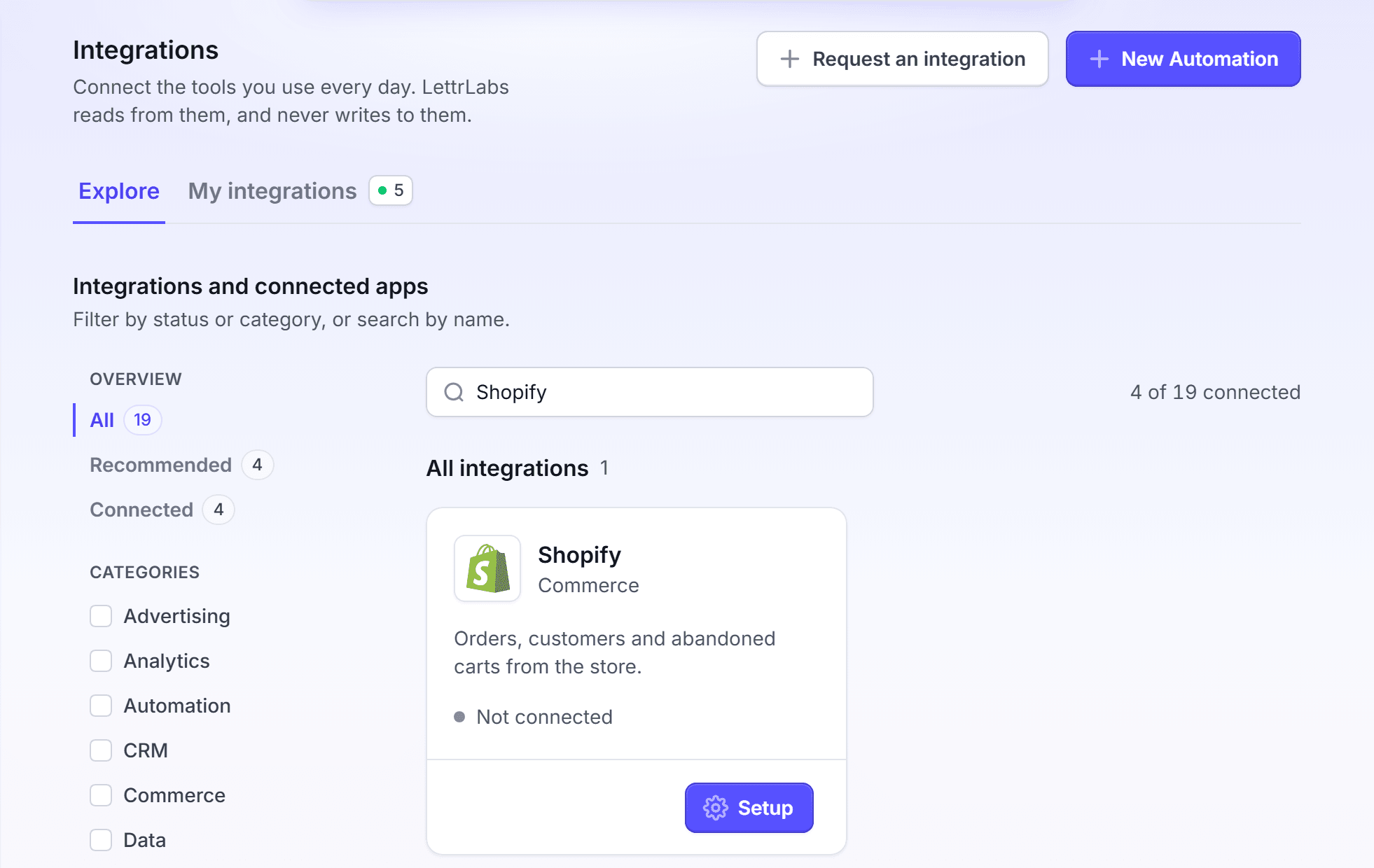
Connect a Shopify store
Connect your store once, before you create a Shopify automation. Any plan can connect the first store. A Shopify automation needs the Core plan or higher.
Click Integrations > Integrations. The Explore tab opens.
On the Shopify card, click Setup. Shopify opens.
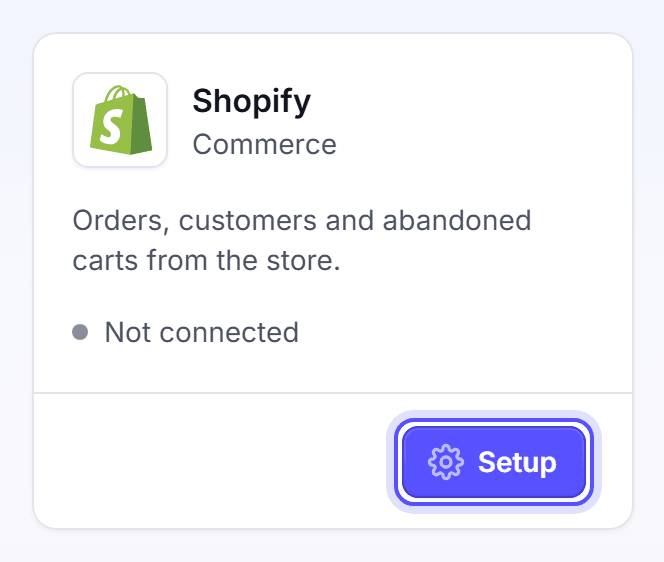
In Shopify, sign in to your store, and install the LettrLabs app. Shopify sends you back to LettrLabs.
Wait while the page shows "Setting up Shopify...". The Congratulations! dialog opens.
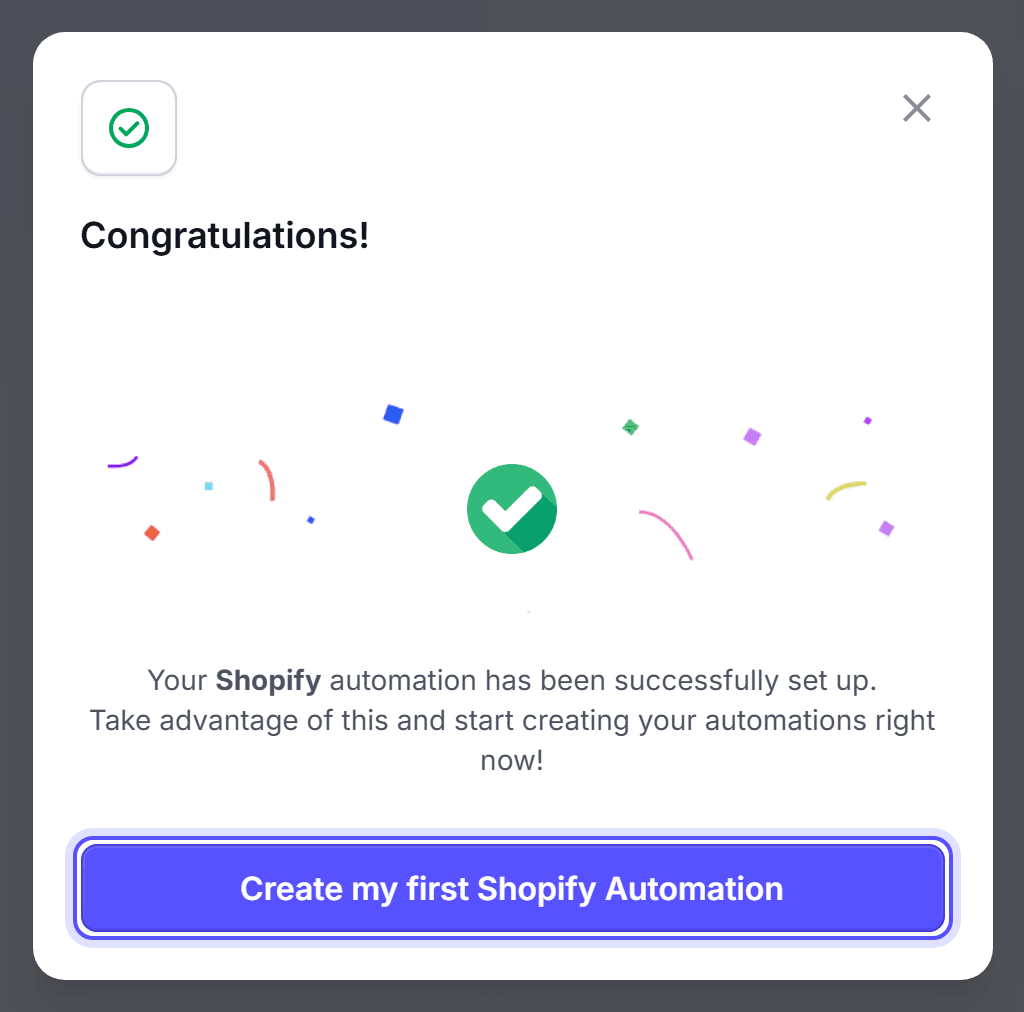
To start an automation now, click Create my first Shopify Automation. Enter an Automation Name, then click Create Automation. Or close the dialog.
You're done when the Shopify card on the Explore tab reads "Healthy · 1 store connected". My integrations lists a row with the name of the store. Shopify does not use the daily sync. Its connection details show On change as the next sync.
Add another store
Add a store when your company sells from more than one Shopify store. You must have the Core plan or higher to add a store.
Click Integrations > Integrations.
On the Shopify card, click Manage. The Shopify window opens, with a list of your stores.
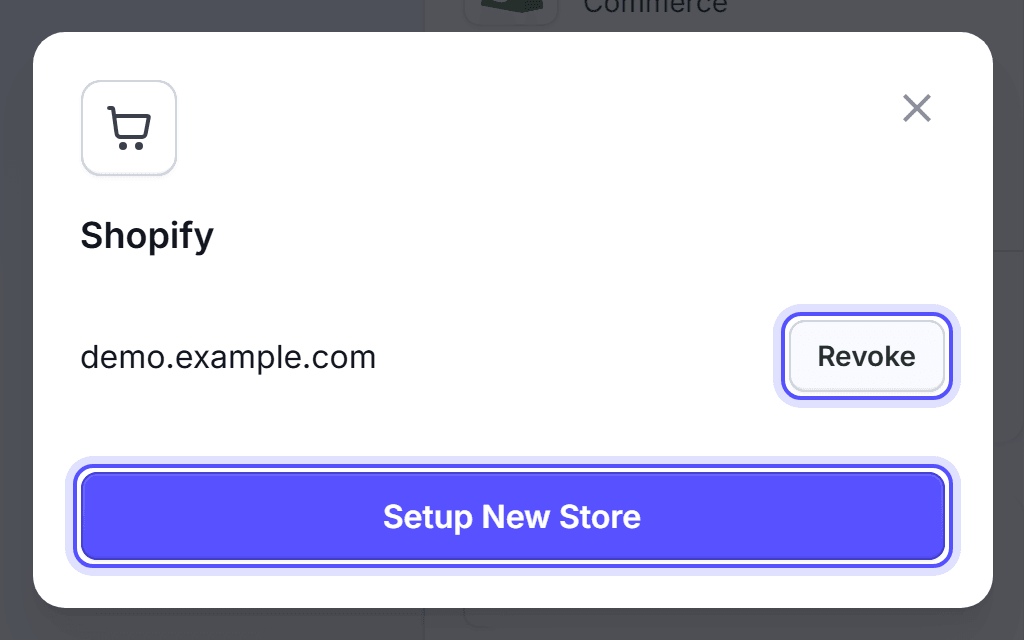
Click Setup New Store. Shopify opens.
Do the steps in Connect a Shopify store from the install step. Sign in to the other store.
You're done when the Shopify card reads "2 stores connected". On a plan lower than Core, Setup New Store opens an upgrade prompt.
Disconnect a store
Disconnect a store when you stop selling from it, or when you stop using LettrLabs with it.
Click Integrations > Integrations.
On the Shopify card, click Manage. The Shopify window opens.
Find the store in the list, and click Revoke.
You're done when the store is no longer in the list. When you revoke the last store, the Shopify card shows the Setup button again. You can also delete a store row on My integrations.
FAQ
Related
CRM and store customers
Mail your store customers and abandoned carts.
How integrations work
Keep your connections healthy.
Native integrations
Compare the tools that LettrLabs reads.
Steps checked 2026-11-10.