AccuLynx
Connect AccuLynx so LettrLabs can mail your customers and the homes near your jobs.
Overview
Connect your AccuLynx account to LettrLabs, and LettrLabs reads your leads, inspections, estimates and signed roofing contracts. LettrLabs reads from AccuLynx. It never writes to AccuLynx.
You can use the AccuLynx connection to:
- Mail your AccuLynx contacts.
- Mail the homes near each new job.
- See on your dashboards the revenue that your mail earned.
Connect AccuLynx
Connect AccuLynx once, before you build a campaign from your AccuLynx data. You need a key from your AccuLynx account. On a plan lower than Core, the Setup button opens an upgrade prompt.
Get a key for LettrLabs from your AccuLynx account. The View setup guide link in the Connect AccuLynx window opens the steps.
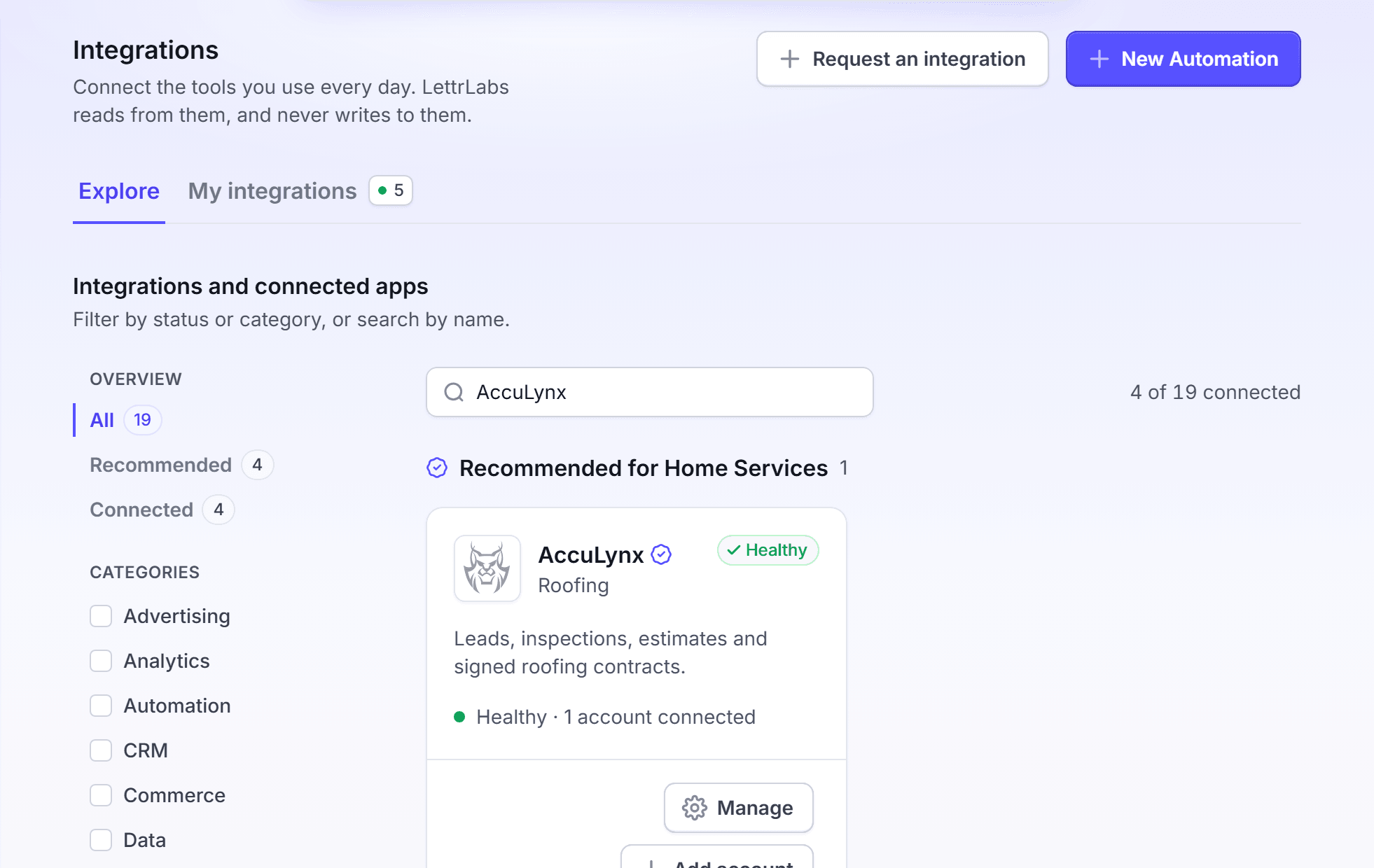
In LettrLabs, click Integrations > Integrations. The Explore tab opens.
On the AccuLynx card, click Setup. The Connect AccuLynx window opens.
In Name, enter a name for the connection. LettrLabs shows this name on campaigns and reports.
Paste your AccuLynx key in the key field.
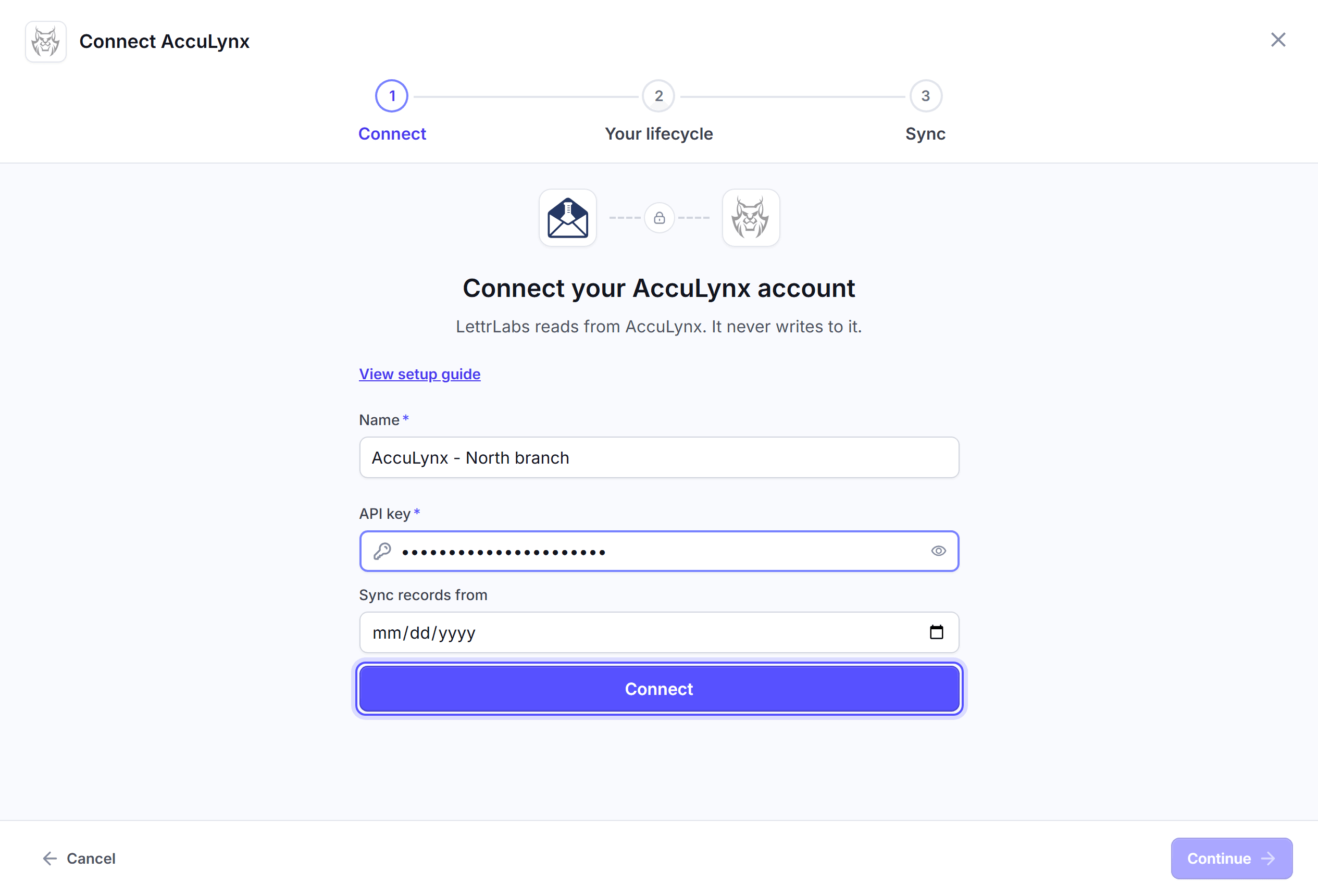
Click Connect. LettrLabs tests the key with AccuLynx. This can take a minute. When the test passes, the window shows "Connected to AccuLynx".
Click Continue. The Your lifecycle step opens. It shows how LettrLabs measures AccuLynx. To change where revenue counts, use Settings > Lifecycle.
Click Connect and sync. The window shows "AccuLynx is connected", and the first sync starts.
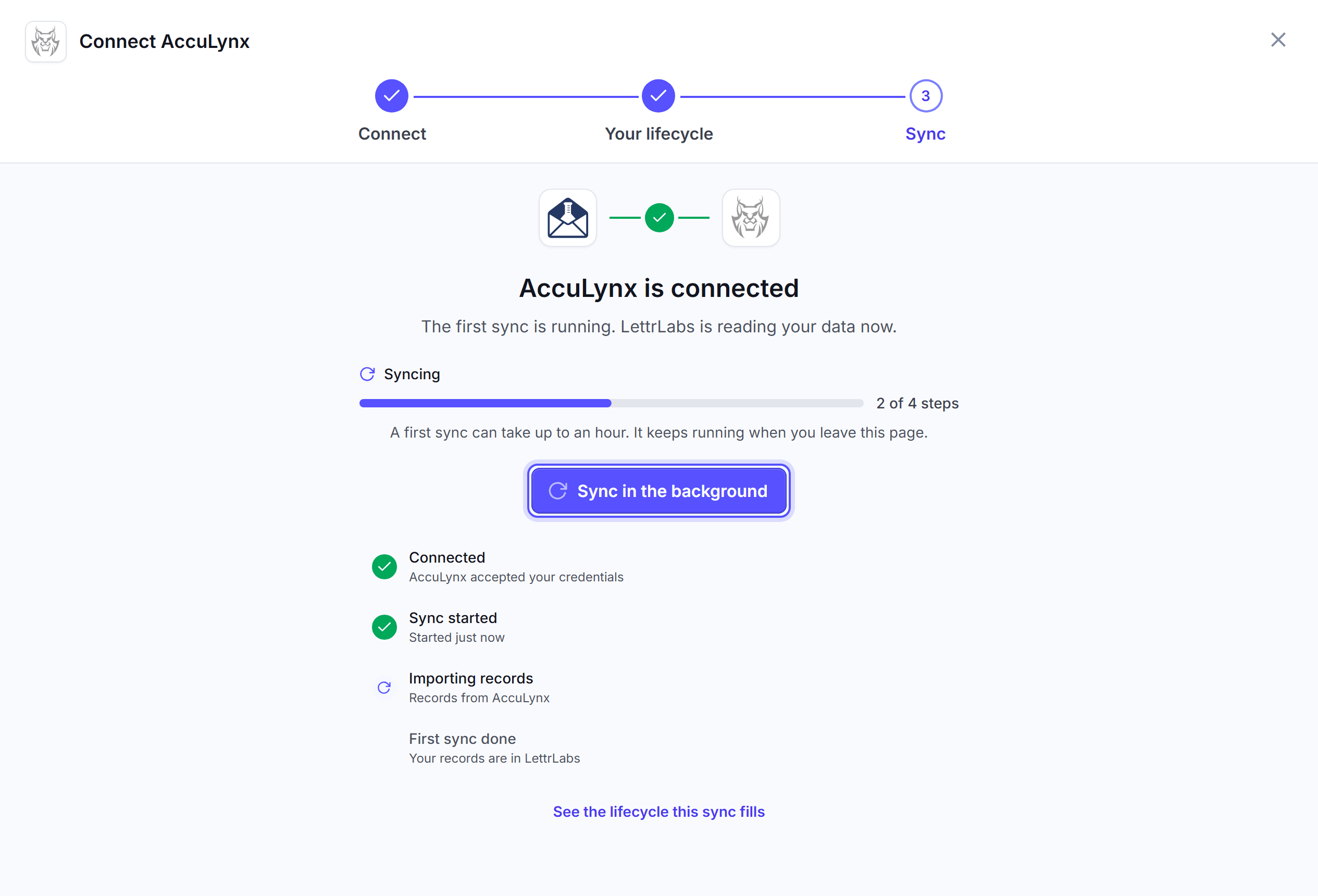
Click Sync in the background. Or wait, then click See my integrations.
You're done when Integrations > Integrations > My integrations lists your AccuLynx connection. Its Health reads Setting up until the connection is active, Syncing during the first sync, then Healthy. A message "AccuLynx integration enabled successfully!" shows when the connection is active.
A first sync can take up to an hour. It keeps running when you leave the page. After it, LettrLabs syncs AccuLynx once a day. You cannot change the sync time.
Connect a second AccuLynx account
Connect a second account when your company uses more than one AccuLynx account. Each account is a separate connection.
On the Explore tab, click Add account on the AccuLynx card. The Connect AccuLynx window opens.
Give the connection a name that is different from your first AccuLynx connection.
Do the steps in Connect AccuLynx from the Name step.
You're done when My integrations lists two AccuLynx connections. The AccuLynx card reads "2 accounts connected".
Disconnect AccuLynx
Disconnect AccuLynx when you stop using it.
Click Integrations > Integrations > My integrations.
Open the menu on the AccuLynx row, and click Delete.
In the Delete this connection? dialog, click Delete.
You're done when My integrations no longer lists the connection. To stop the key in AccuLynx too, remove it in your AccuLynx account.
FAQ
Related
CRM and store customers
Mail your AccuLynx contacts and the neighbors of each job.
How integrations work
Keep your connections healthy.
Native integrations
Compare the tools that LettrLabs reads.
Steps checked 2026-11-16.