ServiceTitan
Connect ServiceTitan to mail your customers and the neighbors of your jobs, and to see the revenue your mail earned.
Overview
Connect your ServiceTitan account to LettrLabs, and LettrLabs reads your customers, locations, jobs, estimates, invoices, leads and memberships. LettrLabs reads from ServiceTitan. It never writes to ServiceTitan.
You can use the ServiceTitan connection to:
- Mail your ServiceTitan customers.
- Mail the homes near each new job.
- See on your dashboards the revenue that your mail earned.
Connect ServiceTitan
Connect ServiceTitan once, before you build a campaign from your ServiceTitan data. The steps are in two products. Do the first part in ServiceTitan, then the rest in LettrLabs.
On a plan lower than Core, the Setup button opens an upgrade prompt. You must be a ServiceTitan admin to do the first part.
Get your credentials in ServiceTitan
Sign in to ServiceTitan as an admin.
Open Settings > Integrations > API Application Access.
Click Connect New App.
Select LettrLabs, then click Allow Access.
Copy the Client ID.
Generate a Client Secret, and copy it.
Copy your Tenant ID.
Enter the credentials in LettrLabs
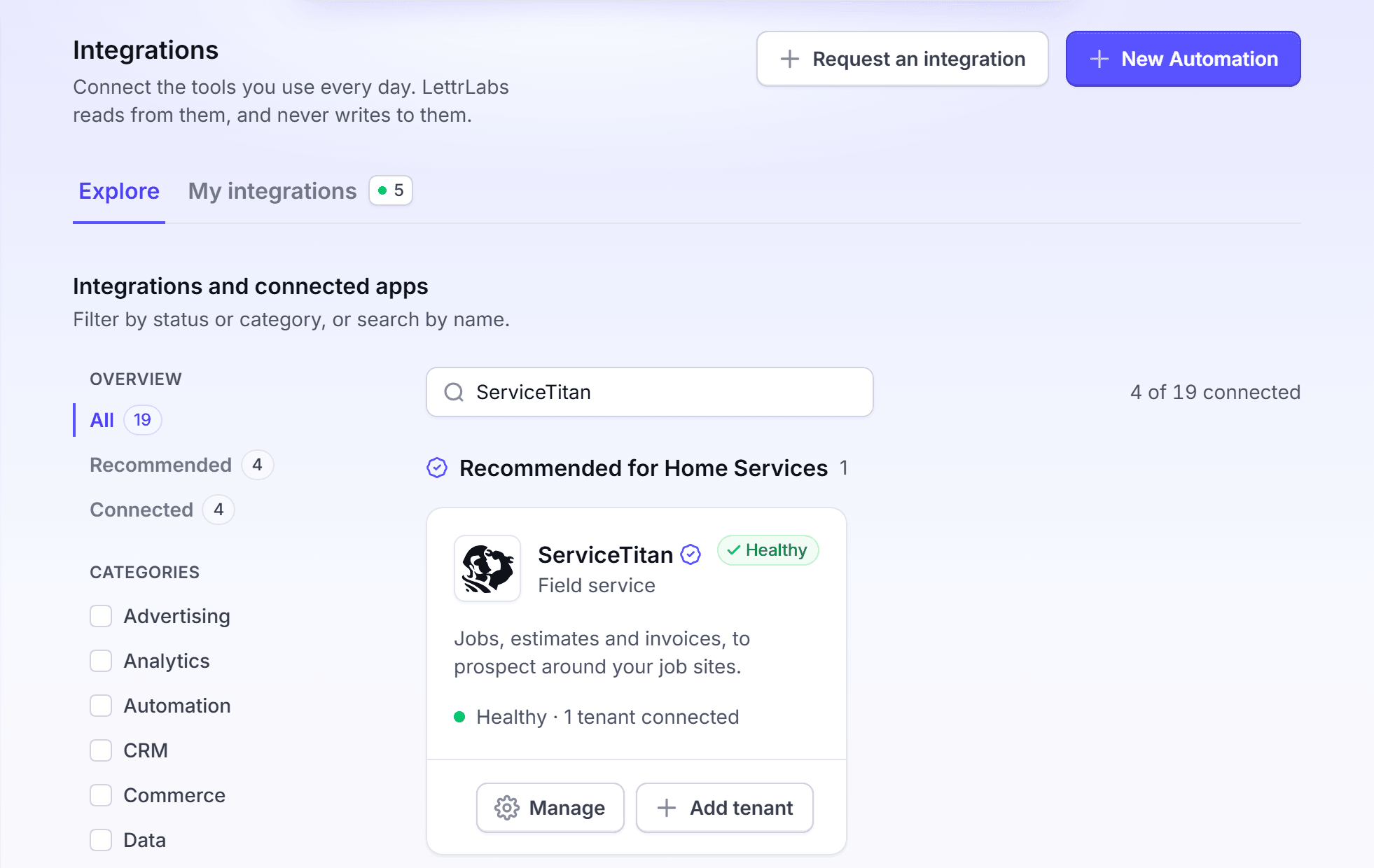
In LettrLabs, click Integrations > Integrations. The Explore tab opens.
On the ServiceTitan card, click Setup. The Connect ServiceTitan window opens.
In Client ID, paste your Client ID.
In Client Secret, paste your Client Secret.
In Tenant ID, paste your Tenant ID.
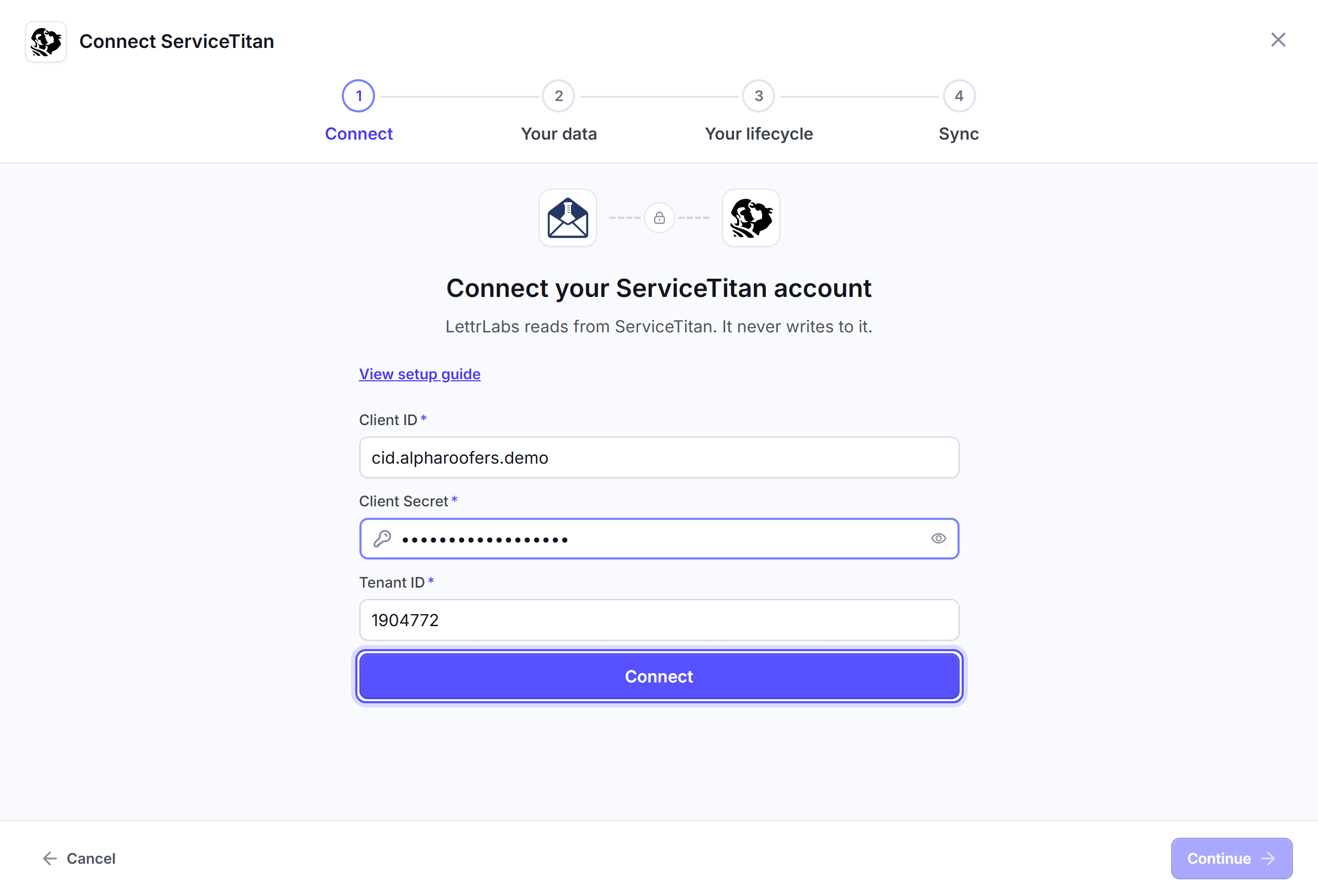
Click Connect. The window shows "Connected to ServiceTitan".
Click Continue.
See the data LettrLabs reads
On the Your data step, read the record types that LettrLabs reads: Customers, Locations, Jobs, Estimates, Invoices, Leads and Memberships. You cannot change this list.
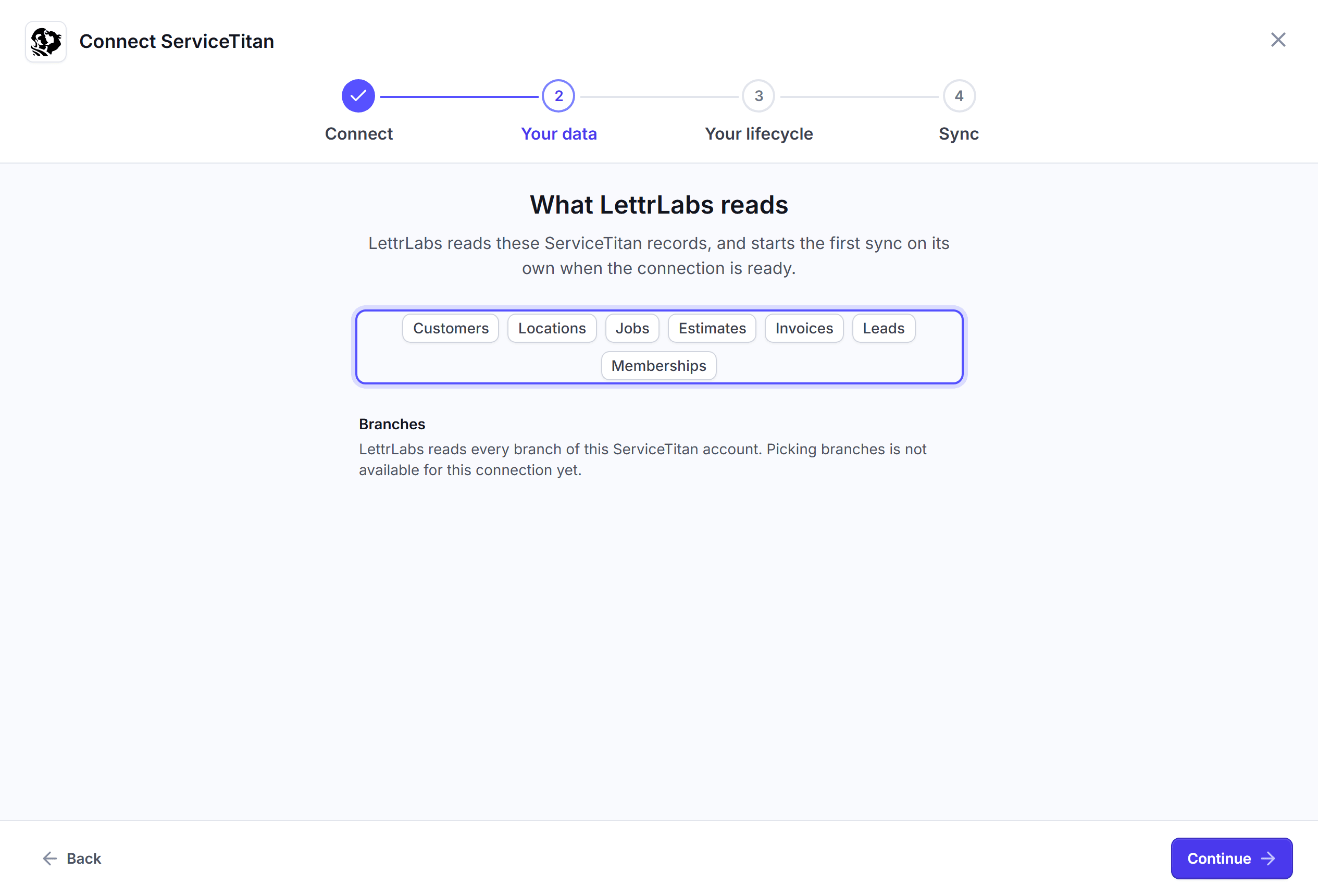
If your ServiceTitan account has branches, select All branches or Specific branches. Every branch syncs. The branches you pick are the ones LettrLabs mails and measures.
If you selected Specific branches, select each branch that LettrLabs mails and measures.
Click Continue. The Your lifecycle step opens.
Read how LettrLabs measures ServiceTitan. To change where revenue counts, open Settings > Lifecycle.
Start the first sync
Click Continue. The window shows "ServiceTitan is connected", and the first sync starts.
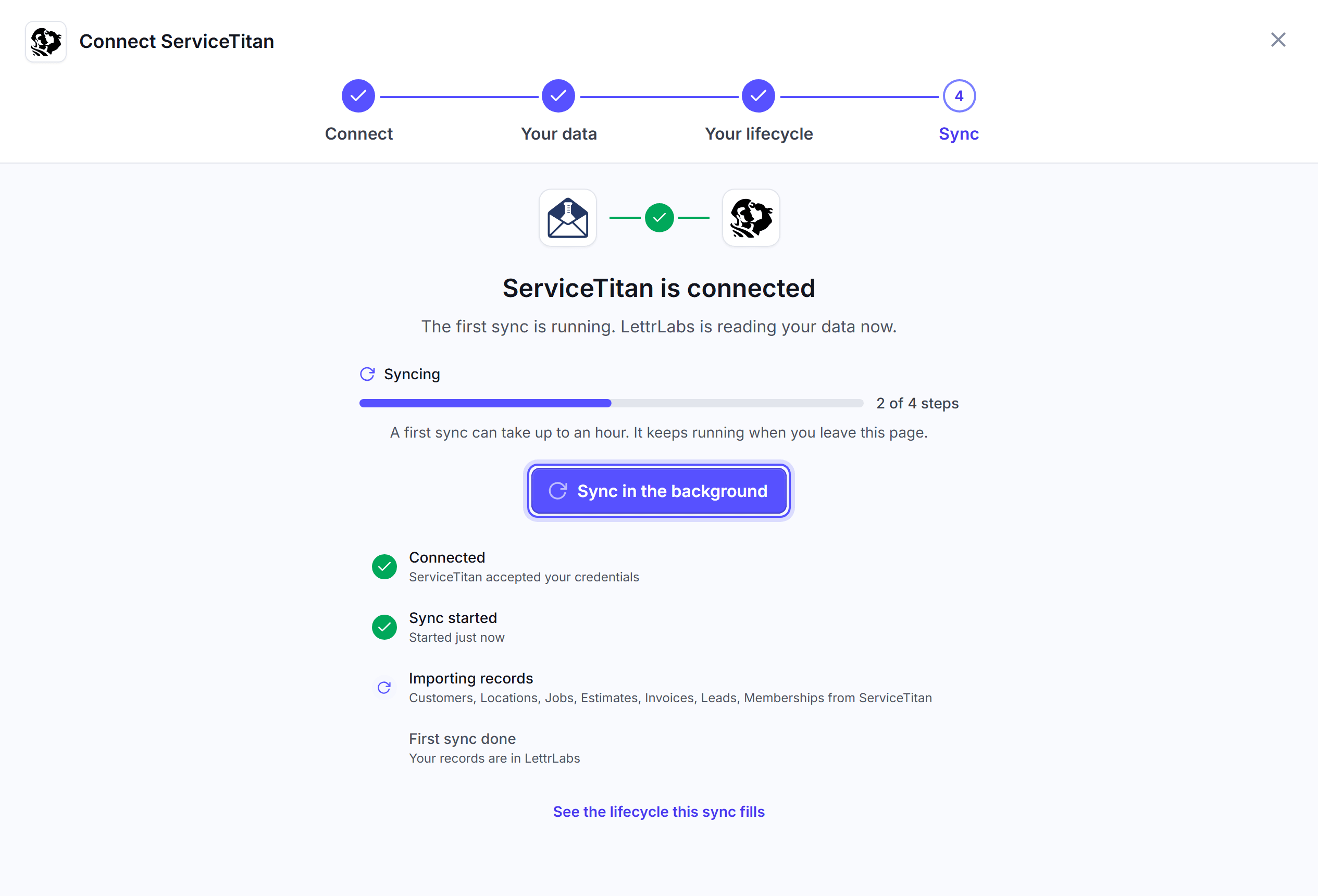
Click Sync in the background. Or wait, then click See my integrations.
You're done when Integrations > Integrations > My integrations lists the ServiceTitan connection. Its Health reads Syncing during the first sync, then Healthy. If your ServiceTitan admin has not approved the LettrLabs app, the row reads Setting up until the approval. LettrLabs checks for the approval once a day, and Next sync reads After approval. On the Explore tab, the card reads "Healthy · 1 tenant connected". In ServiceTitan, API Application Access lists LettrLabs as a connected app.
The first sync can take up to an hour, and it keeps running when you leave the page. After it, LettrLabs syncs once a day. To stop the connection, see Disconnect ServiceTitan.
What LettrLabs reads and when
LettrLabs reads the ServiceTitan records in the table below. The table gives each record type, how often it syncs, and what LettrLabs writes back.
| Data | When | What LettrLabs writes to ServiceTitan |
|---|---|---|
| Customers | Once a day | Nothing |
| Locations | Once a day | Nothing |
| Jobs | Once a day | Nothing |
| Estimates | Once a day | Nothing |
| Invoices | Once a day | Nothing |
| Leads | Once a day | Nothing |
| Memberships | Once a day | Nothing |
You cannot change the sync time. A record that changes in ServiceTitan shows in LettrLabs after the next daily sync.
To change the branches that LettrLabs mails and measures, open My integrations. Open the menu on the ServiceTitan row, and click Settings. Change Branches, then click Save changes. A new connection can show no branch choice yet. Its panel reads "LettrLabs reads every branch of this ServiceTitan account. Picking branches is not available for this connection yet."
Pick the records to mail
A ServiceTitan campaign can mail only the records that match your filters. You set the filters on the Audience step of Send Mail, under Pick the records to mail. See CRM and store customers for the steps to build the campaign.
Under Pick the records to mail, click Add filter. A filter row opens.
In Select filter..., pick a filter from the table below.
In Select operator..., pick how to compare. Then pick or type the value.
To add a filter that also must match, click And under the group. To add a group that can match instead, click Or.
You're done when the filters show under Pick the records to mail. The campaign mails only the records that match.
These filters use the ServiceTitan data:
| Filter | What it reads |
|---|---|
| Customer Type | The type of the customer in ServiceTitan, for example Residential or Commercial. |
| Has Job Matching | Customers with a job that matches your rules, for example a job status, a job type, a business unit or a job total. |
| Estimate Result | The result of an estimate of the job: Sold, Not sold or Dismissed. |
| Estimate Total | Jobs with at least one estimate whose total is in the range. Each estimate counts alone. LettrLabs never adds the estimates together. |
| Estimate Created On | The date that an estimate of the job was created. |
| Membership Status | The state of a membership: Active, Expired, Canceled, Suspended or Deleted. |
| First Membership Start (days ago) | How many days ago the first membership of the customer started. A future start is skipped. |
A filter with a list of values, such as Customer Type, reads its values from your synced data. It reads "No values synced yet" until the first sync ends. You type a number or a date yourself.
Disconnect ServiceTitan
Disconnect ServiceTitan when you stop using it, or before you connect a different ServiceTitan account.
In LettrLabs, click Integrations > Integrations > My integrations.
Open the menu on the ServiceTitan row, and click Delete.
In the Delete this connection? dialog, click Delete.
In ServiceTitan, open Settings > Integrations > API Application Access.
Remove the access of LettrLabs.
You're done when My integrations no longer lists the ServiceTitan connection, and ServiceTitan no longer lists LettrLabs. To connect again, do the steps in Connect ServiceTitan.
FAQ
Related
CRM and store customers
Mail your ServiceTitan customers and the neighbors of each job.
Dashboards
See the revenue your mail earned.
How integrations work
Keep your connections healthy.
Steps checked 2026-11-16.